15
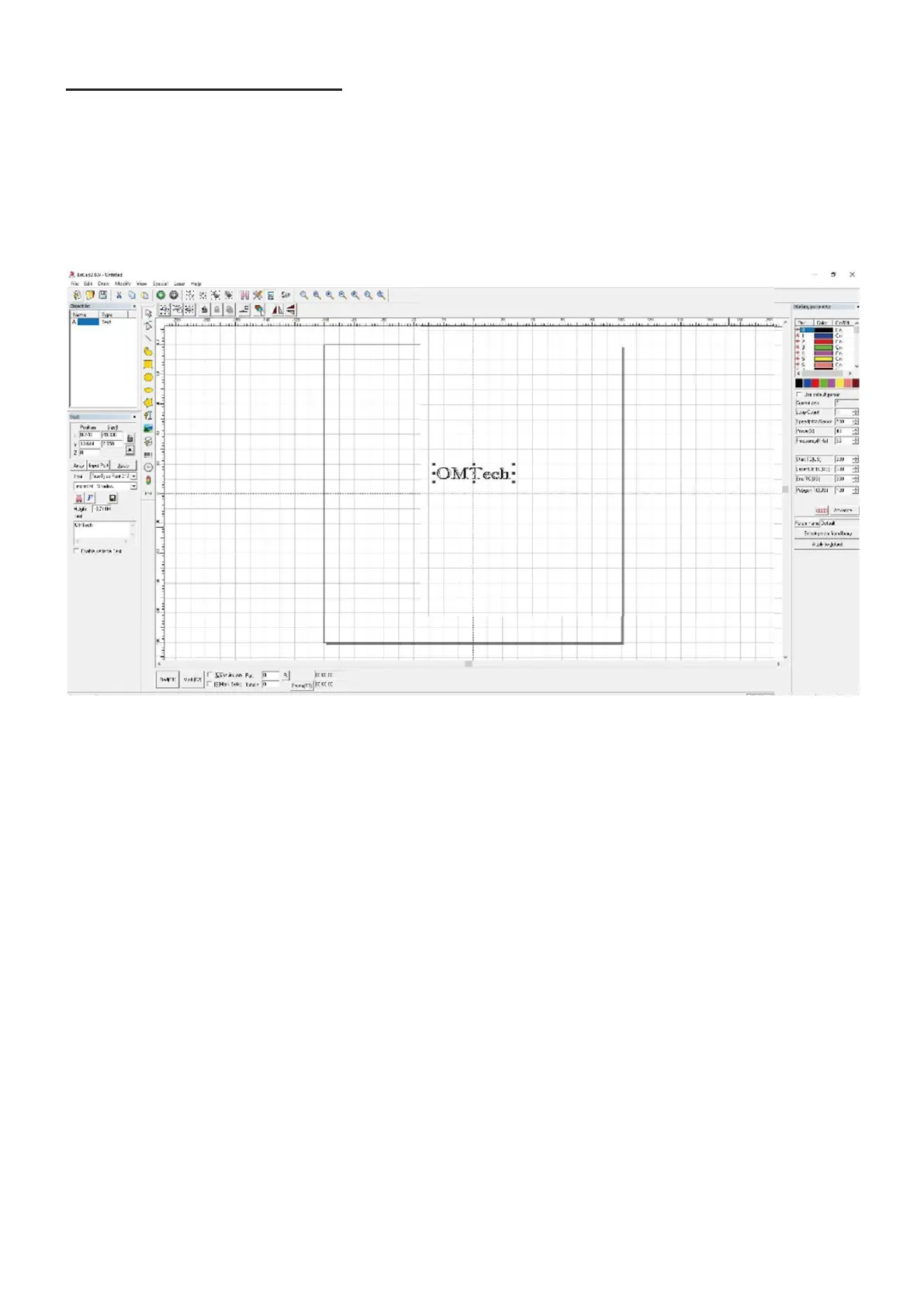
4. Customize your contrast and engraving depth by adjusting the engraving parameters in EZCad.
• To darken an image, use a higher frequency setting. To lighten it, use a lower one.
• To increase engraving depth, increase the amount of energy per unit area by reducing the speed parameter
or increasing the laser's power or the number of loops.
• For recommended settings for specic materials, see Instructions for Specic Materials (Page 17).
Note:
• Engraving too deep, however, reduces image quality, especially for coated materials.
• Constantly using settings over 80% will shorten the expected service life of your laser.
• Resolution should usually be set to 500 dots per inch. Reducing your image resolution can be helpful in some
cases, reducing aming and increasing the energy of the pulse in a way that improves the quality of the resultant
image in some materials such as some plastics.
4.2.3 Using the EZCad Software
1. Make sure your computer has been already connected and EZCad has been already running.
2. Restart the computer to establish a connection between the computer and the laser marking machine’s control
board.
3. Load or create a design in EZCad.
For more details about software instructions, see EZCad Instruction Manual.



 To Next Page