Ocularis Web User Guide Viewing Recorded Video
Viewing Recorded Video
When an incident occurs, viewing recorded video is easily done by switching the screen to Browse mode. Settings
related to recorded video (such as when to record) are configured on the camera’s corresponding recording component.
Browse Mode
Click Browse in the main menu to switch to Browse mode. Once in Browse mode, the menu item will change to Live for
returning to Live monitoring.
The View (Browse)
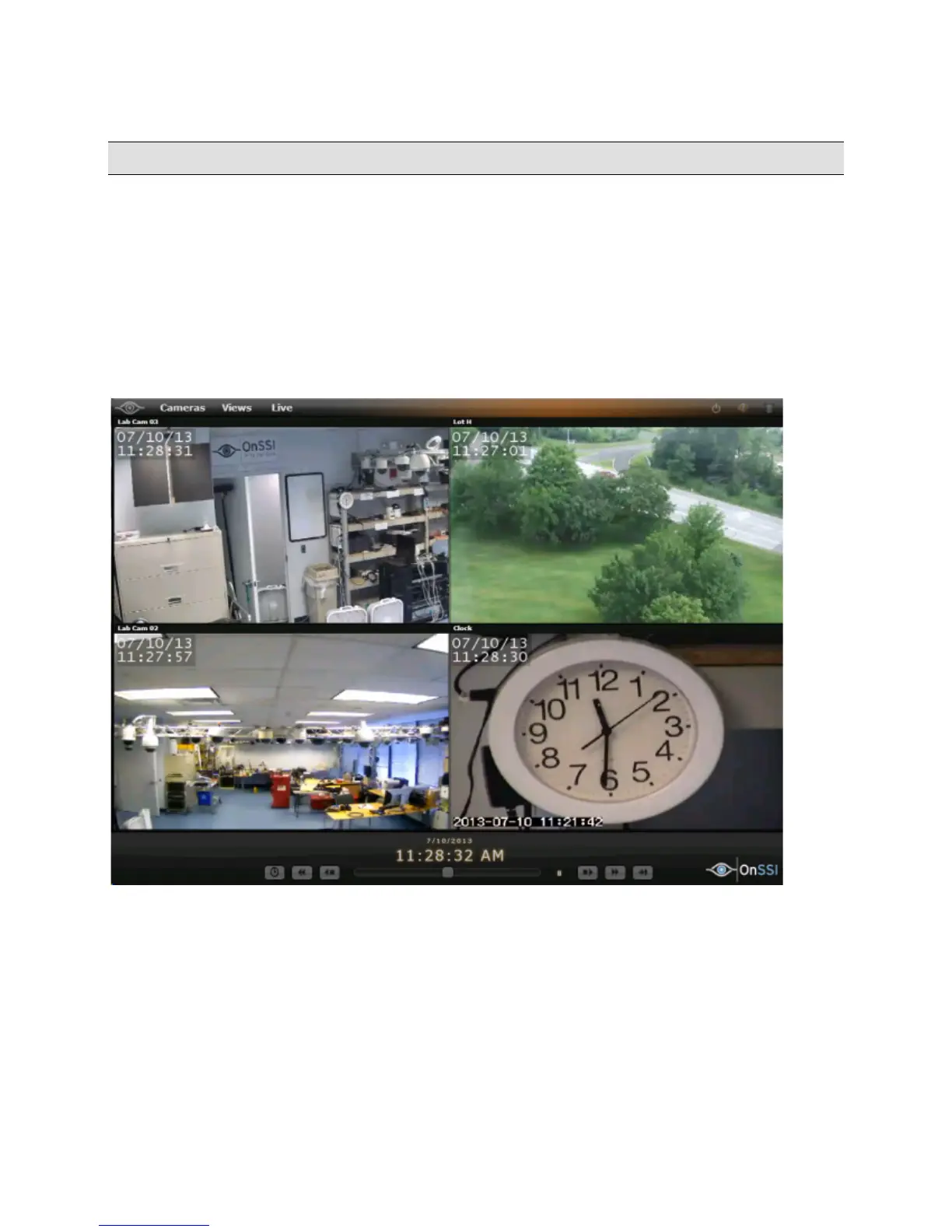
A Sample View in Browse mode
The Browse menu item is replaced with 'Live'. Click this menu item to return to Live mode.
At the bottom of the screen, a set of Playback Controls appears along with the date and time stamp of the displayed
video.
Each pane displays a date and time stamp for the frame in view. If a frame exists for the requested time, the display will
appear in white text. If the stream does not have a frame for the requested time, the text appears in red text.
Browse mode in Ocularis Web displays all cameras synchronously. Actions performed with the playback controls apply
to all visible video panes. For instance, playing video from 6:00 a.m. will result in all panes playing video from 6:00 a.m.
(assuming it was recorded in the first place).
On-Net Surveillance Systems, Inc. 17



 To Next Page