Viewing Recorded Video Ocularis Web User Guide
The time displayed in Ocularis Web reflects the time on the Ocularis Media Server. This time could be different (e.g.
different time zone) from the Ocularis Web user, the recorder or even the Ocularis Base computer.
Playback Controls
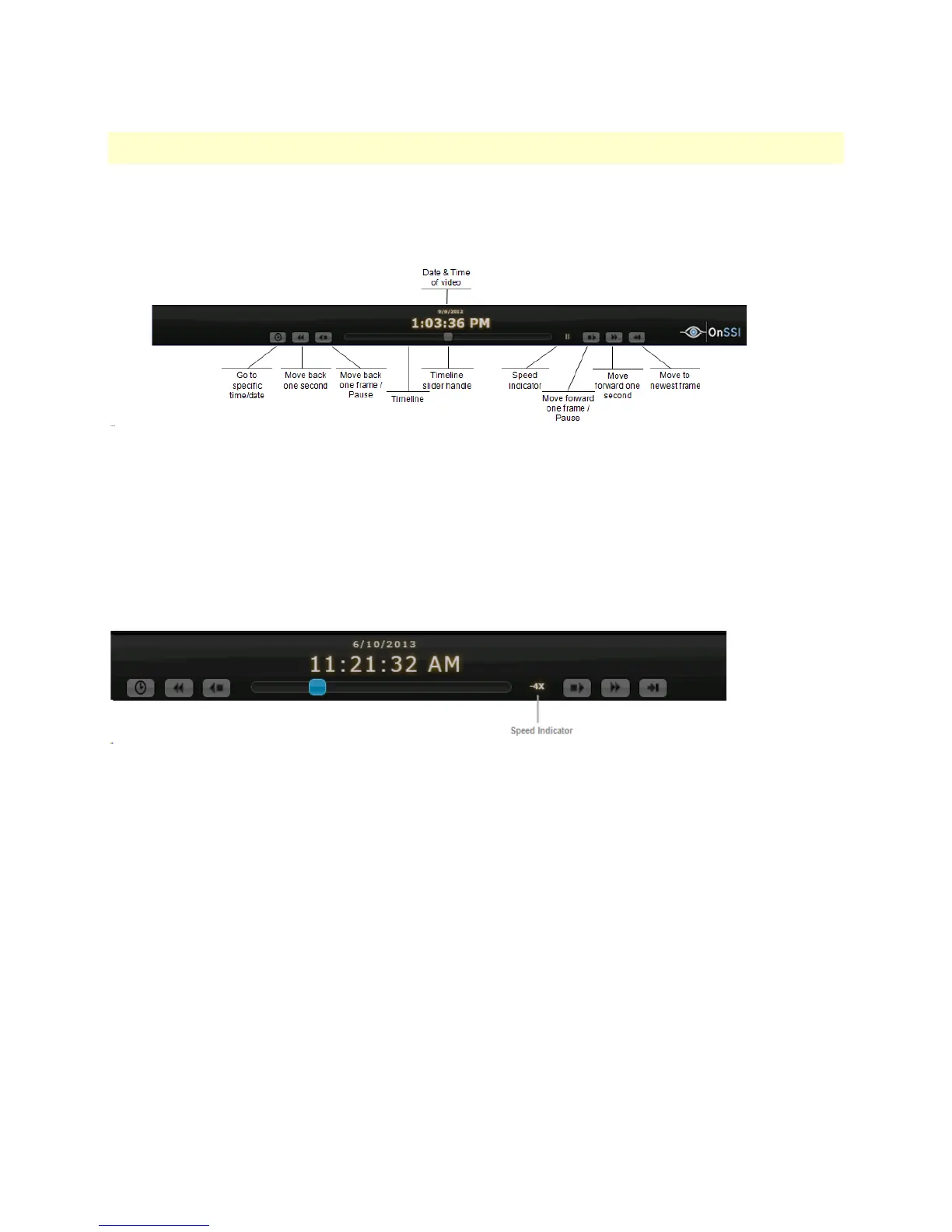
The following defines the function for each playback control:
To Browse Recorded Video
There are many different ways to view recorded video.
• Drag the Timeline slider handle to the left or the right to play video backwards or forwards.
• The Speed indicator let’s you know the speed of the playback. A negative number (e.g. -4X) indicates that the
video is playing backwards.
The further to the left or right that the Timeline slider is placed will direct the speed. The Timeline is calibrated so that the
slider jumps from one speed to the next.
Sample for reverse playback in 4 times normal speed
Only video in 1 x 1 views may use up to 12x (twelve times) normal speed for video playback. Views with multiple panes
may only play forward or backward in 1x (normal speed). You may maximize a pane in order to view the video with
increased playback speed.
• Click the Move back one second / Move forward one second icons to move video accordingly.
• Click the Move back one frame / Move forward one frame icons to move video accordingly.
• Click the Go to specific time/date to advance directly to another date or time.
18 On-Net Surveillance Systems, Inc.



 To Next Page