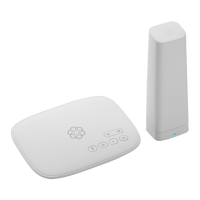
Ooma Usage Guide
Making and receiving calls
To place a call, pick up a phone connected to your
Ooma Base Station and dial a phone number.
To answer a call, pick up the phone when it rings
as you normally would.
Call-waiting
Switch to a second incoming call by pressing the
Flash key on your telephone handset. The current
call will automatically be put on hold. To switch back,
press the Flash key again.
Blocking caller-ID
Disable your caller-ID on outgoing calls by dialing
*
6
7
before you dial out. To disable caller-ID for all
calls, visit: my.ooma.com/privacy
911 emergency calling
In case of an emergency, dial
9
1
1
to reach first
responders. For your safety, always keep your address
up to date at: my.ooma.com/address
Basic Operation
International and other calling services
A calling plan or prepaid balance is required to call
outside the country. Visit my.ooma.com/prepaid to
get started, then dial
0
1
1
followed by the country
code and phone number. Your remaining balance will
be announced before the call completes.
NOTE: A prepaid balance is required for 411 calls.
Voicemail
Setting up
Pick up your phone and press the key on the Ooma
Base Station. The system will walk you through
setting up your PIN and recording a personal greeting.
Playing messages at home
When you have new messages, the key will blink.
Press the key to listen to your voicemail through the
speaker. You can also listen to messages through your
phone. Simply dial your own phone number and follow
the voice prompts.
Ooma Premier Features
Ooma Premier is a bundle of enhanced calling
features that will get your home phone service
firing on all cylinders. Here are some of the
most popular features and benefits of a
Premier subscription:
Making two calls at once
Use your Ooma HD3 Handset to activate the Instant
Second Line™ for a fresh dial tone while you have an
active call.
Forwarding your voicemail
Forward your voicemail to email so you can listen to
messages from your smartphone or computer. To set
this up, go to: my.ooma.com/voicemail
Staying connected on the go
Afraid to miss a call? Set up your Ooma account to
forward calls to your cell phone. Choose between
forwarding for all calls, forwarding only when your
Internet is down, or simultaneously ringing both
your cell phone and your home phone. Set this up at:
my.ooma.com/calling
Checking voicemail remotely
There are three ways to check voicemail remotely:
1. Phone: Dial your Ooma number. When the call rolls to
voicemail, press the
*
key and enter your PIN
2. Online: Listen to and manage your voicemail on the web
at: my.ooma.com/inbox
3. Email: Forward your voicemail as an MP3 file to your
email or mobile phone (requires Ooma Premier). Set up
forwarding at: my.ooma.com/voicemail
Changing voicemail settings
Pick up the phone connected to your Ooma Base
Station and press the key.
From the main menu, select OPTION 2: “Change your
settings,” then follow the instructions.
14 15



 To Next Page