3. Click on the Ports tab
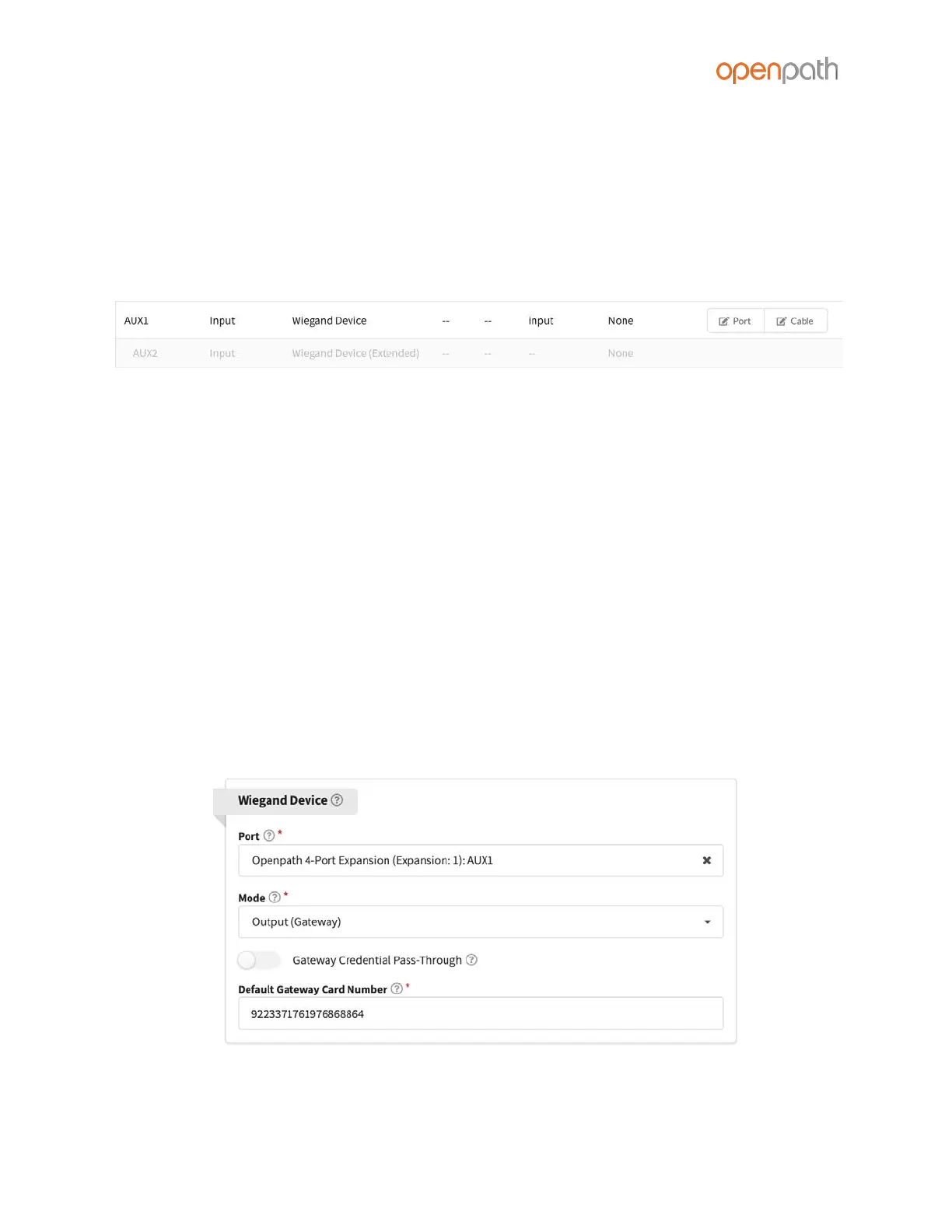
4. Click Port next to the first input of the I/O pair with a Wiegand device
configured (in example 1, Contact2; in example 2, AUX1)
5. Select Wiegand Device from the Input Type dropdown, then click Save
This will label the subsequent input as Wiegand Device (Extended) and disable it
from editing. Inputs cannot be changed if they are already assigned to an entry.
Figure 18: Input settings in the Control Center
Once the Wiegand Device is configured on the ACU, it can be assigned to an Entry.
Go to Entry Management, then create or edit an existing entry. In the Wiegand Device
settings, configure the following:
● Port — select the port for the Wiegand Device to which this Entry is wired
● Mode — select the Mode to set which direction the card credential data is sent:
○ Use Input to receive data from devices such as a Wiegand reader
○ Use Output (Gateway) to send credential data to a third—party control
panel
■ Enable Gateway Credential Pass-Through if you do not want
Openpath to authenticate credentials, but rather send all data to
the legacy panel for authentication
■ Enter a Default Gateway Card Number so that all credentials
(including mobile credentials) are sent to the legacy panel as a
Wiegand ID
Figure 19: Assigning a Wiegand Device to an Entry



 To Next Page