EasyManua.ls Logo

opti-solar SP6000 Handy Ultra - User Manual

Default Icon
78 pages
Print Icon
To Next Page IconTo Next Page
Loading...
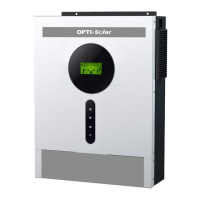
Solar Hybrid Inverter
SP6000 Handy Ultra 120V
SP8000 Handy Ultra 230V
Version: 1.1
User Manual

Questions and Answers

Summary

About This Manual

Purpose

Describes unit assembly, installation, operation, and troubleshooting.

Scope

Provides safety, installation guidelines, and tool/wiring information.

Safety Instructions

Introduction

Features

Lists key features of the multi-function inverter.

Basic System Architecture

Illustrates the basic system setup and required devices.

Product Overview

Installation

Unpacking and Inspection

Details items to check after receiving the inverter unit.

Preparation

Instructions for preparing the unit before wiring.

Mounting the Unit

Guidelines for selecting a suitable mounting location.

Battery Connection

Instructions for connecting the battery to the inverter.

AC Input;Output Connection

Steps for connecting AC input and output wires.

PV Connection

Steps for connecting PV modules to the inverter.

Recommended Panel Configuration

Guidance on selecting appropriate PV modules for optimal performance.

Final Assembly

Final steps to secure the unit after wiring.

Remote Display Panel Installation

Instructions for installing the detachable LCD module remotely.

Communication Connection

Serial Connection

Connecting the inverter to a PC via serial cable for monitoring.

Wi-Fi Connection

Enabling wireless communication using Wi-Fi module and APP.

Dry Contact Signal

Using the dry contact for external device signaling.

BMS Communication

Connecting to Lithium-Ion battery banks via BMS.

Operation

Power ON;OFF

Procedure for turning the inverter unit on and off.

Inverter Turn-on

Description of the startup sequence and LED bar behavior.

Operation and Display Panel

Overview of the control panel, indicators, and keys.

Function Keys

Description of the function keys and their operations.

LCD Display Icons

Explanation of icons and information shown on the LCD display.

LCD Setting

General Setting

Configuration options for various inverter settings via LCD.

Function Setting

USB Function Setting

Using USB for firmware upgrade, data log export, and parameter management.

Timer Setting for Output Source Priority

Setting daily timers for prioritizing output sources.

Timer Setting for the Charger Source Priority

Setting daily timers for prioritizing charger sources.

LCD Display

Input voltage;Output voltage

Displays current input and output voltage information.

PV current

Shows the current generated by PV modules.

Charging current

Displays current values for AC and PV charging.

Charging power

Displays power values for AC and PV charging.

Battery voltage and output voltage

Shows battery voltage alongside output voltage.

Output frequency

Displays the output frequency of the inverter.

Load percentage

Indicates the percentage of the load relative to capacity.

Load in VA

Shows the apparent power consumed by the load.

Load in Watt

Shows the active power consumed by the load.

Battery voltage;DC discharging current

Displays battery voltage and current discharge rate.

PV energy generated today and Load output energy today

Tracks daily energy generation and consumption.

PV energy generated this month and Load output energy this month.

Tracks monthly energy generation and consumption.

PV energy generated this year and Load output energy this year.

Tracks yearly energy generation and consumption.

PV energy generated totally and Load output total energy.

Shows cumulative energy generation and consumption.

Real date.

Displays the current date.

Real time.

Displays the current time.

Operating Mode Description

Standby mode

Describes the inverter's operation when not actively powering loads.

Fault mode

Explains the inverter's behavior and conditions during fault states.

Line Mode

Describes operation when connected to utility power.

Battery Mode

Describes operation when powered by battery.

Faults Reference Code

Warning Indicator

Battery Equalization

How to Apply Equalization Function

Steps to enable and apply the battery equalization feature.

When to Equalize

Conditions and timing for initiating battery equalization.

Equalize charging time and timeout

Details on equalization duration and timeout settings.

Specifications

Output power de-rating

Explains power reduction under specific AC input voltage conditions.

Trouble Shooting

Appendix I: Parallel function

1. Introduction

Overview of parallel operation modes and capabilities.

2. Mounting the Unit

Guidelines for mounting multiple inverters in parallel.

3. Wiring Connection

Details on battery and AC cable connections for parallel setups.

4-1. Parallel Operation in Single phase

Configuration for single-phase parallel operation of multiple inverters.

4-2. Support 3-phase equipment

Wiring and configuration for three-phase parallel operation.

5. PV Connection

Instructions for connecting PV modules in parallel setups.

6. LCD Setting and Display

Configuring LCD settings for parallel operation modes.

7. Commissioning

Steps for commissioning parallel inverter systems.

Appendix II: BMS Communication Installation

1. Introduction

Connecting to lithium batteries via custom RJ45 cable.

2. Lithium Battery Communication Configuration

Setting up DIP switches for communication with lithium batteries.

3. Installation and Operation

Steps for installing and operating with lithium batteries.

Appendix III: The Wi-Fi Operation Guide in Remote Panel

1. Introduction

Overview of Wi-Fi module and WatchPower APP for remote monitoring.

2. WatchPower App

Details on the WatchPower mobile application.

2-1. Download and install APP

Instructions for downloading and installing the WatchPower APP.

2-2. Initial Setup

Steps for user registration and initial app setup.

Diagnose Function

Using the diagnose function for troubleshooting connection issues.

2-3. Login and APP Main Function

Logging into the app and overview of main functions.

Overview

Provides a summary of device status and energy information.

Devices

Managing connected devices within the app.

2-4. Device List

Viewing and managing a list of connected devices.

Device Mode

Displays real-time operation status and modes.

Device Alarm and Name Modification

Reviewing alarm history and modifying device names.

Device Information Data

Accessing detailed information about devices.

Parameter Setting

Configuring various inverter parameters and features.

opti-solar SP6000 Handy Ultra Specifications

General IconGeneral
Brandopti-solar
ModelSP6000 Handy Ultra
CategoryInverter
LanguageEnglish

Related product manuals