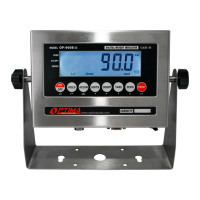
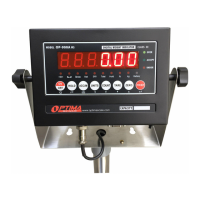
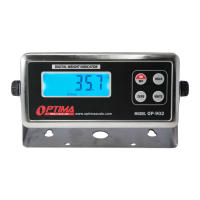
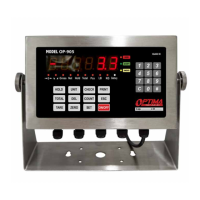
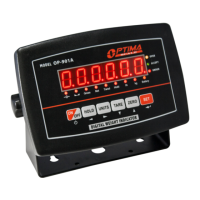
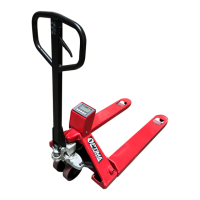
The OP-900 Series Indicator is a versatile digital weight indicator designed for various weighing applications, offering both LED (OP-900A series) and LCD (OP-900B series) display options. It is a Class III digital weight indicator with NTEP approval for 5,000 divisions, ensuring accuracy and reliability in commercial settings.
Function Description:
The OP-900 Series Indicator serves as the central display and control unit for weighing scales. It processes signals from load cells to display weight readings and offers a range of functions including gross/tare/pre-set tare/zero, multiple hold functions, count weighing, and accumulation weighing. It can connect to multiple printers, remote displays/scoreboards, and PCs for data logging. Optional features include relay output and 4-20mA analog output for integration into control systems, as well as wireless capability and a rechargeable battery for enhanced portability and flexibility.
Important Technical Specifications:
- Accuracy Class: 5000 e
- Resolution: Display: 30,000; ADC: 2,000,000
- Zero Stability Error: TK0 < 0.1μV//K
- Span Stability Error: TKspn < ± 6 ppm//K
- Sensitivity (internal): 0.3 μV / d
- Input Voltage: -30 to +30mV DC
- Excitation Circuit: 5 VDC, 4-wire connection, supporting up to 6 load cells of 350ohm max
- AC Power: AC 100-250V (uses a supplied 9V adapter)
- Operation Temperature: -10 °C ~ +40 °C
- Operation Humidity: ≤90%RH
- Storage Temperature: -40 °C ~ +70 °C (32-104°F)
- Dimensions (approximate): 8 inches (width) x 8.5 inches (height) x 3 inches (depth) for the main unit, with a base of 9 inches (width) x 6.75 inches (depth) and a height of 2.75 inches for the stand.
- Load Cell Connection: Can connect with up to 6 load cells of 350Ω, supporting both 4-wire and 6-wire connections.
- DB9 Serial Connector: Used for RS232 Serial Output (standard), 4-20 mA Analog Output (optional), and Relay Output (optional).
- RS232 Serial Output Parameters: 8 data bits, 1 stop bit, no parity, no handshaking. Baud rates from 1200 to 14400.
- 4-20 mA Analog Output: Voltage sourcing sensor, 4 mA = 0 LBS, 20 mA = 10,000 LBS. Resolution: 1/10000. Outside Load: 100-350ohms.
- Relay Output: 4 signals for automatic control and upper/lower limit alarm functions. Rating: AC 250V 3A, DC 30V 3A.
Usage Features:
The OP-900 Series Indicator is designed for ease of use with a splash-proof keyboard and display.
- Power On/Off: Hold the power button for 2 seconds. The scale performs an auto-check and countdown before entering weighing mode.
- Zeroing: Press the ZERO key to reset the scale to 0 when empty. Manual zero range can be configured.
- Unit Selection: Press the UNITS key to switch between measuring units (kg/g/lb/oz/lb:oz).
- Tare Function: Press the TARE key to tare the current weight and enter net mode. Hold the TARE key for 2 seconds to input a pre-set tare weight.
- Counting Function: Put a sample weight on the scale, press COUNT, select sample number, and press PRINT to confirm. The indicator will then count items.
- Accumulation Function: Load a weight, press ACCUM to save, remove weight, press ZERO, add next weight, press ACCUM. To display total, press ACCUM and PRINT together. To clear, hold ACCUM.
- Hold Functions: Four types of hold functions are available (C11 parameter):
- Peak Hold: Grabs the highest weight recorded.
- Manual Hold: Holds the current weight until pressed again.
- Auto Hold: Automatically holds stable weights above 20 divisions for 3 seconds.
- Average Hold: Displays the average weight sampled over 3 seconds, useful for animal weighing.
- Printing: Press PRINT to print the current stable weight. In accumulation mode, hold PRINT for one second to print the accumulated total.
- Parameter Settings: Access a comprehensive menu (C01 to C45) to configure various settings, including weighing unit, decimal setting, graduation, maximum capacity, calibration, power saving mode, hold function, alarm limits, date/time, communication settings, baud rate, zero ranges, tracking, overload range, negative display, standstill time/range, and digital/noise filters.
- Calibration: Supports two methods:
- Single Point Calibration: Uses one known weight (at least 10% of max capacity).
- Linear Calibration: Uses multiple (2-7) weights for more accurate calibration.
Maintenance Features:
- Battery Management (Optional): For models with rechargeable batteries, fully charge before first use. Fully discharge and recharge monthly to maintain battery health. Remove the battery if not used for a long period to prevent leakage.
- OP-900A: Red light flashes for low battery, solid red for charging, green for fully charged.
- OP-900B: Battery symbol indicates charge level, flashing symbol indicates low battery.
- Error Codes: The indicator displays specific error codes (e.g., "uuuuuu" for overload, "nnnnnn" for calibration issues, "Err1" to "Err6" for various calibration and input signal problems) to assist in troubleshooting.
- Troubleshooting Guide: The manual provides solutions for common issues such as the scale not turning on, negative readings, and specific error codes, including steps for checking connections, recalibrating, and inspecting components.
- Anti-static Prevention: Users are advised to discharge static electricity before opening the protective container to prevent damage to ESDS devices inside.
- Professional Maintenance: Calibration inspection and maintenance are restricted to non-professional staff to ensure proper functioning and safety.
- Load Cell Connection: Instructions for both quick disconnect and hardwire connections are provided, emphasizing proper wiring and tight screw fixation for terminal blocks.
- Software Support: Data logging software is available for RS232 output options.


 To Next Page
 General