60
OTICON ACTO FITTING GUIDE
61
Fitting Assistant In-situ Audiometry
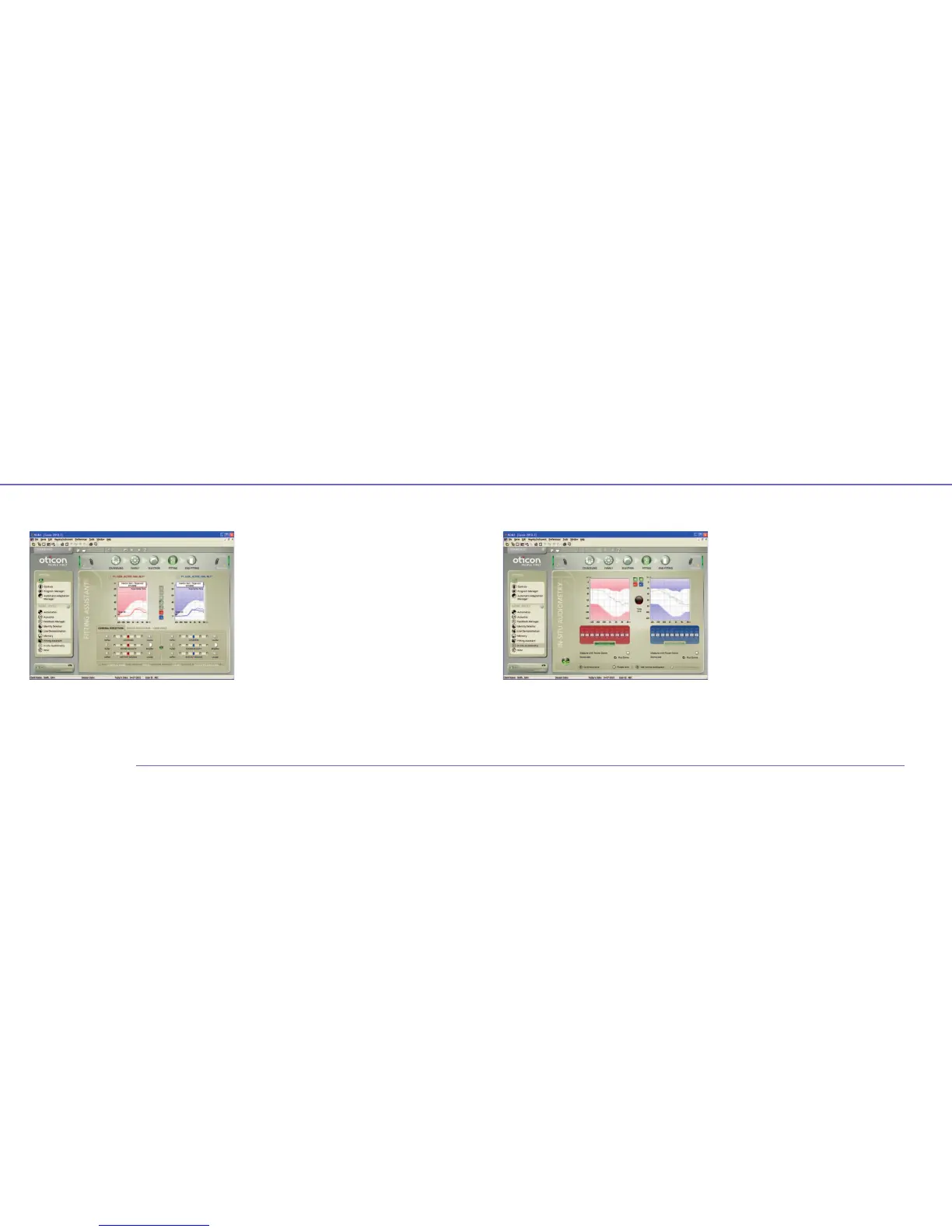
The Fitting Assistant is a tool designed to deal with common
problems that require adjusting the hearing instrument at
the fitting or follow-up visit.
To operate the Fitting Assistant, select the tab that expresses
the client’s complaint and then a control (such as Loudness).
Click the control to adjust it.
The adjustments made in the Fitting Assistant are immediately
visible in the graphs. When you open the tool in the future,
you can see how far from the starting point (the middle) the
controls have been moved.
The Fitting Assistant can be used individually for each program
in the instrument.
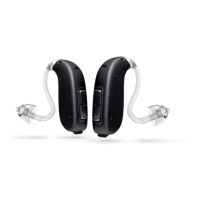
With Oticon Acto instruments, Genie supports in-situ audio-
metry for making precise fittings using the client’s own Moulds
and hearing instruments during threshold measurements.
In-situ audiometry can be conducted between
250 Hz – 8 kHz, except for Open and Plus Domes where
the frequency range is 750 Hz – 8 kHz.
How to use in-situ audiometry
The layout of the tool resembles a standard audiometer.
In the Audiogram graph, you can see the normal audiogram
represented as a faded grey curve. If the instruments are con-
nected, you can conduct in-situ audiometry by using the fields
below the graph to set the frequency and level of the tone.
Click the Play Tone button and the stimulus is played in
the instrument as long as the button is activated.
During measurements, instrument microphones are muted.
Click the Talk-Over button to switch on microphones and talk
to the client; click again to switch off.
Ambient noise level is measured by the instrument
microphones. In case of too much noise, the red noise level
indicator will light up.
The buttons in the lower right corner select whether you want
to use the in-situ audiogram to calculate settings in Genie or if
you wish to continue using the normal audiogram.


 To Next Page