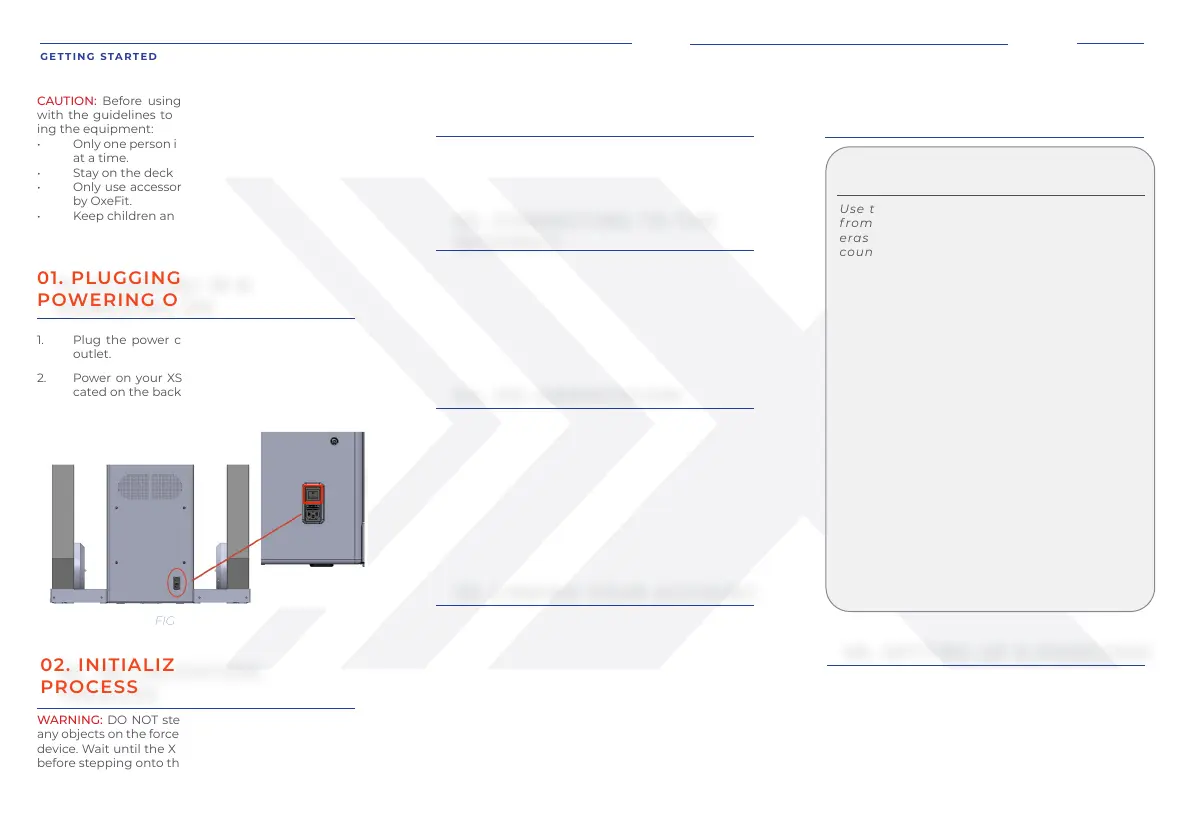
FIGURE 4
01. PLUGGING IN &
POWERING ON
05. LINKING YOUR ACCOUNT
(CONTINUED)
02. INITIALIZATION PROCESS
(CONTINUED)
05. LINKING YOUR ACCOUNT
02. INITIALIZATION
PROCESS
06. SETTING UP A PASSCODE
CAUTION: Before using the XS1, familiarize yourself
with the guidelines to ensure you are safely operat-
ing the equipment:
• Only one person is permitted to operate the XS1
at a time.
• Stay on the deck while performing an exercise.
• Only use accessories that have been approved
by OxeFit.
• Keep children and pets away from the XS1.
1. Plug the power cord into a standard 120 VAC
outlet.
2. Power on your XS1 using the power switch lo-
cated on the back of the device. See Figure 4.
WARNING: DO NOT step on the force plate or place
any objects on the force plate when you power on the
device. Wait until the XS1 logo appears on the screen
before stepping onto the force plate.
Follow the on-screen instructions to set up a 4-digit
device passcode. This code will unlock your XS1 after
it enters lock screen mode and screen saver mode.
Then, set up a 4-digit admin passcode. This code will
prevent other users from changing sensitive settings
on your device.
GETTING STARTED XS1 USER MANUAL
1. Tap the “Get Started” button.
2. Select your time zone, then Continue.
1. Select your WiFi Network.
2. Enter the network password using the on-
screen keyboard.
3. Press Connect to continue.
Watch the introductory video to learn about the
XS1 and its features before operation.
1. Press Play Orientation to start the video.
2. After watching the video, select the check-
box to accept the acknowledgment.
3. Press Continue.
You must have an OxeFit account to access the
advanced features and programs on the device.
This step is required to register the device and
must be performed before using your XS1 for the
first time. If you do not know your credentials,
tap Contact Support at the bottom of the XS1
screen and follow the on-screen instructions.
1. Scan the QR code using your mobile device.
2. Follow the on-screen prompts on your mobile de-
vice to link your account to the XS1.
04. XS1 ORIENTATION
UNLINKING YOUR ACCOUNT
(OPTIONAL)
Use the steps below to unlink your account
from your XS1. CAUTION: This process will
erase all content and settings from the ac-
count that is being unlinked, and the XS1
will revert to factory mode.
1. Navigate to the drop-down menu in
the top right corner of the screen.
2. Select Settings.
3. View your serial number by selecting
About Your XS1, and write your serial
number down for step 7.
4. Select Unlink Account. NOTE: The ac-
count listed in this panel will be the
account you need to log into for step 5.
5. Verify your identity by scanning the
QR code on the XS1 screen with your
mobile device. Sign in to your account
and enter the 9-digit code to autho-
rize your device.
6. Select the checkbox to confirm that
you want to unlink your account.
7. Notify support@oxefit.com with the
serial number that was disconnected.
03. CONNECTING TO THE
INTERNET
11


 To Next Page