VERY QUICK START
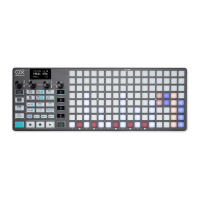
OXI One is a battery powered performative sequencer, controller and composition instrument that has
4 fully independent Sequencers that can be configured to any of the modes available that can play
simultaneously. Also, different aspects of OXI One can be configured so it adapts to your workflow,
not the other way around. Settings that are normally imposed are an option instead.
The interface in OXI One is based on horizontal movement between buttons, avoiding nested menus
thus making it very intuitive to use, not only without sacrificing functionality but adding innovative
layers for performance.
Turn ON your OXI One pressing the power button on the left side. You will be in the main view: the
Piano Roll or Sequencer layout. To start playing, press the Play button indeed. The transport bar
will start moving and loop on the grid. Be sure to have the selected Sequencer (1 to 4 buttons)
active. For this, press MUTE + 1-4. The number button will blink white and blue indicating the
Sequencer is selected and active for playback. This is a nice way to launch or stop each Sequencer
from playback without stopping the rest.
–––––––––––––––––––––
You can edit each Sequencers toggling the view between them, by pressing their button 1-4
–––––––––––––––––––––
In this view the grid pads recognise two types of pulsation:
· Doing a short press-release, activates or deactivates steps.
· Making a long pulsation you will access the step parameters.
· SHIFT + press any step momentarily shows extra step parameters.
· A long (TIED) note can be entered by pressing two pads in the same row.
In general bottom to top is lower to higher note, and left to right the order in the time sequence. To
access higher and lower notes other than the 8 rows displayed, press the Division button and turn
the leftmost encoder
To select a Sequencer, press its corresponding button number; the Function buttons, the screen and
the grid will show the parameters of this selected sequencer.
SHIFT + Sequencer button (1-4) to enter its configuration, you can change the sequencer mode
between Mono, Chord, Polyphonic or Multitrack; also the color for that Sequencer, global MIDI
channel and quantization for punch-in. There will be more exciting modes to choose from in future
updates, subscribe to our newsletter to be up to date.
Note: some of the available colors may provide better visual feedback than others.


 To Next Page