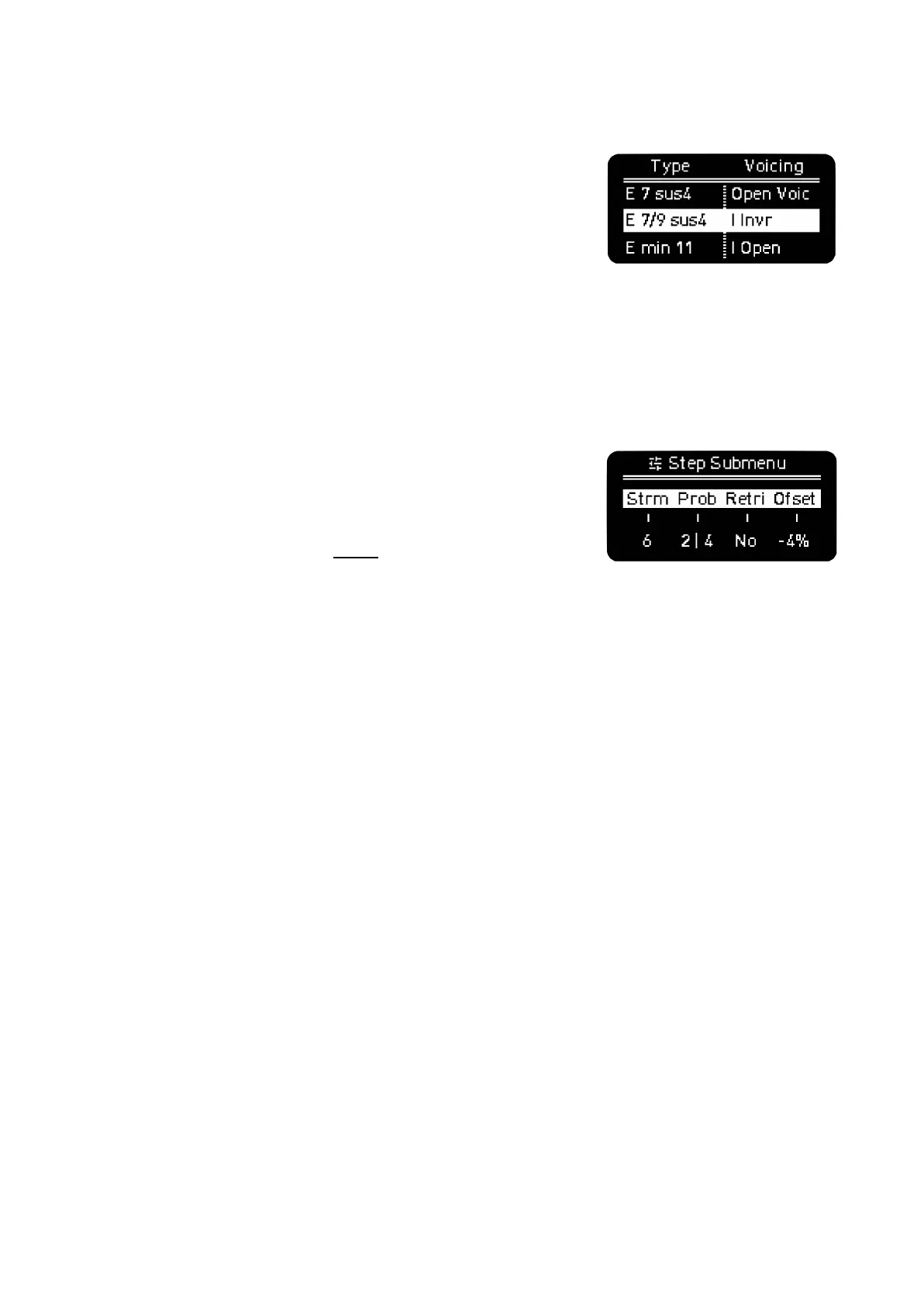
You can change the chord of every step in the chord menu. In order to do so, press the Step-Chord
button (blue light) and press the desired step, the chord menu will show up.
The second encoder sets the chord Type, by default it has the triad
of the corresponding degree. The inversions are then set for every
degree to ensure the chord voices are more musically balanced.
Chords are ordered from less to more complexity (with complexity
we mean the number of voices and tensions). Suspended 2,
suspended 4 chords and fifths and octave intervals appear later.
The third encoder, sets the inversion or Voicing. The options are no inversion, Open, Open 1st and
2nd and Inversion 1st and 2nd.
A second press on Step-Chord button (white light) will enable the step submenu, which can be seen
by holding one or several steps at once. In this screen the parameters available for edition are:
Strum, it ranges from -100 to 100. Positive values introduce a time
separation between notes that goes from lower to upper notes, in
negative values it goes from upper to lower notes. This effect sounds
like strumming guitar strings.
Trig, or Trigger Logic explained above.
Retrig, sets the times the note is triggered during the step duration, up to 5 times. For better
resolution change the Time Division of the Sequencer or Track. When fully CCW you get to SKIP, if
selected the step timing will be ignored by the transport bar, thus making the sequence length shorter.
Offset, sets the time deviation of the note from -40% to 40% of the current time division. 25% is a
quarter deviation from the duration of the step and 50% is half the step.
±
SHIFT + Step-Chord takes back to main step screen editing
STEP-CHORD BEHAVIOUR
- First press -> enables chord menu
- Second press if there hasn’t been any chord modification in the menu -> Substep menu
- Second press if there has been any chord change from the menu -> Back to normal step
editing
- Shift + Step-Chord: Back to normal step editing


 To Next Page