EasyManua.ls Logo

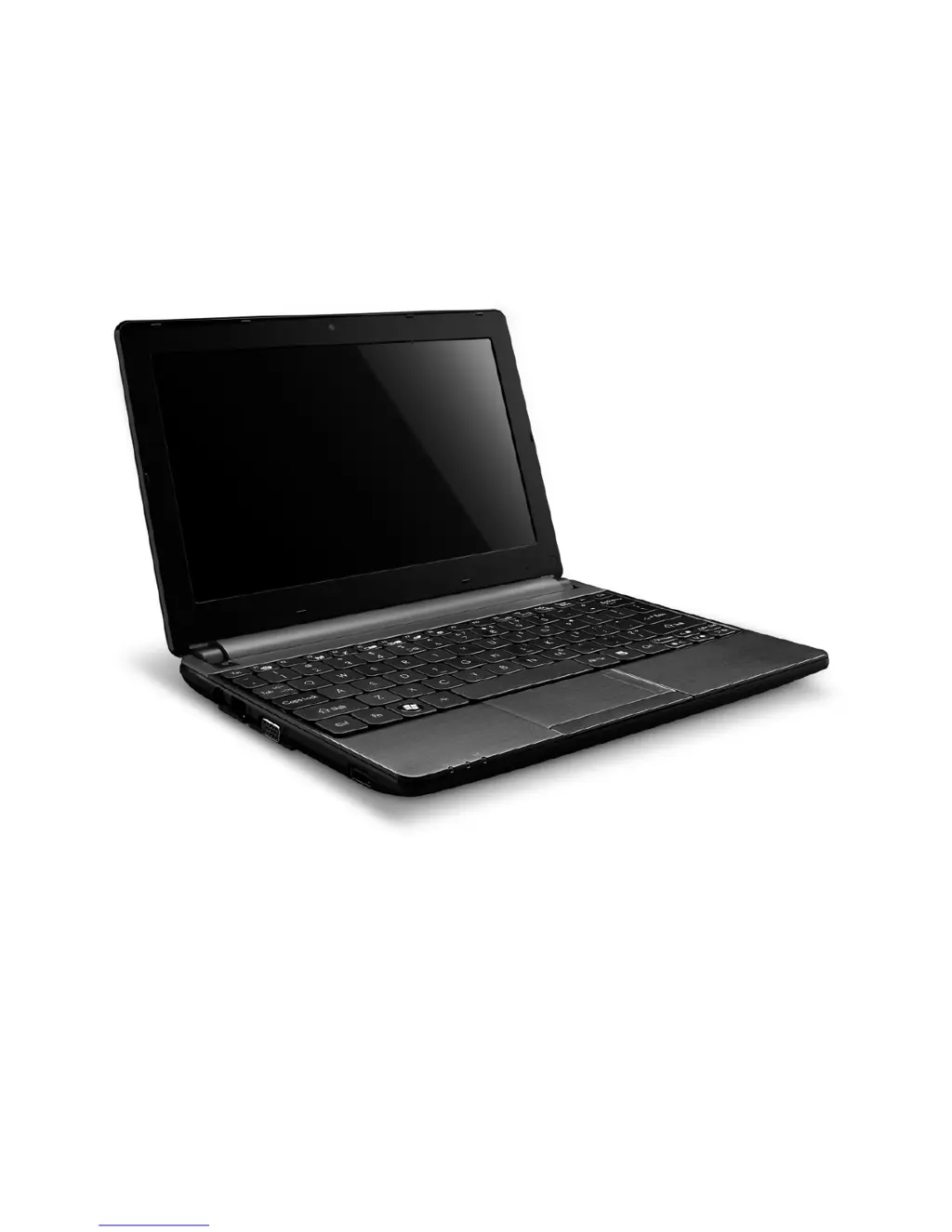
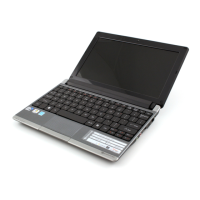
Packard Bell DOT S series - User Manual

Packard Bell DOT S series
107 pages
Print Icon
To Next Page IconTo Next Page
Loading...
-
1
User’s guide
Packard Bell dot s series

Other manuals for Packard Bell DOT S series

Questions and Answers

Summary

Starting Your Computer

Wireless Connection

Connect to a wireless network, check features, select network, and enter password.

Registration

Register your computer for useful benefits like faster service and promotions.

Software Installation

Computer installs software automatically. Do not turn off during installation.

Recovery

Create recovery discs to restore or reinstall applications and drivers.

Having Trouble?

Options to support your purchase, including Packard Bell support and website.

Computer Basics

Safety and Comfort

Guidelines for comfortable use and avoiding health problems.

Health Precautions

Precautions regarding small parts, breaks, posture, and eye strain.

Getting to Know Your Computer

Top View - Display

Identifies the webcam, display screen, and microphone on the computer.

Top View - Keyboard

Identifies power button, keyboard, and touchpad on the computer.

Special Keys

Explains functions of special keys like Fn, Social Networking, Help, Communication, etc.

Left View

Identifies DC-in jack, Ethernet port, and external display (VGA) port.

Right View

Identifies multi-in-1 card reader and USB ports on the computer.

Base View

Identifies ventilation, memory compartment, hard disk bay, battery latches, and speakers.

Upgrading Your Computer

Connectivity Options

Explains how to connect peripheral devices via ports.

Memory Card Reader

Instructions for inserting and removing memory cards.

Universal Serial Bus (USB)

Connects USB peripherals and explains USB 3.0 ports.

Video Port

Connect to monitors via VGA or DVI ports.

Power Supply

AC Power Adapter

Details the use and caution for the external power adapter.

Battery Pack

Explains the computer's battery pack characteristics and usage.

Maximizing the Battery’s Life

Tips to extend battery life through conditioning and usage.

Installing or Removing the Battery Pack

Instructions for installing and removing the battery pack.

Charging the Battery

How to charge the battery using the AC adapter.

Battery-Low Warning

What to do when the battery-low warning appears.

Software

Using Windows and Your Software

Introduction to using Windows and pre-installed software.

Internet Security Offer

Details the pre-installed Internet security suite for protection.

Productivity Software

Describes Microsoft Office, Photo editing, and Bing search tools.

Packard Bell Recovery Management

Create recovery discs for system recovery options.

Playing Multimedia Files

How to play music, films, photos, and watch TV.

Playing DVD Movies

Instructions for playing DVD movies, including region codes.

Internet

Protecting Your Computer

Activate security program before connecting to the Internet.

Choose an Internet Service Provider

Steps to select an ISP for Internet connection.

Connection Types

Different ways to connect to the Internet based on needs and location.

DSL (e.g. ADSL)

Always-on Internet connection over phone line.

3 G (WWAN or Wireless Wide-Area Network)

Connect to Internet using cellular networks.

Network Connections

Setting up Local Area Networks (LAN) and Wireless LAN (WLAN).

Surf the Net!

Using Internet Explorer for web browsing.

Security

Packard Bell Website

Visit www.packardbell.com for support and information.

Norton Internet Security

Norton Internet Security protects against Internet attacks.

Definitions

Explains viruses, malware, and spyware.

How to Protect Your Computer

Tips for preventing online fraud and cybercrime.

Choose Strong Passwords and Keep Them Safe

Tips for creating and managing secure passwords.

Protect Your Personal Information

Exercise caution when sharing personal information online.

Helpdesk

Safe Computing

Ensure smooth operation and longevity of the computer.

Maintenance

Recommended periodic tasks for computer health.

Error Checking

Using Check Disk tool to prevent system unreliability.

Disk Cleanup

Wizard to free up disk space by deleting unused files.

Disk Defragmenter

Rearranges stored items to make the computer run faster.

Manage Your Hard Disk Drive (HDD)

Checking and freeing up space on the hard disk drive.

Windows System Restore

Monitors changes and creates restore points to undo harmful changes.

Updates

Keeping security apps and OS up-to-date is crucial.

Windows Remote Assistance

Temporarily take over a remote computer to resolve issues.

Recovery

Packard Bell Recovery Management

Reinstall Windows OS and factory-loaded software/drivers.

Creating Recovery Discs

Create a set of recovery discs for reinstallation.

Recovering Your System

Restore computer to factory state or retain personal data.

Revert to a Previous System Condition

Return system to a previous state when it was working correctly.

Returning Your System to Its Factory Condition

Reinstall everything to return system to factory condition.

Recovering from Your Recovery Backup

Reinstall OS and drivers using recovery discs or USB drive.

Regulatory Information

CE Compliance Requirement

Products comply with EU directives and European standards.

Connections and Remote Earths

Information on PELV, SELV, and remote earths for connections.

Power Supply

Power supply socket-inlet and socket-outlet classified as Hazardous Voltage.

Power Cables and Plug

Requirements for grounded power cords and plugs.

Cables

Use of shielded interface cables and recommended cable quality.

Laser Compliance Statement

Optical devices are Class 1 laser products, not hazardous.

Environment

Our Commitment to Environmental Protection

Packard Bell limits environmental impact during product lifecycle.

Product Disposal

Dispose of used electrical/electronic products separately from household waste.

Battery Disposal (When Applicable)

Dispose of batteries separately, not in household waste.

Software License

Packard Bell Software License

Legal agreement for using Packard Bell software.

1. Grant of License

Permits use of one copy of the SOFTWARE on a single computer.

2. Copyright

SOFTWARE is owned by Packard Bell and protected by copyright laws.

3. Other Restrictions

Prohibits renting, leasing, reverse engineering, decompiling, or disassembling.

Packard Bell DOT S series Specifications

General IconGeneral
BrandPackard Bell
ModelDOT S series
CategoryLaptop
LanguageEnglish

Related product manuals