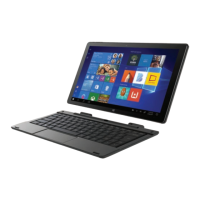
This document is a Quick Start Guide for the Packard Bell CloudBook N1000, a 10.1-inch tablet with a detachable keyboard. It provides essential information on the device's components, setup, usage, and maintenance.
Function Description:
The Packard Bell CloudBook N1000 is a versatile 2-in-1 device designed for portability and productivity. It functions as both a tablet and a laptop, thanks to its detachable keyboard. The device runs on Windows 10 S Mode, offering a streamlined experience focused on security and performance, primarily utilizing apps from the Microsoft Store. Users have the option to switch out of S Mode to install apps from other sources, though this change is permanent. The CloudBook is suitable for tasks such as browsing, document editing, media consumption, and light productivity.
Important Technical Specifications:
- Device Type: 10.1-inch tablet with detachable keyboard (2-in-1).
- Operating System: Windows 10 S Mode (with option to switch out permanently).
- Storage Expansion: Supports Micro SD cards up to 256GB (not included).
- Ports:
- Power button
- Volume buttons
- Front camera
- Microphone
- Headphone jack
- USB Type C (data only)
- Mini HDMI
- USB port
- DC charger port
- Micro SD card slot
- Stereo speakers
- Keyboard Connection: Pogo pins for docking.
- Battery: Li-ion battery.
- Wireless Connectivity: Bluetooth® technology.
Usage Features:
- Power Management:
- Power On: Press and hold the POWER button until the tablet turns on.
- Lock: Briefly press the POWER button to lock the tablet.
- Power Off: Press and hold the POWER button until the tablet turns off.
- Windows 10 S Mode Interface: After initial setup, the home screen is displayed. Users can access pre-installed apps by clicking the Windows icon. In tablet mode, a virtual keyboard can be brought up by tapping the keyboard icon in the lower right-hand corner of the screen.
- Keyboard Docking:
- To Dock: Align the tablet and keyboard, then slide the tablet into the dock. The tablet automatically recognizes the keyboard when properly docked.
- To Undock: Firmly hold the keyboard and gently pull the tablet upwards.
- Important Note: Incorrect docking may damage the keyboard or tablet.
- Touchpad Functionality: The touchpad acts as a mouse with a touch-sensitive surface.
- Selection: Tap the touchpad to select (it does not have a mechanical click). Do not push down on the touchpad.
- Scroll: Place two fingers on the touchpad and slide them in any direction to scroll on a page or program.
- Zoom: Place two fingers on the touchpad and move them apart or closer to zoom in or zoom out.
- Switch Program: Place two fingers on the touchpad and swipe to either side to switch between open windows and programs.
- Function/Shortcut Keys: To access shortcuts (F1 through F12), press and hold the "Fn" button and then select the desired Function key.
- Storage Expansion:
- Inserting a Micro SD Card: Gently open the cover, carefully insert the card into the slot until it clicks and locks.
- Removing a Micro SD Card: Gently press the card inward to eject it.
- USB and HDMI Ports:
- USB Connectivity: Use the included OTG cable to transfer files from a USB drive or connect keyboards and mice. Insert the Type C end of the OTG cable into the tablet's Type C port.
- HDMI Connectivity: To connect to a TV or monitor, use a mini HDMI to HDMI cable (not included).
- Port Usage Limitations:
- When the tablet's USB port is in use, the keyboard cannot be used.
- When the tablet is connected to the keyboard, the tablet's USB port cannot be used.
- Switching out of Windows 10 S Mode:
- On a PC running Windows 10 in S mode, open Settings > Update & Security > Activation.
- Find the "Switch to Windows 10 Home" or "Switch to Windows 10 Pro" section and select "Go to the Store."
- On the Microsoft Store page (e.g., "Switch out of S mode"), select "Get." Confirm the action to install apps from outside the Microsoft Store. This action is permanent and cannot be reversed.
Maintenance Features:
- Battery Care: The device contains a Li-ion battery.
- Do not damage, open, or dismantle the battery.
- Avoid damp and/or corrosive conditions.
- Use only compatible chargers.
- Never dispose of batteries in a fire or expose them to high temperatures.
- Do not expose the product to temperatures exceeding 60°C (140°F).
- Recycling: The product should not be discarded as household waste. It must be delivered to an appropriate collection facility for recycling to protect natural resources, human health, and the environment.
- FCC Compliance: The device complies with Part 15 of the FCC Rules. Any changes or modifications not expressly approved could void the user's authority to operate the equipment. If the equipment causes harmful interference, users are encouraged to try corrective measures such as reorienting the antenna, increasing separation between equipment and receiver, connecting to a different circuit, or consulting a technician.
- Radiation Exposure: The device has been evaluated to meet general RF exposure requirements and can be used in portable exposure conditions without restriction.
- Warranty Information: A 90-Day Limited Warranty is provided by Southern Telecom, Inc. against defects in materials and workmanship. Warranty service can be obtained by visiting www.customersupport123.com, selecting the device model, and filling out a "Service Request" form. Exchanges require dated proof of purchase. The warranty does not cover damage from accident, misuse, abuse, improper installation, lack of care, or unauthorized modification. Opening, altering, or repairing the product by unauthorized persons voids the warranty. Products returned for repair must be suitably packaged. The warranty is non-transferable and applies only to the original consumer purchaser.

 Need help?
 General


 To Next Page