EasyManua.ls Logo

Packard Bell EasyNote TK13BZ - User Manual

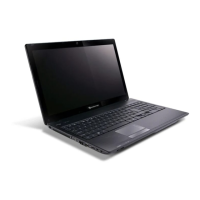
Packard Bell EasyNote TK13BZ
216 pages
Print Icon
To Next Page IconTo Next Page
Loading...
Packard Bell EasyNote TK11BZ/TK13BZ
SERVICEGUIDE

Table of Contents

Questions and Answers

  • J
    Jacob GonzalezAug 10, 2025
    How to fix power on issues on Packard Bell EasyNote TK13BZ Laptop?
    • D
      David HernandezAug 10, 2025
      To troubleshoot power issues on your Packard Bell Laptop, ensure the power cable is securely connected to both the laptop and the electrical outlet. It's also advisable to remove any extension cables or surge protectors, plugging the laptop directly into a known, working outlet. If problems persist, disconnect the power, open the casing, and check for obstructions in the thermal unit and fan airways. Additionally, remove any non-essential hardware and recently installed software. If the issue remains unresolved, further assistance may be needed.
  • M
    Margaret CalderonAug 23, 2025
    What to do if Packard Bell EasyNote TK13BZ has no display?
    • D
      David DawsonAug 25, 2025
      If your Packard Bell Laptop screen is not displaying anything, first ensure that the internal display is selected by pressing Fn+F5. Check that the laptop has power by observing if the fans start or the status LEDs light up. If there's power but no display, try draining any stored power by disconnecting the power cable and battery, then holding the power button for 10 seconds. Reconnect the power and reboot. You can also try connecting an external monitor and switching between displays using Fn+F5. Disconnect all external devices, memory cards, and CD/DVD discs, then start the computer and add devices back one by one to identify any potential conflicts. Reseating the memory modules might also resolve the issue.

Packard Bell EasyNote TK13BZ Specifications

General IconGeneral
BrandPackard Bell
ModelEasyNote TK13BZ
CategoryLaptop
LanguageEnglish

Related product manuals