Part 2 - Getting Started
30
Live Mode
Live Menu
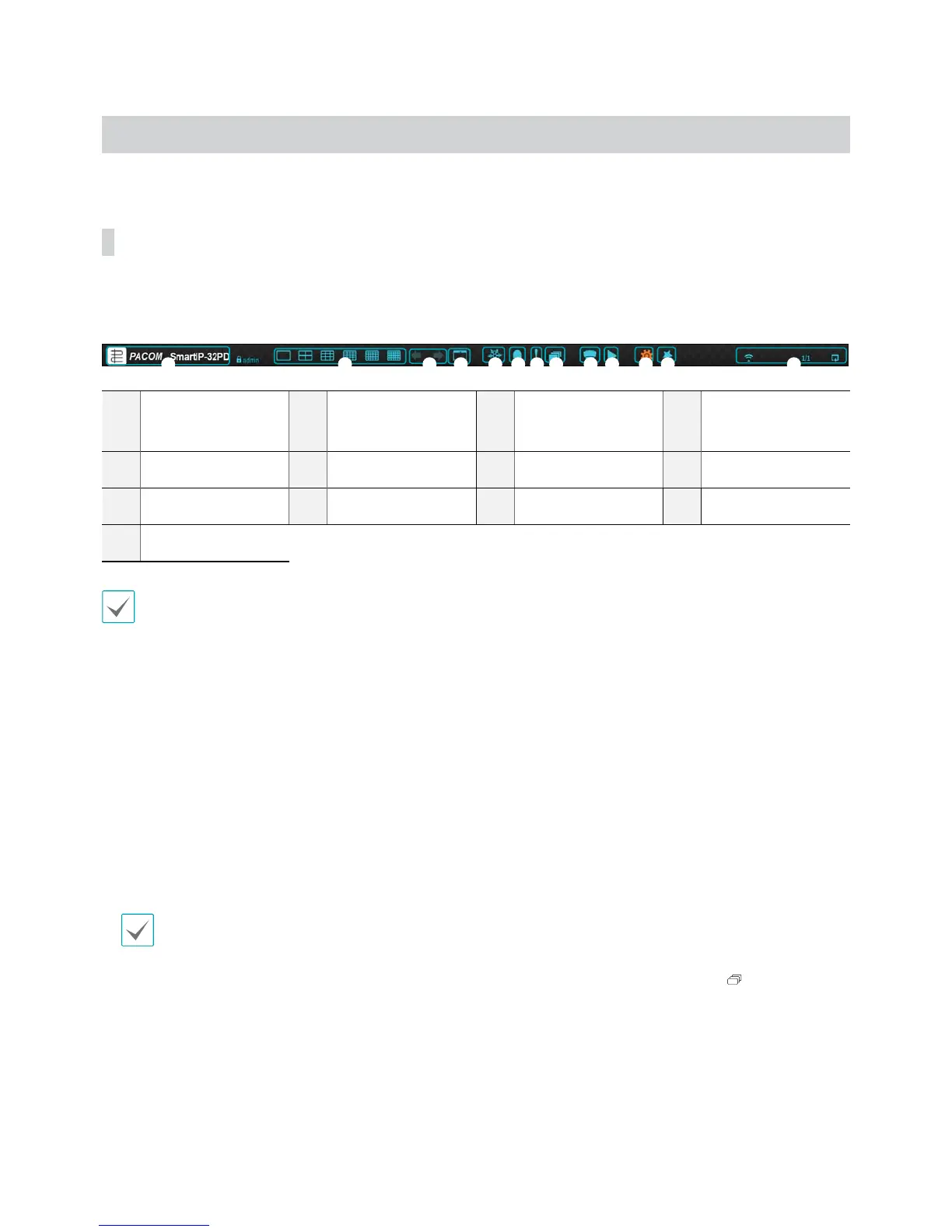
Press the Setup button while in Live mode to bring up the Live menu on the top of the screen. Press Setup once
more to hide the menu. Use the Arrow buttons on the front panel of the NVR or the remote control to select the menu
options.
1 2 3 4 5 6 7 8 9 0 ! @ #
1
Login/Logout
2
Layout
3
Previous Group,
Next Group
4
Display
5
Freeze
6
Alarm
7
Panic Recording
8
Sequence
9
Select Camera
0
Search Mode
!
Setup
@
Wizard
#
Status Indication
Placing the mouse pointer near the top portion of the screen also displays the Live menu.
1 Login/Logout
Log into and out from accounts. If in the logged in
state, the account ID is shown. If in the logged out
state, the login icon is shown.
2 Layout
Used to change the screen layout to single screen,
corridor format, 2x2, 3x3, 4x4, 5x5, or 6x6. In order
to use the corridor format feature, Corridor Format
(Display Setup - Main monitor - Use Corridor Format)
must rst be enabled.
The 32-channel model does not support the
corridor format feature.
3 Previous/Next Group
Loads the previous/next screen group.
4 Display
t OSD (On Screen Display): Enables/disables the OSD
feature.
t Full: Displays the video in full screen mode.
t Aspect Ratio: Select whether to enable the original
aspect ratio of video transmitted from the camera.
5 Freeze
Freezes the screen. Select Freeze again to unfreeze.
6 Alarm
Pressing this button while the alarm has been
activated resets all NVR outputs, including the built-in
buzzer.
7 Panic Recording
Activates/deactivates Panic Recording.
8 Sequence
Initiates Sequence in the same manner as pressing
the SEQUENCE button while in Live mode. To exit,
select Sequence once more or press the SEQUENCE
button on the remote control. The
icon is displayed
on the upper right part of the screen while Sequence
is in progress.



 To Next Page