Part 3 - Conguration
52
Stream
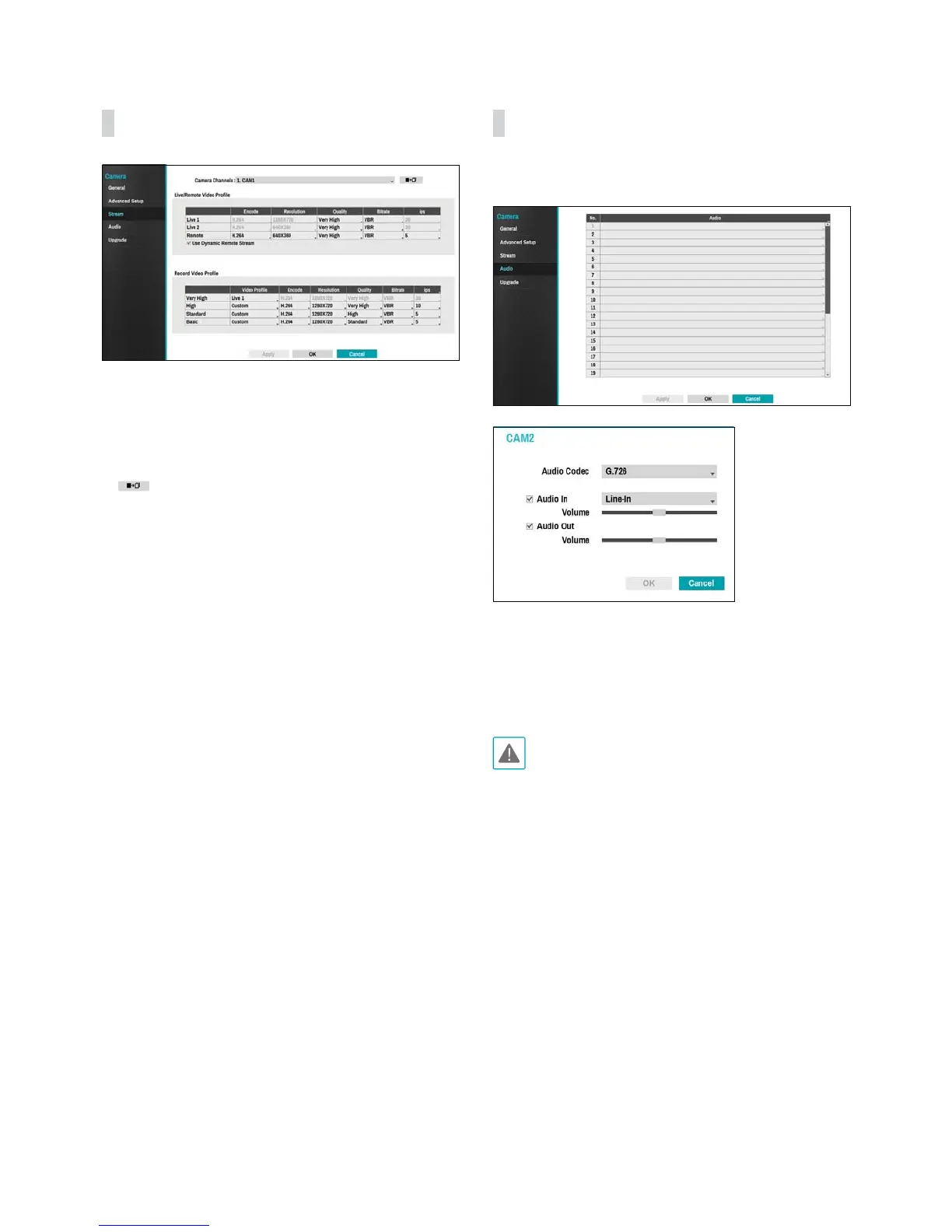
Congure the camera's live and recording resolution,
encode, picture quality, transfer speed, and ips speed
settings.
t Camera Channels: It's possible to congure a unique
video prole for each camera.
t
: Apply the video prole settings of the camera
selected under Camera Channel to a dierent camera.
t Live/Remote Video Prole: Check the current Live
video picture quality and edit remote video prole
settings.
- Use Dynamic Remote Stream: Automatically
transmits the Live 1 (Single Screen), Live 2 (2x2), or
Remote (greater than 2x2) stream, depending on
the remote program's live screen layout.
t Record Video Prole: Set up 4 recording quality
proles.
t Video Prole: Select Live 1, Live 2, Remote, or
Custom (available from Record Video Prole only).
Live 1 and Live 2 allows the user to change Bitrate
and Quality settings only and congures the
remaining settings automatically.
- Encode: Supports H.264.
- Resolution: Select a resolution supported by the
camera. Maximum available resolution is chosen
automatically based on the selected video prole.
- Quality: Select Very High, High, Standard, or Low.
You can assign dierent Quality settings to dierent
cameras.
- Bitrate: Select CBR or VBR. Transmitted data size
is xed with CBR but varies depending on the
amount of movements in the images with VBR.
- ips: Select a value between 1 and 30. Maximum ips
is determined automatically based on the selected
video prole.
Audio
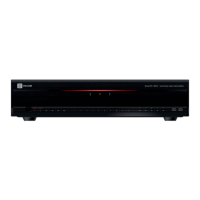
Congure audio recording settings for all cameras
simultaneously.
t Audio Codec: Select an audio codec. (G.711 u-Law,
G.711 a-Law, or G.726)
t Audio In: Select an audio input source (microphone
or line-in) and then adjust the volume.
t Audio Out: Adjust the volume.
Cameras do not feature built-in audio amplier units
and therefore require the user to purchase a speaker
system with a built-in amplier separately.



 To Next Page