Part 5 - WebGuard
82
t Launching a new version of WebGuard for the rst time can cause Internet Explorer to load information from the
previous version. In this case, navigate to Tools ĺ Internet Options ĺ General, delete temporary Internet les, and
then restart WebGuard.
t On Microsoft Windows Vista or above, lowered image transmission rate can prevent the screen from being displayed
or updated. In this case, we recommend that you disable the computer's auto tuning function. Open the command
prompt as an administrator. (Start ĺ Accessories ĺ Command Prompt ĺ Right-Click and then select Run as
administrator) Type in "netsh int tcp set global autotuninglevel=disable" and then press Enter. Restart the
computer to apply the change. To enable auto tuning again, launch the command prompt as an administrator and
then type in "netsh int tcp set global autotuninglevel=normal". Restart the computer to apply the change.
Web Monitoring Mode
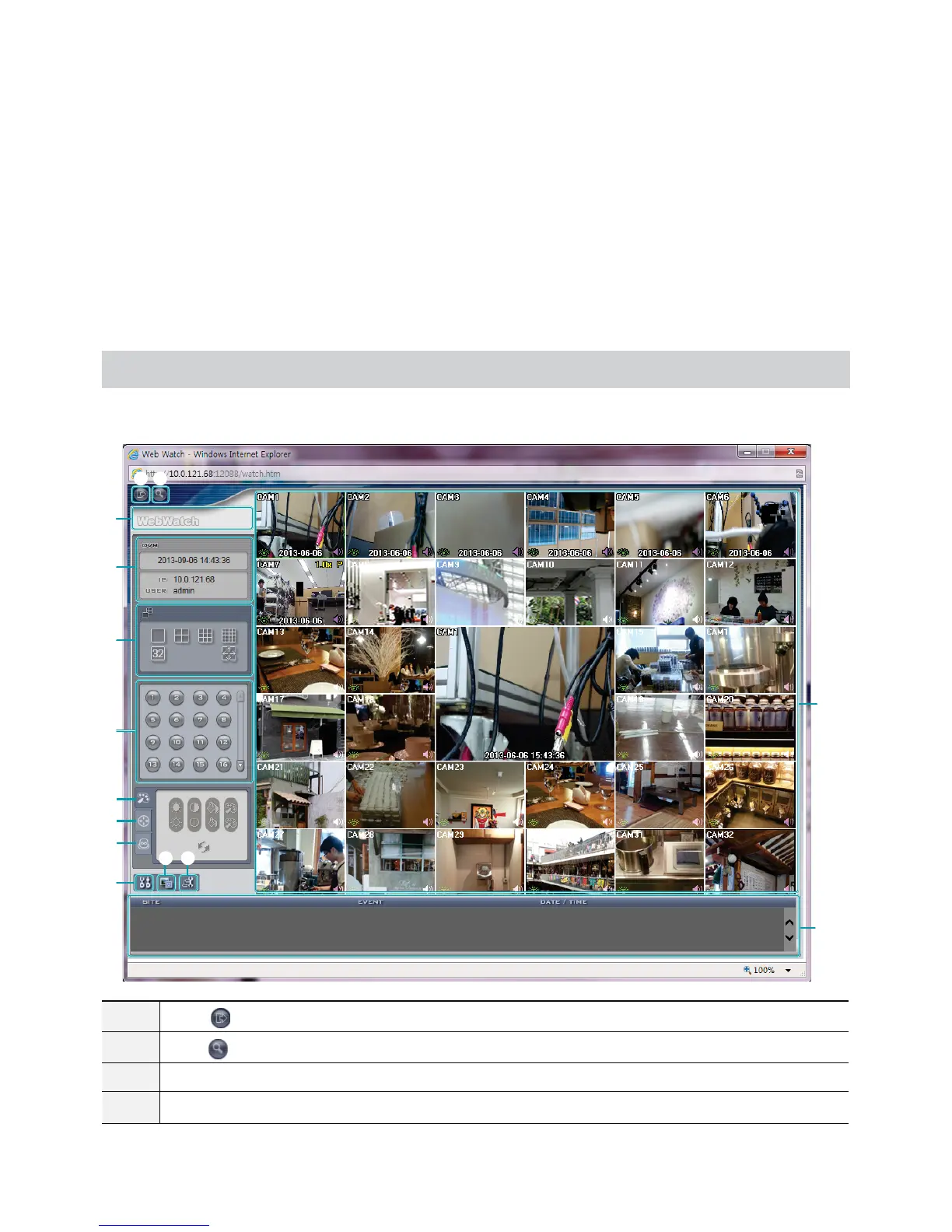
A remote web monitoring program that allows you to monitor images from remote locales in real-time.
1 2
! @
5
6
7
8
9
0
3
4
#
$
1
Press
to log out WebGuard.
2
Click to switch over to Web Search mode.
3
Place the mouse pointer on the WebWatch logo to check WebGuard's version.
4
Displays the current time and login information of WebGuard.



 To Next Page