16
PORT FORWARDING
Port forwarding allows services inside the network to be available from the internet. If you have an IP
camera on your network, port forwarding would allow you to remotely view the camera.
To configure port forwarding, please take the following steps.
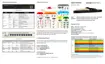
1. Navigate to Policy & Objects->Objects->Virtual IPs. Click Create New.
2. We will forward TCP port 80 to an IP camera on the IP address 192.168.1.50. Enter IP Camera as
the name. Leave a brief description under the Comments section. Select the WAN port you are
using for the External Interface. You can specify which public IP addresses would be allowed to
use this virtual IP with the Source Address Filter, but we recommend leaving it unchecked.
We will leave the External IP Address/Range as all 0’s. This will tell the router to use the public
IP address currently on the WAN port. We will enter the internal IP address of the device we are
forwarding the port to under Mapped IP Address/Range. In our example, this is the IP address,
so we will fill in 192.168.1.50. Check the Port Forwarding box.



 To Next Page