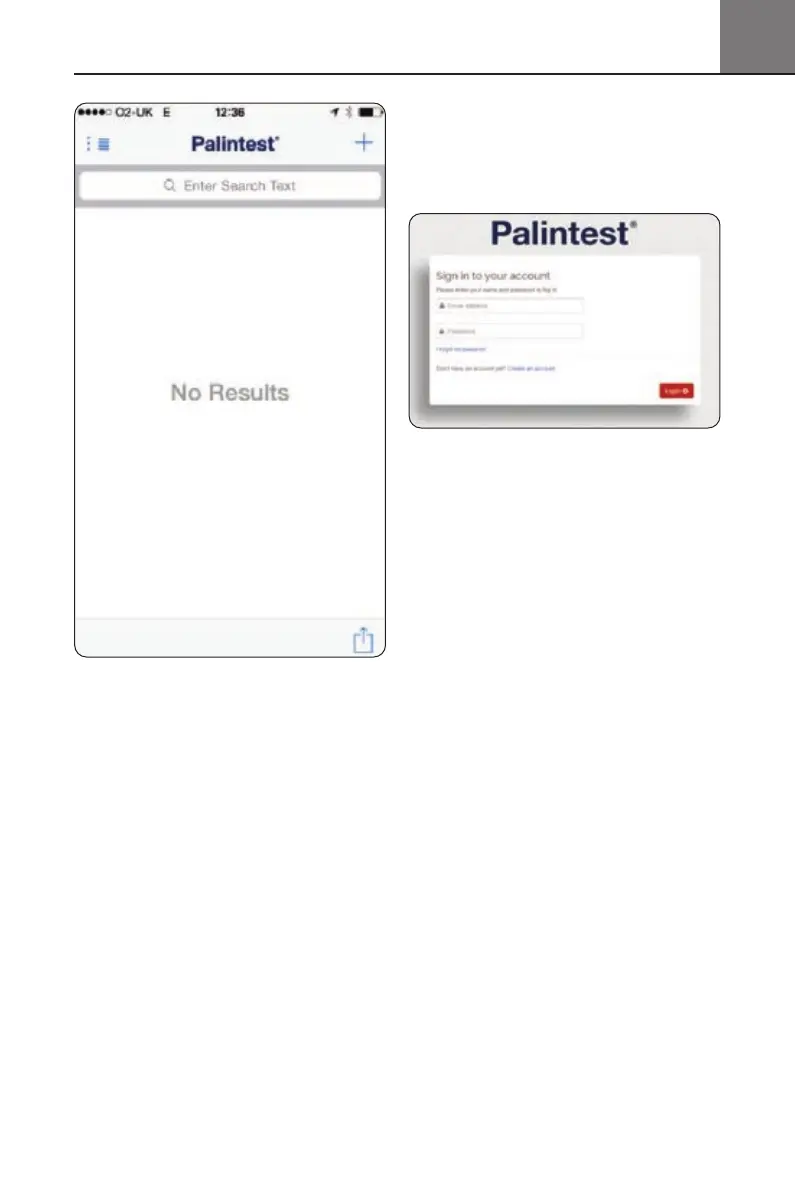
Select the Pooltest 9 Bluetooth you wish to
connect (see also Section 6.4 Bluetooth Device ID
- Adding Device Name) and Aqua Pal will link.
The Info Panel will display the connected
Bluetooth icon.
Previously connected instruments are stored
in the app for future selection.
Once connected, data can either be uploaded
automatically (if selected) or direct from the
log (all or a selected group).
Manual data entry is also possible for results
generated with non-Bluetooth instruments or
external devices such as TDS meters, flow meters
or level sensors.
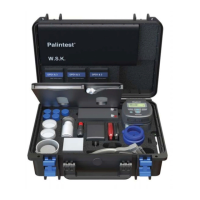
Connecting with the Palintest Portal
Also included with the Aqua Pal app is
the secure Palintest Portal found at
https://palintestportal.com
Data stored in the Aqua Pal app can be uploaded
to the Palintest Portal when an internet connection
is available.
Data stored within the portal can be shared with
team members using the User Group functionality.
Simply assign team members to the User Group
and they can view data generated by logging
in to the portal.
Results stored within the portal can be filtered
by date, sample ID, Operator ID and parameter.
Data can be viewed graphically over time with
the status (in spec, nearing limit, out of spec)
being indicated by a simple colour key.
Further Information
The full guide to the Aqua Pal app and the Palintest
Portal are available at www.palintest.com
and available for download from the Palintest
Know portal.
31
13
Appendix 5 - Palintest Aqua Pal App and the Palintest Portal
Pooltest9Bluetooth_ZI INST 7009B EN 29/7/15 12:03 Page 31


 To Next Page