EasyManua.ls Logo

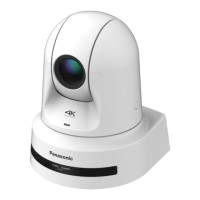
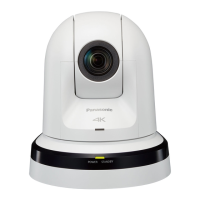
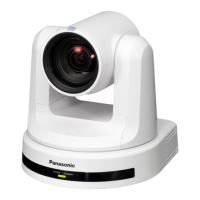
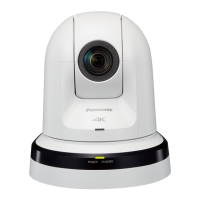
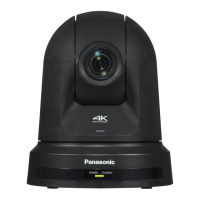
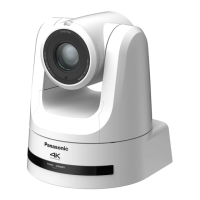
Panasonic AW-UE100WP - User Manual

Panasonic AW-UE100WP
180 pages
Print Icon
To Next Page IconTo Next Page
Loading...
DVQP2261ZA
W0820RA0 -FJ
ENGLISH
Model No.
AW‑UE100WP
Model No.
AW‑UE100KP
Model No.
AW‑UE100WPC
Model No.
AW‑UE100KPC
Model No.
AW‑UE100WE
Model No.
AW‑UE100KE
Model No.
AW‑UE100WED
Model No.
AW‑UE100KED
Operating Instructions
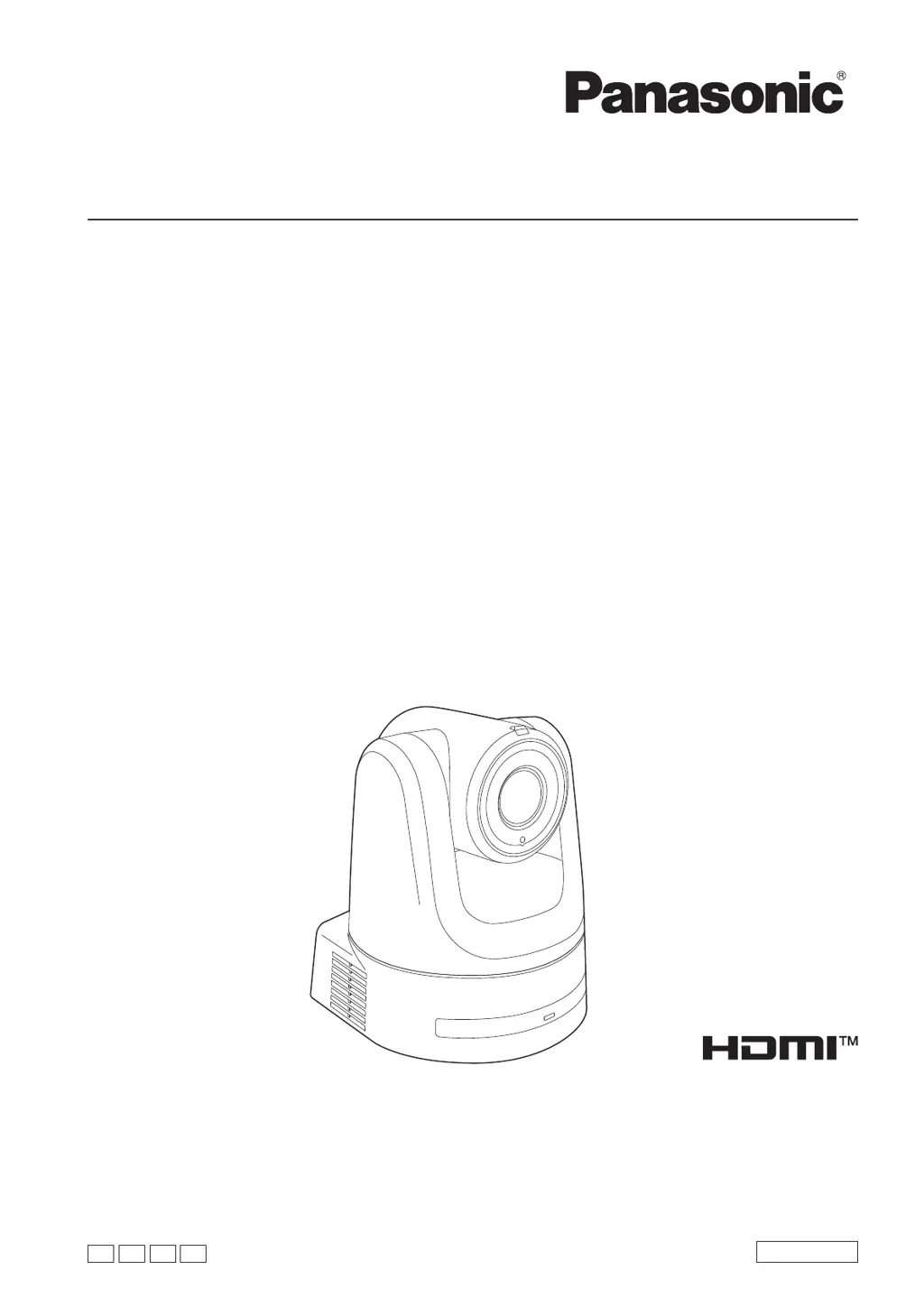
4K Integrated Camera
Before operating this product, please read the instructions carefully and save this manual for future use.
Please carefully read the “Read this first!” (pages 2 to 7) of this Manual before use.
PJ
PC EJ ED

Table of Contents

Questions and Answers

  • S
    Sabrina HaydenAug 15, 2025
    What to do if Panasonic Security Camera cannot be operated via remote or controller?
    • L
      Lisa WardAug 15, 2025
      If you cannot operate your Panasonic Security Camera using either the wireless remote control or a controller, first check if the unit's power is on. If the status display lamp is off or lights up orange, the unit's power is not on. The safe mode function may have been activated. Also, limiter functions may have been set. Finally, make sure that the unit you want to operate has been properly selected.
  • M
    Michael BushAug 25, 2025
    Why do Panasonic AW-UE100WP screen displays take a long time to appear?
    • R
      Randall ClarkAug 26, 2025
      If screen displays are slow to appear on your Panasonic Security Camera, it may be due to accessing in HTTPS mode, which requires more signal processing. If the unit is on the same local network and being accessed via proxy, configure the web browser settings to disable proxy access. Also, if multiple users are accessing the unit's IP images simultaneously, this can slow down image display and reduce the IP image frame rate.
  • L
    Laurie SalinasAug 27, 2025
    Why Panasonic AW-UE100WP wireless remote control is not working?
    • A
      Ashley VaughanAug 27, 2025
      If your Panasonic Security Camera is not responding to the wireless remote control, start by checking the batteries. If the status display lamp does not blink when operating the remote near the signal light-sensing area, the batteries may be depleted or installed with reversed polarities. Replace them with fresh batteries. Check that the IR ID switches have been correctly configured. Also, check for interference from nearby fluorescent lights or plasma monitors. If the signal light-sensing area is exposed to their light, it may disrupt the remote control's signal.
  • L
    Linda FoxAug 30, 2025
    What to do if Panasonic Security Camera web settings are not updating?
    • A
      Annette LucasAug 30, 2025
      If the settings on the web setup screen of your Panasonic Security Camera are not updating or displaying correctly, for Windows, press the [F5] key to refresh the settings. For Mac, press [Command] + [R]. Clear temporary internet files. For Windows, go to Internet Explorer, select [Tools] - [Internet Options], click the [General] tab, and delete temporary internet files under [Browsing history]. For Mac, in Safari, select [Develop] - [Empty Cache]. Ensure that [Check for newer versions of stored pages] is set to [Every time I visit the webpage] in Internet Explorer's temporary internet file settings. Finally, the unit’s ports may be filtered by the firewall or other function of the anti-virus software. Change the HTTP port number of the unit to a port number that will not be filtered.
  • S
    Shawn LevySep 2, 2025
    Why does Panasonic Security Camera authentication screen appear repeatedly?
    • K
      kimberlycontrerasSep 2, 2025
      If the authentication screen appears repeatedly on your Panasonic Security Camera, it may be because the username or password was changed while the unit was being accessed from a separate web browser. The authentication screen will appear each time the screen display is changed. If you change the [User auth.] - [Authentication] setting, close the web browser and initiate access again.
  • C
    Christopher MezaSep 5, 2025
    How to fix Panasonic AW-UE100WP when setting files cannot be downloaded?
    • K
      Kayla GeorgeSep 5, 2025
      If you cannot download setting files on your Panasonic Security Camera, for Windows, check if the file download function has been disabled in Internet Explorer. To enable it, go to [Tools] - [Internet Options], click the [Security] tab, and then click the [Custom level] button. In the [Security Settings] dialog box, select the [Enable] option for [File download].
  • T
    Thomas AllenSep 8, 2025
    Why Panasonic AW-UE100WP tally lamps do not light?
    • M
      Michael HubbardSep 8, 2025
      If the tally lamps on your Panasonic Security Camera do not light, check if the [Tally] setting is set to [Disable]. If it is, change the setting to [Enable].
  • J
    James EdwardsSep 12, 2025
    Why Panasonic AW-UE100WP Security Camera status display lamp does not light?
    • S
      Stephen SandersSep 12, 2025
      If the status display lamp on your Panasonic Security Camera does not light, check if the [Status Lamp] setting is set to [Disable]. If it is, changing the setting to [Enable] will make the status display lamp light when the unit is working properly.
  • Y
    Yolanda MillerNov 17, 2025
    How to troubleshoot a Panasonic Security Camera with no power?
    • R
      rachelreevesNov 17, 2025
      To resolve the 'no power' issue with your Panasonic Security Camera, ensure the AC adapter is securely connected to the AC outlet. Specifically, verify that the power plug of the AC adapter is properly connected. Also, check if the LAN cable is securely connected to the LAN connector for IP control. If you are using PoE++, make sure the network cable is correctly connected to the PoE++ compatible power supply. If the problem persists and you are using power supply devices with multiple PoE++ terminals, the total power limit might be exceeded, so check the operating instructions for the PoE++ power supply device. If the unit is connected to a controller, ensure it is properly connected according to the controller's operating instructions. If using a wireless remote, refer to the troubleshoo...
  • D
    david20Nov 20, 2025
    Why I cannot access Panasonic AW-UE100WP Security Camera from a web browser?
    • M
      Mrs. Sandra LunaNov 20, 2025
      If you cannot access your Panasonic Security Camera from a web browser, first ensure that a category 5e or above LAN cable is connected to the LAN connector for IP control. Check if the [LINK] LED of the LAN connector is lit. If it is not lit, there may be an issue with the LAN connection or the network. Inspect the LAN cable for any defects and verify the wiring. Also, confirm that the unit's power is on by checking the status display lamp. If the lamp is off or lights up orange, the unit is not powered on. Make sure that you are using the correct IP address. If you are accessing via "http://" while the HTTPS function is enabled, use "https://", including the port number. Verify that no other unit is using the same IP address and that the subnet mask setting matches the network subnet. If...

Panasonic AW-UE100WP Specifications

General IconGeneral
Camera TypePTZ Camera
Sensor Type1/2.5-type MOS sensor
Optical Zoom20x
Shutter Speed1/1 to 1/10000 sec
Horizontal Resolution1000 TV lines
Effective Pixels8.29 MP
Horizontal Field of View3.4° (Tele)
Minimum Illumination0.5 lx (Color), 0.05 lx (B/W)
Pan/Tilt RangePan: ±170°, Tilt: -30° to +90°
Video OutputHDMI, 3G-SDI
IP StreamingYes
Network ProtocolRTSP, RTP, RTMP
Audio Input3.5 mm stereo mini-jack
Power SupplyAC 100 V to 240 V, 50/60 Hz
Lensf=4.7 mm to 94.0 mm, F1.8 to F2.8

Related product manuals