Advanced (Playback)
- 176 -
This can only be used when [FAVORITE] in setup menu is set to [ON].
You can do the following if a mark has been added to pictures and they have been set as
favourites.
–
Play back only the pictures set as favourites. ([FAVORITE PLAY])
– Play back the pictures set as favourites only as a slide show.
– Delete all the pictures not set as favourites. ([ALL DELETE EXCEPTÜ])
•
For details about the icon display during Burst Picture Group playback, refer to
“
About display of
[FAVORITE], [PRINT SET] and [PROTECT] icons during playback of burst picture groups.
”
on P156.
Select [FAVORITE] on the [PLAYBACK] Mode menu. (P28)
Press [‚] to return to the menu screen.
• Press [MENU/SET] to close the menu.
∫ Cancelling all the [FAVORITE] settings
1 Select [CANCEL] on the screen shown in step 2 and then press [MENU/SET].
2 Press 3 to select [YES] and then press [MENU/SET].
3 Press [MENU/SET] to close the menu.
•
You cannot select [CANCEL] if not even one picture has been set as a favourite.
Note
•
You can set up to 999 pictures as favourites.
• When printing pictures at a photo printing store, [ALL DELETE EXCEPTÜ] (P65) is useful so
only the pictures you want to be printed remain on the card.
• You may not be able to set pictures taken with other equipment as favourites.
• The pictures that were taken with the [QUALITY] set to [ ] cannot be set to [FAVORITE].
[FAVORITE]
Press 3/4 to select the item and then press [MENU/SET].
• When [SINGLE IN BURST GROUP] is selected, press 3/4/2/1 to select burst
picture group, and press [MENU/SET] to proceed to step
3.
• When [CANCEL] is selected, see “Cancelling all the [FAVORITE] settings”.
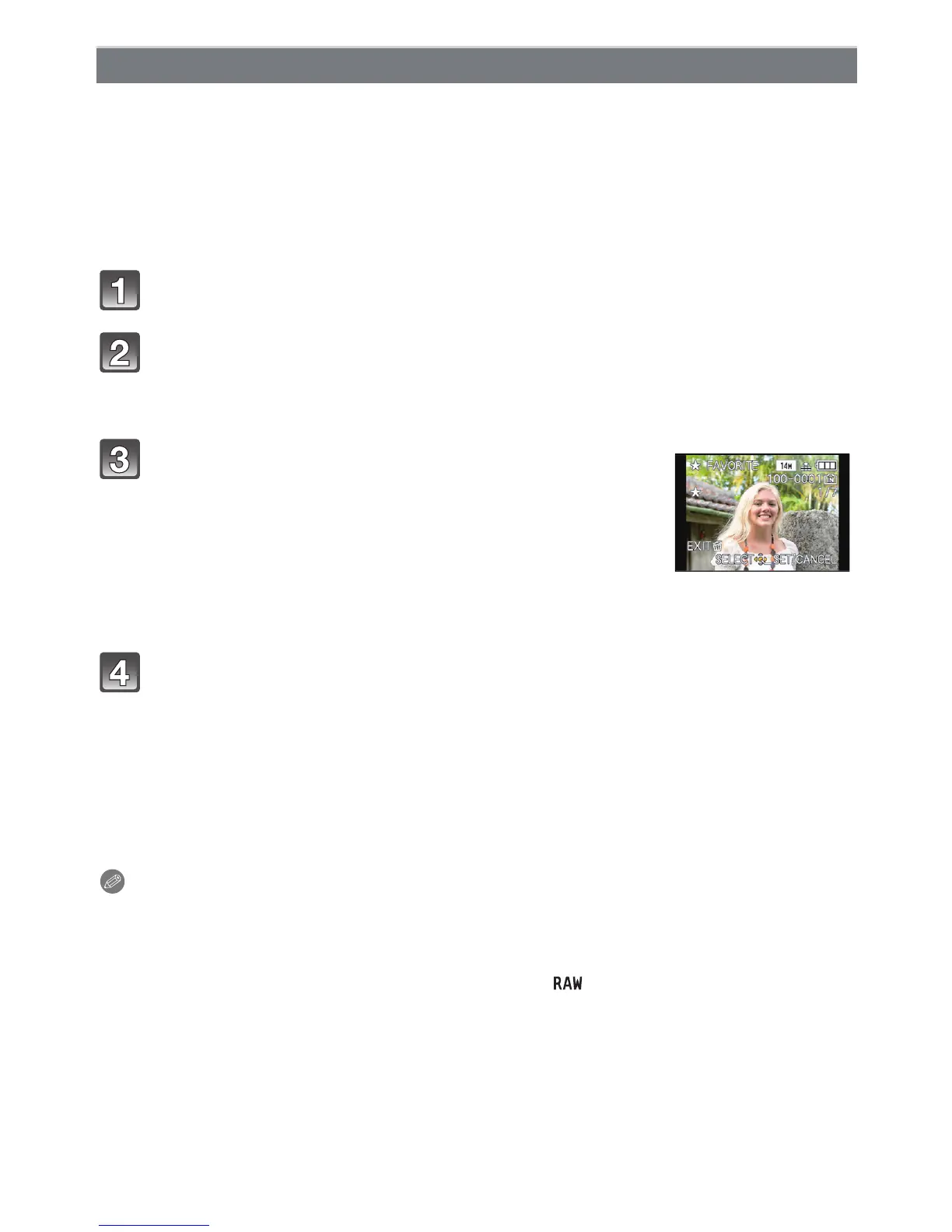
Press
2/1 to select the picture, and then press
[MENU/SET] to set.
• [Ü] is displayed on pictures that are already registered as
favourites.
Press 2/1 to select
the picture.








 To Next Page