EasyManua.ls Logo

Panasonic DVD-CV52 - User Manual

Panasonic DVD-CV52
24 pages
Print Icon
To Next Page IconTo Next Page
Loading...
P PC PP
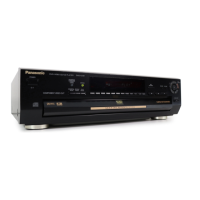
DVD/CD PLAYER
Operating Instructions
Model No. DVD-CV52/DVD-CV47/DVD-CV37
The servicenter list and warranty can be found on
pages 21 and 22.
En la página 23 hay una guía de referencia rápida en
español.
RQT6297-P
Before connecting, operating or adjusting this
product, please read these instructions completely.
Please keep this manual for future reference.
As an
E
NERGY
S
TAR Partner,
Panasonic has determined that
this product meets the
E
NERGY
S
TAR
guidelines for energy efficiency.
®
®
Region number supported by this player
Region numbers are allocated to DVD players and
software according to where they are sold.
The region number of this player is “1”.
The player will play DVDs marked with labels
containing “1” or “ALL”.
2
4
1
1
ALL
Example:
[For[U.S.A.[only[

Other manuals for Panasonic DVD-CV52

Questions and Answers

  • M
    Michael DiazJul 26, 2025
    What to do if my Panasonic DVD Player has no power?
    • C
      Crystal BennettJul 26, 2025
      First, ensure the AC power supply cord is securely inserted into the household AC outlet. Also, to conserve power, the unit automatically switches to standby after approximately 30 minutes in the stop mode, so turn the power back to ON. Lastly, check if the unit was switched to standby by the SLEEP timer.
  • A
    Amanda WashingtonAug 5, 2025
    What to do if my Panasonic DVD-CV52 DVD Player displays "NoPLAY" "CHECK" "H??"?
    • M
      millerkellyAug 5, 2025
      This message indicates a problem with the disc or the unit itself. It could mean you've inserted a disc the unit can't play, so try a compatible disc. If the disc is dirty, wipe it clean. If the issue persists, try resetting the unit by pressing the power button to switch it to standby mode, and then back to ON. Alternatively, disconnect the AC power supply cord, and then reconnect it. If the service numbers fail to clear, note the service number and contact a qualified service person.
  • A
    Ashley ReevesAug 10, 2025
    What to do if my Panasonic DVD-CV52 has no sound or distorted sound?
    • K
      kevin37Aug 10, 2025
      If you're experiencing sound issues, start by checking all connections to ensure they are secure. Then, verify the volume level on all connected equipment. Make sure the input settings for your television and stereo system are correct. If the sound is distorted, try turning ADVANCED SURROUND off. If you have the unit connected to other equipment through the DIGITAL AUDIO OUT terminal, ensure you have selected the correct settings for 'Dolby Digital', 'DTS Digital Surround' in the SETUP menu’s Audio menu.
  • S
    Samantha WallAug 15, 2025
    What to do if my Panasonic DVD-CV52 DVD Player has picture problems, like distortion or no picture?
    • N
      Nicholas HopkinsAug 15, 2025
      First, ensure that all equipment is connected properly and that your television is turned on and set to the correct video input. Access the Video menu in the SETUP screen and adjust the 'TV Aspect' to match your television's aspect ratio. You might also need to adjust the screen mode on your TV. Ensure that the unit is connected directly to the television, not through a video cassette recorder. Also check the settings in the On-Screen Menu Icons’ Video menu.
  • J
    James HardingAug 20, 2025
    How to fix no on-screen display on Panasonic DVD Player?
    • M
      melissa53Aug 20, 2025
      To resolve on-screen display issues, first, go to the Display settings in the SETUP menus and select 'On' for 'On-Screen Messages'. If the icons are only partially displayed, press [3, 4] while the rightmost icon is highlighted to move them down. If the disc’s menu is displayed in a different language, go to the Disc settings in the SETUP menus and select the preferred language for 'Menus'.
  • J
    jonesrebeccaOct 30, 2025
    What to do if buttons on my Panasonic DVD-CV52 are not responding?
    • M
      Ms. Chloe AlexanderOct 30, 2025
      There could be several reasons why the buttons aren't responding. Some operations might be prohibited by the disc itself. Try resetting the unit by pressing the power button to switch it to standby mode and then back on. Alternatively, disconnect the AC power supply cord, and then reconnect it. Ensure the batteries in the remote are installed correctly or replace them with new ones. Also, make sure you are pointing the remote control at the remote control signal sensor. If condensation has formed, wait 1 to 2 hours for it to evaporate. If the sequential mode is on, press [SEQUENTIAL] ([CD SEQUENTIAL]) to turn the sequential mode off. While stopped, press and hold [: 6] and [;] on the unit and then also press and hold [

Summary

Getting Started

Accessories

Lists and identifies the supplied accessories for the DVD player.

Important Safety Instructions

Essential safety precautions to follow before connecting or operating the unit.

Connecting to a Television

Provides instructions on how to connect the DVD player to a TV for audio and video output.

The Remote Control

Explains the operation and use of the remote control for the DVD player.

Basic Operations

Quick Setup

Guides through initial setup procedures for language, aspect ratio, and other preferences.

Basic Playback

Covers fundamental playback controls like play, pause, stop, and disc selection.

Using Menus to Play MP3 Discs

Details how to navigate and play MP3 files from discs using menus and tree screens.

Resume Function

Allows resuming playback from where it was last stopped, even after standby.

Advanced Operations

Program Play

Allows selecting up to 32 tracks/chapters to play in a specific programmed order.

Repeat Play

Describes how to set the player to repeat tracks, titles, chapters, or entire discs.

Enhancing Movie Enjoyment

Features like Advanced Surround, Bass Plus, Cinema, and Dialogue Enhancer for improved audio/video.

Changing Settings

Guide to customizing audio language, subtitles, video aspect ratio, and other preferences.

Reference and Support

Troubleshooting Guide

Lists common problems and their solutions for the DVD player, covering power, operation, sound, and picture issues.

Glossary

Defines technical terms and concepts used in the manual, such as Bitstream, Decoder, Dolby Digital, and MPEG.

Limited Warranty

Details the product's warranty terms, coverage, and duration for parts and labor in the USA.

Product Service

Information on how to obtain service, including damage requiring service and replacement parts.

Panasonic DVD-CV52 Specifications

General IconGeneral
TypeDVD Player
Progressive ScanYes
Video OutputComposite, S-Video, Component
Remote ControlYes
Power SupplyAC 120V, 60Hz
Playable MediaDVD-Video, DVD-R, DVD-RW, CD, CD-R, CD-RW
Audio OutputStereo
Disc Capacity5-Disc Changer

Related product manuals