EasyManua.ls Logo

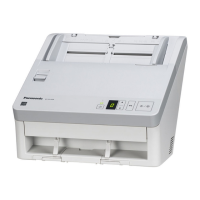
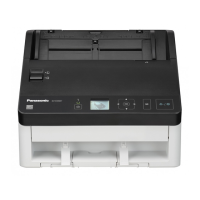
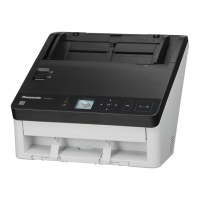
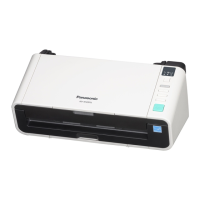
Panasonic KV-S1045C - User Manual

Panasonic KV-S1045C
51 pages
Print Icon
To Next Page IconTo Next Page
Loading...
These instructions contain information on operating the scanner. Before reading these instructions, please read
the installation manual enclosed with this unit.
Please carefully read these instructions and the enclosed installation manual. Keep all documentation in a safe
place for future reference.
Model No.
KV-S1045C
Operating Manual
High Speed Color Scanner

Other manuals for Panasonic KV-S1045C

Questions and Answers

  • L
    Lisa ButlerAug 17, 2025
    What to do if my computer does not recognize my Panasonic KV-S1045C Scanner?
    • J
      Jeffrey HicksAug 17, 2025
      If your computer isn't recognizing the Panasonic Scanner, there might be a few reasons. First, ensure the USB cable is correctly connected. If that doesn't work, try uninstalling and reinstalling the software. Also, verify that the USB interface of your computer is correctly installed using the device manager’s property. Avoid connecting the scanner via a USB hub; connect it directly to the computer. Finally, ensure you are using the included USB cable or a certified Hi-speed USB 2.0 cable.
  • M
    Michael TaylorAug 19, 2025
    Why does my Panasonic KV-S1045C have frequent paper jams?
    • J
      John HillAug 20, 2025
      Frequent paper jams in your Panasonic Scanner can occur for several reasons. The document might be wrinkled, so smooth it out. The rollers could be dirty, so clean them. Ensure the document is correctly aligned. Also, make sure the document set on the feed tray does not exceed the limit mark on the document guides; remove pages if necessary.
  • G
    garrettdanielAug 22, 2025
    How to stop double feeding on my Panasonic KV-S1045C Scanner?
    • R
      Russell Fischer Jr.Aug 22, 2025
      If your Panasonic Scanner is double feeding or stops loading, several factors could be responsible. The rollers might be dirty and need cleaning. Worn paper feed or double feed prevention rollers may need replacement. Ensure the document is flat and realign it. Avoid unsupported or overly thick paper by making a copy on acceptable paper. Also, ensure the paper length is not too short, and don't overload the feed tray beyond the limit mark.
  • S
    Stephanie HowardAug 25, 2025
    How to remove vertical lines on scanned documents from Panasonic Scanner?
    • M
      Maureen YatesAug 26, 2025
      If vertical lines appear on scanned documents from your Panasonic Scanner, the scanning glass is likely dirty. Clean the scanning glass to resolve this issue.
  • L
    lhughesAug 27, 2025
    Why are scanned images skewed on my Panasonic Scanner?
    • D
      deborah46Aug 27, 2025
      Skewed scanned images on your Panasonic Scanner can be due to a couple of reasons. Check that the document guides are properly adjusted to the document size, and ensure the document isn't placed slanted on the feed tray. Also, curling or folding can cause the right and left sides of the document to be uneven; flatten the document before scanning.
  • J
    James LawsonAug 30, 2025
    Why is the scan speed slow on my Panasonic Scanner?
    • E
      enicholsAug 30, 2025
      If the scan speed on your Panasonic Scanner is slow, it might be connected over a USB 1.1 connection. Try connecting over USB 2.0 instead.
  • W
    William SmithSep 2, 2025
    What causes uneven scanning density on a Panasonic Scanner?
    • C
      Carolyn SmithSep 2, 2025
      Uneven scanning density on your Panasonic Scanner is often caused by a dirty scanning glass. Clean the scanning glass to fix this.
  • L
    Lisa DelgadoSep 5, 2025
    How to fix dark spots or noise on scanned documents using a Panasonic KV-S1045C?
    • J
      Jennifer AguilarSep 5, 2025
      If you're seeing dark spots or noise on your scanned documents with the Panasonic Scanner, it's likely due to a dirty scanning glass. Clean the scanning glass to resolve this issue.
  • B
    Brandon FisherSep 7, 2025
    What to do if the Panasonic KV-S1045C Scanner doesn't start scanning after loading the document?
    • R
      Rachel HudsonSep 7, 2025
      If your Panasonic Scanner doesn't start scanning after loading the document, ensure the document is loaded properly. Also, if the edge of the document is curled, the sensor might not detect it; flatten the document and load it again.
  • M
    Morgan MasonSep 12, 2025
    Why doesn't the ready indicator light up on my Panasonic Scanner?
    • Z
      zjenkinsSep 12, 2025
      If the ready indicator doesn't light up when you turn on your Panasonic Scanner, first check that the power cord is firmly plugged in. If it still doesn't light up, there may be a problem with the AC adapter. Unplug the power cord from the AC outlet, and call for service.

Summary

Before You Start

For Your Safety

Provides essential safety guidelines and explains warning symbols used throughout the manual.

Operating Safeguards

Lists critical safety precautions for operating the scanner to prevent hazards.

Location of Controls

Operation

Preparing Documents

Details the specifications for acceptable documents, including size, thickness, and paper types.

Care and Maintenance

Clearing Paper Jams

Provides instructions for clearing paper jams and includes warnings about hot surfaces.

Replacement Parts

Appendix

Troubleshooting

Offers solutions for common scanner problems, categorized by symptom, cause, and remedy.

Panasonic KV-S1045C Specifications

General IconGeneral
BrandPanasonic
ModelKV-S1045C
CategoryScanner
LanguageEnglish

Related product manuals