EasyManua.ls Logo

Panasonic KV-S1028Y - User Manual

Panasonic KV-S1028Y
123 pages
Print Icon
To Next Page IconTo Next Page
Loading...
Operating Manual
Document Scanner
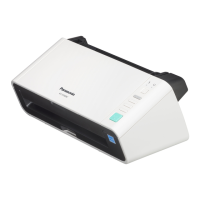
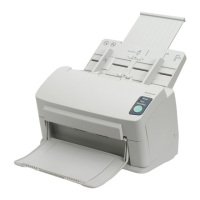
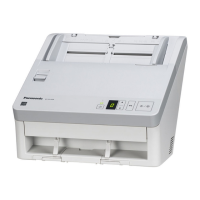
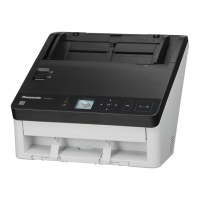
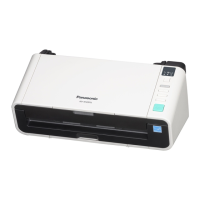
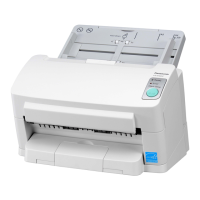
Model No. KV-S1058Y
KV-S1028Y
KV-S1057C
KV-S1027C
KV-S1057C
KV-S1027C
KV-S1057C
KV-S1027C
These instructions contain information on operating the scanner. Before reading these instructions, please read
the Quick Installation Guide enclosed with this unit.
Keep all documentation in a safe place for future reference.
Current model availability depends on your country/area. Please contact your dealer.
KV-S1057C / KV-S1027C only:
The scanner may be displayed on your computer as the "KV-S1057C MK2" / "KV-S1027C MK2".
When you download the driver from web site, download the driver for "KV-S1057C MK2" / "KV-S1027C MK2".

Table of Contents

Other manuals for Panasonic KV-S1028Y

Questions and Answers

  • A
    Ashley CarrSep 14, 2025
    Why is the scan speed so slow on my Panasonic KV-S1028Y Scanner?
    • J
      justin55Sep 14, 2025
      If your Panasonic Scanner's scan speed is slow, and it is connected via USB, ensure you are using a USB 2.0, USB 3.0, or USB 3.1 connection. If you are using a LAN connection, the scanning speed may be affected by network traffic. Consult your network administrator in this case.
  • R
    Rachel PerezAug 25, 2025
    How to fix a Panasonic KV-S1028Y Scanner that won't start scanning?
    • R
      Rebecca FigueroaAug 25, 2025
      If your Panasonic Scanner doesn't start scanning even with a document loaded, it could be due to these reasons: - The document may not be loaded correctly. Make sure to load it properly. - The scanner's sensor might not be detecting the document because the edge is curled. Flatten the document before loading it again.
  • L
    Leslie SantosAug 25, 2025
    Why is my Panasonic KV-S1028Y not recognized by the computer?
    • Z
      zbakerAug 26, 2025
      There are several reasons why your Panasonic Scanner might not be recognized: - The USB cable may not be correctly connected. Ensure it is properly connected. - The software may not be installed correctly. Try uninstalling and reinstalling the software. - The scanner may be connected via a USB hub. Avoid connecting it through a USB hub. - There might be a problem with the USB cable. Use the USB cable that came with the scanner. - The scanner might have turned off due to inactivity. Press the power button to turn it back on.
  • M
    Mary CarterAug 26, 2025
    What to do if the LED (Green) does not light when the Panasonic KV-S1028Y Scanner’s power is turned ON?
    • R
      royhernandezAug 26, 2025
      If the green LED doesn't light up when you turn on your Panasonic Scanner, the power cord might not be plugged in properly. Ensure the power plug is firmly inserted.
  • T
    thomasgordonSep 15, 2025
    Why is the color of the scanned document extremely different from the original on my Panasonic Scanner?
    • R
      Raymond BaileySep 15, 2025
      If the color of the scanned document from your Panasonic Scanner is extremely different from the original, adjust your computer monitor settings. Also, try increasing the [Chroma] value in the scanning conditions, as the scanner may not be capturing the color properly.
  • B
    Blake StewartSep 23, 2025
    Why double feed is detected when scanning cards on Panasonic KV-S1028Y?
    • M
      Mrs. Aimee Fisher DVMSep 23, 2025
      If a double feed is detected when scanning cards with your Panasonic Scanner, the cards are likely set in portrait orientation. Either disable the double feed detection function or set the cards in landscape orientation.
  • G
    gayalaSep 8, 2025
    What if my Panasonic KV-S1028Y Scanner doesn't start scanning even though the document is loaded?
    • M
      mchurchSep 8, 2025
      If the document has been loaded on the feed tray, but the scanner does not start scanning: * The document is not loaded properly: Load the document correctly. * The sensor cannot detect the document as the edge of the document is curled: Flatten the document and load it again.
  • S
    Sharon MartinSep 8, 2025
    What to do if a double feed is detected when scanning cards on my Panasonic KV-S1028Y?
    • C
      Christina NunezSep 9, 2025
      If a double feed is detected when scanning cards, it might be because the cards are set in portrait orientation. Either disable the double feed detection function or set the cards in landscape orientation.
  • B
    Brandon RamirezNov 26, 2025
    Why is my Panasonic Scanner double feeding frequently?
    • J
      Jared CarpenterNov 26, 2025
      Double feeding may occur frequently due to several reasons: * The paper feed roller or double feed prevention roller is dirty: Clean the paper feed roller or double feed prevention roller. * The paper feed roller or double feed prevention roller have become worn down: Replace the paper feed roller or double feed prevention roller. * The double feed detectors are dirty: Clean the double feed detectors. * Right and left sides of the document to be scanned are not the same in height because of curling or folding: Flatten the document and load it again after reducing the number of sheets. * The document is printed on an unsupported type of paper or thick paper: Make a copy of the document on paper of a compatible type and thickness, and then scan the copy. * The length of the pape...
  • R
    Rachael MaldonadoSep 1, 2025
    Why do vertical streaks appear on scanned documents from my Panasonic Scanner?
    • T
      Tamara ReedSep 1, 2025
      Vertical streaks typically appear because the scanning glasses are dirty. Clean the conveyor and scanning glasses. The problem may also be resolved by using "Vertical Line Reduction" in User Utility.

Summary

Preparing Documents for ADF

Loading Documents into the ADF

Document Loading Steps

Document Alignment and Placement

Adjusting Document Guides and Trays

Using the Carrier Sheet for Passports

Carrier Sheet Insertion Process

Scanning Documents Process

Push Scan Modes Overview

USB, Network PC, and Preset Scan Modes

Details scanning data pushed via USB, LAN, or directly to remote destinations.

USB Mode Push Scan Setup

Registering Job Settings for USB Push Scan

Steps to set up job lists and configurations in Image Capture Plus.

Performing USB Push Scan

Operating Scanner and Selecting Job

Steps for operating the scanner, selecting groups/jobs, and initiating the scan.

Network PC Mode Push Scan Setup

Configuring Network Settings and Scanner Registration

Steps to set up network parameters and add the scanner to the receiving computer.

Performing Network PC Push Scan

Operating Scanner in Network PC Mode

Steps for operating the scanner, selecting computers/jobs, and initiating the scan.

Preset Scan Mode Configuration

Network Settings and Scan Server Requirements

Initial network setup and when a scan server is needed for specific destinations.

Configuration Web for Scan Settings

Using Configuration Web to set up output and scan parameters for presets.

Configuring Preset Scan Settings

Using Preset Scan Mode

Configuring Output and Scan Settings

Defining output destinations and specific scan parameters for presets.

Scan Server Functions Explained

Scan Server Requirements and Operation

Details when a scan server is needed, setup requirements, and operational notes.

Setting Up the Scan Server

Scan Server Setup with Option CD-ROM

Procedure for installing Scan Server software from the option CD-ROM.

Using the Configuration Web Tool

Scan Tab Settings for Presets

Basic and Advanced Scan Settings

Settings for paper source, size, image type, resolution, and detailed image processing.

Preset Scan Configuration Details

Preset Group, Index, and Output Settings

Configuring group names, preset index, and output methods (Email, FTP, etc.).

Scanning Documents with Presets

Step-by-step guide for operating the scanner in Preset Scan mode.

Network Tab Settings - IP, Bonjour, WSD

IP Configuration and Firewall Settings

Settings for Host Name, IP Address, DHCP, Subnet Mask, Gateway, DNS, and Firewall.

Network Tab SSL;TLS Settings

Server Tab Settings - SMTP and Shared Folder

SMTP Server Configuration Details

Settings for email accounts, server addresses, and authentication.

Server Tab Settings - FTP and Scan Server

FTP Server Configuration Details

Settings for FTP server addresses, protocols, and accounts.

Administrator Tab Settings - Notifications, Import;Export, Backup;Restore

Information Notification Configuration

Configures SMTP settings for notifications and recipient addresses.

Administrator Tab Password Security

User Name and Password Configuration

Fields for setting user credentials.

Password Security Requirements

Requirements for password complexity, uniqueness, and secrecy.

Clearing Paper Jams

Initial Jam Removal Steps

Removing documents, opening ADF door, and identifying jam location.

Removing Jammed Document Procedure

Procedures for pulling jammed paper backwards or forwards.

Paper Jam Resolution Options

Routine Care and Maintenance

Cleaning Internal Scanner Components

Internal Cleaning Procedure Steps

Steps for cleaning conveyor, glasses, detectors, sensors, and rollers.

Cleaning Conveyor and Scanning Glasses

Wiping Conveyor and Glass Surfaces

Method for cleaning with dry or damp cloths.

Cleaning Detectors and Sensors

Cleaning Double Feed Detectors and Sensors

Method for removing dust from these critical components.

Cleaning the Scanner Rollers

Accessing and Removing Rollers

Steps to open covers and detach the double feed prevention roller.

Cleaning and Installing Prevention Rollers

Using roller paper to clean and reattaching the prevention rollers.

Cleaning Feed Rollers and Closing Cover

Using roller paper to clean feed rollers and securing the cover.

Cleaning Free Rollers and Installation Check

Cleaning remaining rollers and notes on proper installation if issues persist.

Cleaning Conveyor and Exit Rollers

Instructions to clean other rollers, referencing Cleaning Mode.

Using the Cleaning Mode Function

Entering and Operating Cleaning Mode

Steps to activate Cleaning Mode and clean rollers using roller paper and the Start/Stop button.

Cleaning Mode Notes

Clearing Counters After Roller Cleaning

Replacing Scanner Rollers

Roller Replacement Guidelines and Preparation

Guidelines on replacement intervals and initial steps like power off and opening ADF.

Installing and Securing Prevention Rollers

Correctly mounting the new roller and securing the cover.

Accessing and Removing Paper Feed Rollers

Opening cover and detaching the paper feed roller assembly.

Removing and Installing Feed Roller Rubber Components

Detaching old rubber rollers and preparing new ones.

Installing New Rubber Rollers and Feed Roller Assembly

Correctly mounting new rollers and reassembling the feed roller assembly.

Closing Feed Roller Cover and Post-Replacement Checks

Securing the cover, verifying rotation, and resetting the 'After Replace Roller Counter'.

Removing Double Feed Prevention Roller

Detailed steps for detaching the double feed prevention roller.

Installing New Double Feed Prevention Roller

Taking out and preparing the new roller module.

Clearing Counter After Roller Replacement

Network Settings via USB Connection

Wired LAN Configuration Steps

Step-by-step instructions for setting up wired LAN parameters using the Network Setting Tool.

Wired LAN Connection Troubleshooting

Checking Push Scan Event Settings

Verifying Push Scan Application Launch Settings

Accessing scanner properties and confirming the correct application for push scan events.

Server Certificate Management for HTTPS

Installing a Server Certificate for HTTPS Security

Step-by-step process for creating a CSR and installing a server certificate.

Self-Signed Certificate Installation

Enabling SSL;TLS and Installing Self-Signed Certificate

Steps to activate SSL/TLS and install a self-signed certificate.

Import;Export Scanner Settings

Exporting and Importing Scanner Configurations

Steps to save and load scanner settings using Configuration Web.

Backup and Restore Scanner Settings

Backing Up and Restoring Scanner Configurations

Procedure to save and load all scanner settings using Configuration Web.

Factory Reset Procedure

Performing Factory Reset and Notes

Explains what settings are reset and provides notes on language selection after reset.

Troubleshooting Common Scanner Issues

Power, Recognition, and Speed Troubleshooting

Solutions for LED issues, computer recognition, network settings, and slow scan speeds.

Feed and Scan Start Troubleshooting

Solutions for scanner not starting or documents feeding incorrectly.

Troubleshooting Paper Feed Problems

Paper Jam Causes and Solutions

Solutions for jams related to document condition, alignment, and tray loading.

Double Feeding Causes and Solutions

Solutions for frequent double feeding due to roller condition, detectors, or paper type.

Troubleshooting Image Quality Issues

Image Skew, Blank Scans, and Streaks

Correcting skewed images, blank scans, vertical streaks, and density issues.

Color, Noise, and Moire Pattern Resolution

Addressing color discrepancies, noise, and moire patterns in scanned images.

Error Codes and Messages Reference

General and Network Communication Error Codes

Covers errors related to jams, sensors, ADF, offline status, and computer communication.

Server Configuration and Scan Server Errors

Errors related to FTP/Shared Folder paths, email limits, scan server communication, and Image Capture Plus.

Uninstalling Scanner Software

Scanning Specifications

Scanning Specification Notes

General Scanner Specifications

Panasonic KV-S1028Y Specifications

General IconGeneral
BrandPanasonic
ModelKV-S1028Y
CategoryScanner
LanguageEnglish

Related product manuals