EasyManua.ls Logo

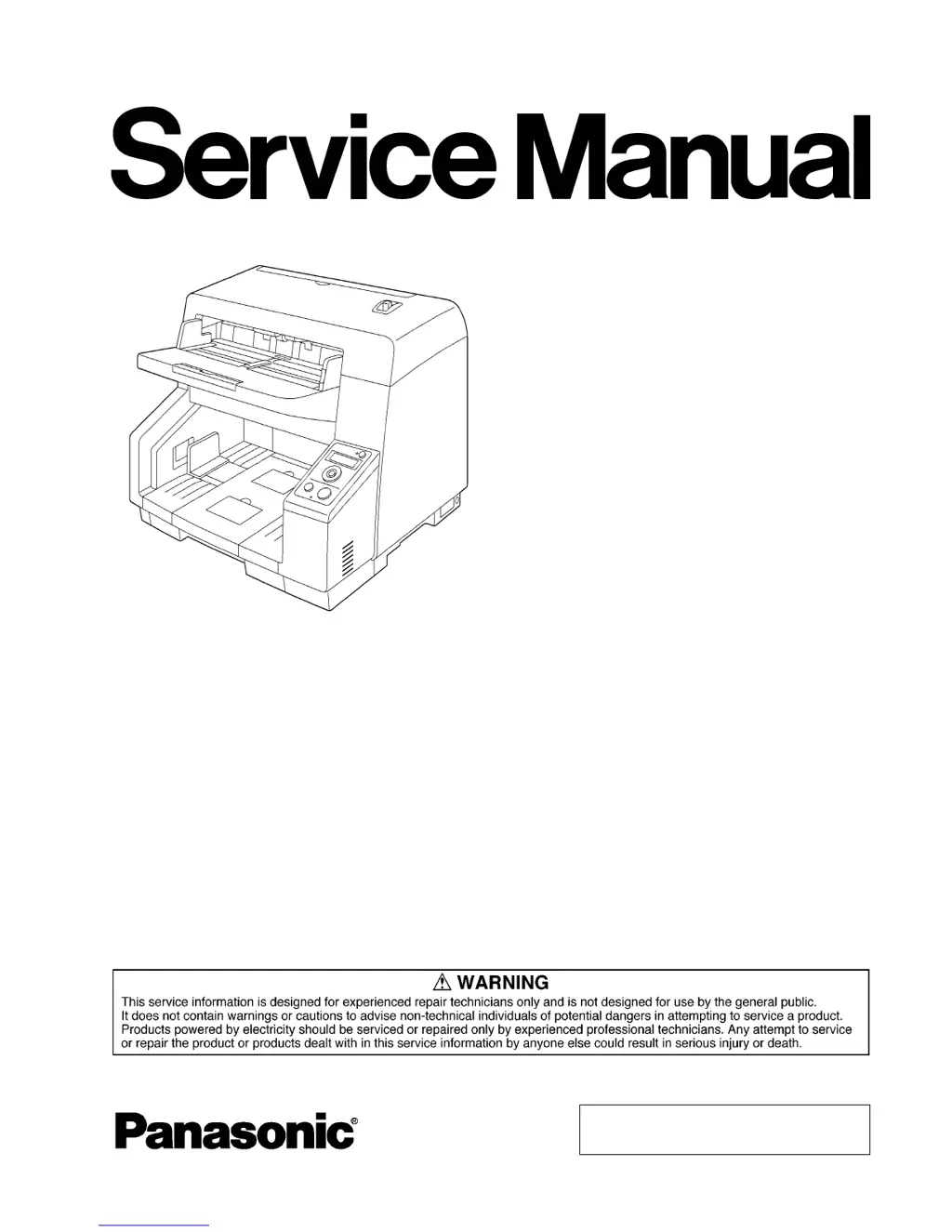
Panasonic KV-S5076H - Service Manual

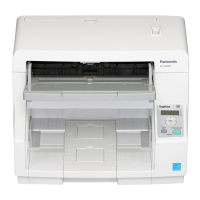
Panasonic KV-S5076H
325 pages
Print Icon
To Next Page IconTo Next Page
Loading...
© Panasonic System Networks Co., Ltd. 2013
Unauthorized copying and distribution is a violation
of law.
Order Number KM71312855CE
Category Number G14
High Speed Color Scanner
Model No. KV-S5076H
KV-S5046H

Table of Contents

Other manuals for Panasonic KV-S5076H

Questions and Answers

  • J
    Jordan MasonAug 21, 2025
    Why does my Panasonic KV-S5076H Scanner keep jamming?
    • V
      Victoria PrestonAug 21, 2025
      Frequent paper jams in your Panasonic Scanner can occur due to: * The document being wrinkled, so you should smooth out the document. * Dirty paper feed roller, separation roller, double feed prevention roller, drive rollers, or free rollers. Clean these rollers. * Dirty sensors or reflectors. Clean all sensors and reflectors. * The document not being aligned correctly. Realign the document. * Too many pages in the document set on the feed tray. Remove pages until it is under the limit mark on the document guides.
  • M
    Michael BakerAug 23, 2025
    What to do if computer does not recognize Panasonic KV-S5076H Scanner?
    • L
      Laura TurnerAug 23, 2025
      If your computer isn't recognizing the Panasonic Scanner, and it's not functioning correctly, consider these potential causes: * The scanner might not be connected to the computer correctly. Ensure the USB cable is properly connected. * The software might not be installed correctly. Uninstall the software from the computer, and then install the software again. * The scanner is connected via USB hub. Do not connect via USB hub. * There might be a problem with the USB cable. Use the included USB cable. * The unit’s power was turned OFF because no operation was performed for a certain period of time. Press the power button to turn ON the unit’s power.
  • C
    Cindy LiAug 26, 2025
    How to improve slow scan speed on Panasonic KV-S5076H Scanner?
    • A
      Angela FordAug 26, 2025
      If your Panasonic Scanner's scan speed is slow, it might be connected over a USB 1.1 connection. Connect over USB 2.0 / USB 3.0 to improve the speed.
  • S
    Samantha HoweAug 27, 2025
    How to fix a skewed scanned image on Panasonic KV-S5076H Scanner?
    • B
      Brenda SextonAug 27, 2025
      A skewed scanned image on your Panasonic Scanner can be caused by: * The document guides not being adjusted to the size of the document, or the document being set slanted on the feed tray. Adjust the document guides properly to the size of the document. * Right and left sides of the document not being the same in height due to curling or folding. Flatten the document and load it again after reducing the pages.
  • D
    Dana GravesAug 30, 2025
    Why are there vertical lines on my scanned Panasonic document?
    • H
      huertamelissaAug 30, 2025
      If you are seeing vertical lines on your scanned Panasonic document, this could be due to the scanning glass being dirty. Clean the conveyor and self-cleaning brushes, the ion outlets, and then clean the scanning glasses (F and B).
  • J
    Jeff ColonSep 1, 2025
    What to do if Panasonic KV-S5076H Scanner doesn't start scanning?
    • J
      Jeffrey HerringSep 1, 2025
      If the document is loaded on the feed tray but the Panasonic Scanner doesn't start, it might be because: * The document is not loaded properly. * The sensor cannot detect the document as the edge of the document is curled. Flatten the document and load it again.
  • A
    ann55Sep 3, 2025
    Why do dark spots appear on scanned documents from Panasonic KV-S5076H Scanner?
    • K
      Kristy SpencerSep 4, 2025
      Dark spots or noise on scanned documents from your Panasonic Scanner often indicate that the scanning glass is dirty. Clean the conveyor and self-cleaning brushes, the ion outlets, and then clean the scanning glasses (F and B).
  • M
    Michael LeonardSep 6, 2025
    How to fix uneven scanning density on Panasonic Scanner?
    • S
      Sean SmithSep 6, 2025
      Uneven scanning density on your Panasonic Scanner can be caused by: * The scanning glass being dirty. Clean the scanning glasses (F and B). * The quantity distribution of light varies. Adjust shading.
  • R
    Rose MorenoSep 8, 2025
    How to remove noise from scanned image with Panasonic Scanner?
    • J
      Jennifer LopezSep 8, 2025
      Noise or wave patterns (moire pattern) on a scanned image from your Panasonic Scanner may be due to the scanning resolution settings combined with patterns within the scanned image. Change the scanning resolution and perform scanning again.
  • R
    Ryan JonesSep 12, 2025
    Why is my Panasonic KV-S5076H Scanner producing blank scans?
    • K
      Karen BellSep 12, 2025
      If your Panasonic Scanner is producing blank scans, it's likely that the wrong face (blank face) of the document is being scanned. Load the document with the side to be scanned facing up.

Panasonic KV-S5076H Specifications

General IconGeneral
Film scanning-
Duplex scanningYes
Maximum scan size307 x 2540 mm
Output color depth24 bit
Output grayscale depth8 bit
Output monochrome depth1 bit
ADF scan speed (color, A4)100 ppm
Optical scanning resolution600 x 600 DPI
Duplex ADF scan speed (color, A4)200 ipm
Scanner typeADF scanner
Product colorWhite
Sensor typeCIS
Scan file formatsJPG
Daily duty cycle (max)35000 pages
USB version3.2 Gen 1 (3.1 Gen 1)
Standard interfacesUSB 3.2 Gen 1 (3.1 Gen 1)
Input voltage100-240 V
Power supply typeAC
AC input frequency50 - 60 Hz
Power consumption (off)0.3 W
Power consumption (standby)1.2 W
Power consumption (typical)90 W
Auto document feeder (ADF) input capacity300 sheets
Media thickness (min)0.04 mm
Maximum ISO A-series paper sizeA3
Auto Document Feeder (ADF) media weight20 - 157 g/m²
Storage temperature (T-T)0 - 40 °C
Operating temperature (T-T)10 - 35 °C
Storage relative humidity (H-H)10 - 80 %
Operating relative humidity (H-H)20 - 80 %
Windows operating systems supportedWindows 7 Enterprise, Windows 7 Enterprise x64, Windows 7 Home Basic, Windows 7 Home Basic x64, Windows 7 Home Premium, Windows 7 Home Premium x64, Windows 7 Professional, Windows 7 Professional x64, Windows 7 Starter, Windows 7 Starter x64, Windows 7 Ultimate, Windows 7 Ultimate x64, Windows 8, Windows 8 Enterprise, Windows 8 Enterprise x64, Windows 8 Pro, Windows 8 Pro x64, Windows 8 x64, Windows XP Home, Windows XP Professional
Weight and Dimensions IconWeight and Dimensions
Depth444 mm
Width468 mm
Height339 mm
Weight17000 g

Related product manuals