EasyManua.ls Logo

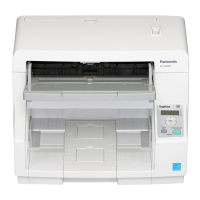
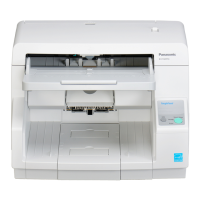
Panasonic KV-S7097 - User Manual

Panasonic KV-S7097
53 pages
Print Icon
To Next Page IconTo Next Page
Loading...
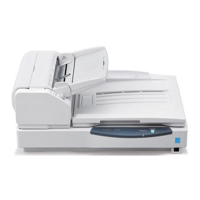
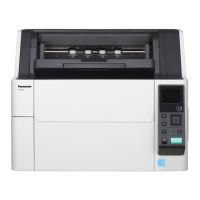
KV-S7097
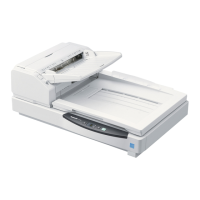
KV-S7077
These instructions contain information on operating the scanner. Before reading these instructions, please read
the Quick Installation Guide enclosed with this unit.
Keep all documentation in a safe place for future reference.
Current model availability depends on your country/area. Please contact your dealer.
Model No.
Operating Manual
Document Scanner

Table of Contents

Other manuals for Panasonic KV-S7097

Questions and Answers

  • D
    David PowellAug 18, 2025
    Why is my Panasonic KV-S7097 Scanner not being recognized by my computer?
    • R
      rachelparsonsAug 18, 2025
      If your computer isn't recognizing the Panasonic Scanner, there could be several reasons: 1. **Incorrect Connection:** Ensure the cables are correctly connected. 2. **Software Issues:** Try uninstalling and then reinstalling the software. 3. **USB Interface Problems:** Verify that the computer's USB interface is properly installed using the device manager's properties. 4. **USB Hub Connection:** Avoid connecting the scanner through a USB hub. 5. **Faulty USB Cable:** Use the USB cable that came with the scanner. 6. **Unit Turned Off:** Press the power button to turn the unit back on if it has automatically turned off due to inactivity.
  • R
    Rebecca CruzAug 21, 2025
    How to improve slow scan speed on a Panasonic Scanner?
    • T
      Tricia RichmondAug 21, 2025
      If your Panasonic Scanner's scan speed is slow, it might be connected via USB 1.1. To resolve this, connect the scanner using a USB 2.0 or USB 3.0 port.
  • S
    sespinozaAug 23, 2025
    Why are there vertical lines on my scanned document from my Panasonic Scanner?
    • R
      Ronald TurnerAug 23, 2025
      If you're seeing vertical lines on your scanned documents from the Panasonic Scanner, it's likely due to dirty components. Clean the ADF glasses and flatbed glass, as well as the reference plate and flatbed sheet. This should eliminate the lines.
  • A
    Alexander GutierrezAug 26, 2025
    How to fix dark spots or noise on scanned documents with a Panasonic KV-S7097 Scanner?
    • T
      twiseAug 26, 2025
      Dark spots or noise on scanned documents from your Panasonic Scanner are usually caused by dirty components. Clean the ADF glass, reference plate, flatbed glass, and flatbed sheet to resolve this issue.
  • L
    Lindsay SinghAug 28, 2025
    What to do if my Panasonic KV-S7097 ADF double feeds or stops loading?
    • P
      Patrick JuarezAug 28, 2025
      If your Panasonic Scanner's ADF is experiencing frequent double feeding or stops loading during scanning, consider these potential causes and solutions: 1. **Dirty Rollers:** Clean all the rollers. 2. **Worn Rollers:** Replace the paper feed roller module and the double feed prevention roller module. 3. **Curled or Folded Document:** Flatten the document and reduce the number of pages. 4. **Unsupported Paper:** Copy the document onto acceptable paper. 5. **Document Size:** Ensure the document is longer than 70 mm (2.75 in.) or copy it onto a larger sheet.
  • A
    Andrew EspinozaAug 30, 2025
    Why is the scanning density uneven on my Panasonic KV-S7097?
    • Z
      Zachary MccartyAug 30, 2025
      Uneven scanning density on your Panasonic Scanner can be caused by a few things. First, the ADF glass, reference plate, flatbed glass, and flatbed sheet might be dirty, so clean them. If that doesn't solve it, try adjusting the shading.
  • M
    Mark FletcherSep 1, 2025
    Why is the scanned image slanted when using the ADF on my Panasonic KV-S7097?
    • V
      vbakerSep 1, 2025
      If the scanned image from your Panasonic Scanner's ADF is slanted, it might be due to the document guides not being properly adjusted to the document size, or the document itself being askew. Adjust the document guides to fit the document's size correctly. Also, remove any curl or folds from the document and reduce the amount of the document.
  • D
    Daniel NolanSep 3, 2025
    Why does the color of my scanned document look wrong on my Panasonic Scanner?
    • N
      Nathan MossSep 3, 2025
      If the scanned document's color is significantly different from the original when using your Panasonic Scanner, first adjust your computer monitor settings. If the issue persists, especially with highlighter pen colors appearing lighter, try increasing the [Chroma] value in the scanning conditions.
  • R
    Robert ShieldsSep 6, 2025
    What to do if my Panasonic KV-S7097 doesn't start scanning from the ADF?
    • J
      Joseph FisherSep 6, 2025
      If you've loaded a document into the hopper tray of your Panasonic Scanner's ADF, but the scanner isn't starting, it could be due to incorrect loading or a curled document edge. Make sure the document is loaded correctly and flatten any curled edges before trying again.
  • J
    Jorge KaufmanSep 8, 2025
    What to do if the ADF door on my Panasonic KV-S7097 Scanner won't open?
    • K
      Kevin PalmerSep 8, 2025
      If the ADF door on your Panasonic Scanner doesn't open when you push the ADF door release, it's likely that the ADF door isn't closed properly. Close the ADF door until it is locked, and then push the ADF door release again.

Summary

Introduction to Panasonic Document Scanner

Double Feed Detection Function

Uses ultrasonic sensor to detect double feeding of documents with various thicknesses.

Double Feed Skip (DFS) Function

Allows resuming scanning after double feed detection by pressing the Skip button.

System Requirements and Options

Scanner System Requirements

Specifies the minimum hardware and software requirements for the scanner.

Important Precautions

Scanner Installation Guidelines

Provides essential guidelines for installing the scanner unit, including placement and power.

Security Notice for Data Management

Emphasizes user responsibility for document and data management, including backups.

Loading Documents on the ADF

Scanning Documents of Same Sizes

Instructions for scanning documents that are all the same size using the ADF.

Scanning Documents of Different Sizes

Steps for scanning documents with varied page sizes using the ADF.

Loading Documents on the Flatbed

Scanning with the Flatbed

Step-by-step guide for placing documents on the flatbed glass for scanning.

Clearing Paper Jams

Removing Paper Jams from the Paper Slot

Instructions for removing jammed paper from the scanner's paper slot.

Removing Paper Jams from the Exit Path

Instructions for removing jammed paper from the scanner's exit path.

Cleaning the Scanner Unit

Cleaning Paper Feed and Separation Rollers

Detailed steps for cleaning key rollers within the ADF path.

Cleaning Drive and Free Rollers

Instructions for cleaning the drive rollers and free rollers using roller cleaning paper.

Cleaning Drive, Free, and Exit Rollers

Steps for cleaning drive, free, and exit rollers using roller cleaning paper.

Cleaning Reference Plates and ADF Glasses

Procedure for cleaning ADF glass and reference plates with roller cleaning paper.

Cleaning Sensors and Double Feed Detectors

Instructions for cleaning paper sensors, waiting sensors, and double feed detectors.

Cleaning Starting and Ending Sensors

Steps for cleaning the starting and ending sensors and their reflector sheets.

Cleaning the Flatbed Glass

Instructions for cleaning the flatbed glass and flatbed sheet.

Replacing Consumable Roller Modules

Replacing Paper Feed Roller Modules

Step-by-step guide for replacing the paper feed roller modules.

Replacing Double Feed Prevention Roller

Detailed procedure for removing and installing the double feed prevention roller.

Scanner Troubleshooting Guide

Scanner LED Not Lighting

Addresses issues where the scanner's green LED does not illuminate upon power-on.

Computer Does Not Recognize Scanner

Troubleshoots problems where the computer fails to detect the scanner.

Slow Scan Speed

Provides solutions for slow scanning performance.

ADF Door Not Opening

Guides on resolving issues with the ADF door not opening.

Shading Adjustment Procedure

Panasonic KV-S7097 Specifications

General IconGeneral
Optical Resolution600 dpi
ConnectivityUSB 3.0
Weight18.5 kg
InterfaceUSB 3.0
Light SourceLED
Scanning ModesColor, Grayscale, Monochrome
Maximum Document SizeA3
Scanner TypeSheet-fed
Image SensorCIS
Scanning MethodDuplex
Paper SizeA4

Related product manuals