EasyManua.ls Logo

Panasonic KV-S7065C - User Manual

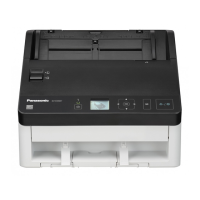
Panasonic KV-S7065C
40 pages
Print Icon
To Next Page IconTo Next Page
Loading...
User Utility Reference Manual
High Speed Scanner
The User Utility is a software application that is used to display information, and for
maintenance of Panasonic High Speed Scanners.
This manual explains how to use User Utility.

Questions and Answers

  • K
    Katherine CraneAug 20, 2025
    What to do if my Panasonic KV-S7065C Scanner is not recognized by computer?
    • L
      Lisa JohnsonAug 20, 2025
      If your Panasonic Scanner isn't being recognized by your computer, there are several potential causes: * Ensure the USB cable is correctly connected. * The software might not be installed correctly. In this case, uninstall the software and then reinstall it. * The USB interface of your computer may not be installed correctly. Verify this using the device manager’s property. * If you are using a USB hub, try connecting the scanner directly to the computer instead. * The USB cable itself might be faulty. Try using the included USB cable or a certified Hi-speed USB 2.0 cable. * The scanner may have entered Standby mode. Restart it by pressing any button for more than 1 second.
  • A
    Amanda EdwardsAug 22, 2025
    Why the ready indicator does not light on my Panasonic KV-S7065C Scanner?
    • M
      Michael ParkerAug 22, 2025
      If the ready indicator on your Panasonic Scanner doesn't light up when you turn on the power switch: * Make sure the power cord is firmly plugged in. * There may be a problem with the power supply. Disconnect the unit from the electric outlet and call for service.
  • K
    Kaitlyn HillAug 25, 2025
    How to open the front door of Panasonic KV-S7065C?
    • M
      Michael GomezAug 25, 2025
      If the front door of your Panasonic Scanner cannot be opened, the screw is not loosened. Open the pre-imprinter door and loosen the screw.
  • J
    Jennifer NewmanAug 26, 2025
    What to do if my Panasonic KV-S7065C Scanner is not recognized or not functioning correctly?
    • S
      Sarah YorkAug 26, 2025
      If your Panasonic Scanner is not being recognized by your computer or isn't functioning as expected, there are several potential causes: * Ensure the USB cable is correctly connected. * If connected via a USB hub, connect the scanner directly to the computer. * Try using the included USB cable or a certified Hi-speed USB 2.0 cable. * Verify that the USB interface of your computer is correctly installed using the device manager’s property. * If the scanner has entered Standby mode, restart it by pressing any button for more than 1 second. * If the software isn't installed correctly, uninstall it and then reinstall it.
  • J
    Joseph MitchellAug 28, 2025
    Why does my Panasonic KV-S7065C have frequent paper jams?
    • S
      Sara PalmerAug 28, 2025
      If your Panasonic Scanner frequently experiences paper jams, consider the following: * Ensure the paper thickness mode is appropriate for the documents you're scanning. Change the paper thickness mode if needed. * Smooth out any wrinkles on the document. * Realign the document correctly. * Clean the rollers. * Make sure that the document set on the hopper does not exceed the limit mark on the document guides.
  • J
    justin06Aug 31, 2025
    Why are there vertical lines on my scanned documents from my Panasonic KV-S7065C Scanner?
    • V
      Veronica CoxAug 31, 2025
      If vertical lines appear on the scanned documents from your Panasonic Scanner, it is likely that the image sensor covers are dirty. Clean the image sensor covers (F and B).
  • L
    Lisa CalderonSep 2, 2025
    Why is the scanned image from my Panasonic KV-S7065C skewed?
    • M
      michael25Sep 2, 2025
      If the scanned image from your Panasonic Scanner is skewed, ensure that the document guides are properly adjusted to the size of the document. It is also important to make sure that the document to be scanned is not set slanted on the hopper. If right and left sides of the document to be scanned are not the same in height, because of curling or folding, flatten the document and load it again after reducing the pages.
  • V
    Valerie HendersonSep 4, 2025
    Why do dark spots or noise appear on the scanned documents from my Panasonic KV-S7065C?
    • S
      Sara GallagherSep 4, 2025
      If dark spots or noise appear on the scanned documents from your Panasonic Scanner, the image sensor covers are likely dirty. Clean the image sensor covers (F and B).
  • K
    Kari BuckSep 6, 2025
    Why is the scanning density uneven on my Panasonic Scanner?
    • G
      Gary WolfSep 6, 2025
      If the scanning density is uneven on your Panasonic Scanner, it could be due to dirty image sensor covers. Clean the image sensor covers (F and B). Another possible cause is the quantity distribution of light varies, in this case adjust shading.
  • E
    Eric SpencerSep 8, 2025
    Why is the scanned document from my Panasonic KV-S7065C blank?
    • K
      Karla BraunSep 8, 2025
      If the scanned document from your Panasonic Scanner is completely blank, it's possible that the document was loaded upside down. Load the document correctly.

Panasonic KV-S7065C Specifications

General IconGeneral
TypeDocument Scanner
Optical Resolution600 dpi
ConnectivityUSB 3.0
Weight5.5 kg
Light SourceLED
InterfaceUSB 3.0
Image SensorCIS (Contact Image Sensor)
Scanning ModesColor, Grayscale
Document Size (Min)50.8 mm x 69 mm
Dimensions (W x D x H)620 mm x 300 mm x 279 mm
Operating System CompatibilityWindows

Related product manuals