EasyManua.ls Logo

Panasonic KV-S1057C - User Manual

Panasonic KV-S1057C
75 pages
Print Icon
To Next Page IconTo Next Page
Loading...
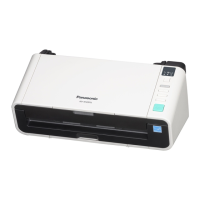
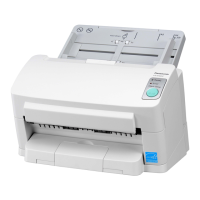
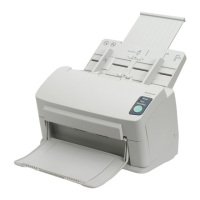
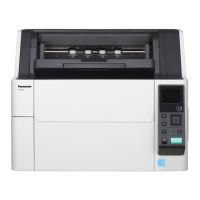
Model No. KV-S1057C
KV-S1027C
KV-SL1066
KV-SL1056
KV-SL1055
KV-SL1036
KV-SL1035
Operating Manual
Document Scanner
These instructions contain information on operating the scanner. Before reading these instructions, please read
the Quick Installation Guide enclosed with this unit.
Keep all documentation in a safe place for future reference.
Current model availability depends on your country/area. Please contact your dealer.

Table of Contents

Other manuals for Panasonic KV-S1057C

Questions and Answers

  • A
    Alexander UnderwoodNov 27, 2025
    How to fix a Panasonic KV-S1057C Scanner when the LED does not light up?
    • H
      holly49Nov 28, 2025
      If the LED on your Panasonic Scanner doesn't light up, here are a few things to check: * Ensure the power cord is correctly inserted. * Make sure the cables inside the scanner are properly connected, especially around the power supply. * If the FAN does not rotate, try to rotate the FAN manually. Check the power supply to the FAN. Replace the FAN. * If the power circuit isn't working properly, replace the Power Supply. * If the boot program isn't working correctly, replace the CONTROL Board. * If the DC ON/OFF circuit isn't working, check the adaptor connection and cable. Check the soldering condition of parts and circuits on the CONTROL Board. Replace any faulty parts. * If the CONTROL Board isn't working, check connections and soldering, and monitor signals. Replace faulty...
  • S
    Steven PhillipsAug 23, 2025
    What to do if my Panasonic Scanner does not recognize the USB connection?
    • M
      myersjosephAug 23, 2025
      If your scanner isn't recognizing the USB connection, here's what you can do: * Check the device (USB) condition of PC with Device Manager. * Re-attach the USB cable, and then restart the scanner and PC. * Try replacing the USB cable. For S1057C and S1027C models, check the soldering condition of parts and circuits on the CONTROL Board, including the USB IF connector, common mode filter, USB3.0 Device IC, and PCI Clock Driver. Replace the CONTROL Board if necessary. For SL1066, SL1056, SL1055, SL1036, and SL1035 models, inspect the soldering condition of parts and circuits on the CONTROL Board, focusing on the USB IF connector, common mode filter, and CPU. Replace the CONTROL Board if needed.
  • P
    Paul RussellAug 25, 2025
    How to troubleshoot noise issues with my Panasonic Scanner?
    • C
      christopherreynoldsAug 26, 2025
      To troubleshoot noise issues with your scanner, consider the following: * There may be a problem with the Conveyor Motor. Replace the Conveyor Motor if you hear a strange sound. * There may be a problem with the Bearing of the Rollers. Replace the Bearing that has the strange sound. * There may be a problem with the Rollers. Replace the Rollers that have the strange sound. * There may be a problem with the Gears. Replace the Gears that have the strange sound.
  • S
    Samuel TaylorAug 26, 2025
    What to do if START/STOP, Skip, or Cursor buttons don't work on Panasonic KV-S1057C Scanner?
    • N
      Nicholas AndersonAug 27, 2025
      If the START/STOP, Skip, or Cursor buttons on your Panasonic Scanner aren't working correctly, it could be due to a mechanical problem with the ON/OFF switch. Check the contact between the button cover and the switch on the SW PANEL Board. Also, check the button’s mechanical condition. Re-attach the button cover after checking for damage. Replace any faulty parts.
  • A
    Andrew CooperAug 27, 2025
    Why is the scanning position shifted on my Panasonic Scanner?
    • S
      Sandra CallahanAug 27, 2025
      If the scanning position is shifted, it may be because the scanning position has not been readjusted after replacing or re-assembling the CIS assembly or mechanical parts related to conveying documents or the CIS assembly is not installed properly. Re-assemble the CIS Assembly.
  • M
    Mitchell BarronSep 18, 2025
    Why is a double feed detected when scanning cards on my Panasonic KV-S1057C?
    • D
      Dr. Felicia Lawrence MDSep 18, 2025
      If a double feed is detected when scanning cards on your Panasonic Scanner, it might be because the cards are set in portrait orientation. Either disable the double feed detection function or set the cards in landscape orientation.
  • C
    Clinton WilliamsSep 14, 2025
    How to fix noise or wave patterns (moire pattern) on scanned images with Panasonic KV-S1057C?
    • P
      Paul DunnSep 15, 2025
      If there is noise or wave patterns (moire pattern) on the scanned image from your Panasonic Scanner, it may be caused by the scanning resolution settings combined with patterns within the scanned image. Change the scanning resolution and perform scanning again.
  • J
    Joseph JonesSep 16, 2025
    Why doesn't the green LED light up on my Panasonic KV-S1057C Scanner?
    • M
      matthew26Sep 16, 2025
      If the LED (Green) does not light when the Panasonic Scanner's power is turned ON, it indicates that the power cord is not plugged in. Ensure that the power plug is firmly inserted.
  • J
    josephfrancisSep 7, 2025
    How to remove dark spots or noise on scanned documents using Panasonic KV-S1057C?
    • R
      Robin WilliamsSep 7, 2025
      If dark spots or noise appear on scanned documents from your Panasonic Scanner, the scanning glasses are probably dirty. Clean the scanning glasses.
  • H
    Holly PerezSep 4, 2025
    How to fix vertical streaks on scanned documents from Panasonic KV-S1057C?
    • L
      longlauraSep 4, 2025
      If your Panasonic Scanner produces scanned images with vertical streaks, the scanning glasses are likely dirty. Clean the scanning glasses to resolve this issue.

Summary

Introduction

Before You Start

Precautions

Important safety instructions and warnings for using the scanner.

Installation

Installing the Software

Step-by-step guide to installing the scanner software from the CD-ROM.

Installing the Unit

Physical setup instructions for the scanner hardware.

Operation

Preparing Documents

Guidelines for preparing documents before scanning.

Incompatible Documents

List of document types that may cause scanning issues.

Scanning Documents

Step-by-step guide on loading and scanning documents.

Performing a push scan

Using scanner buttons to initiate scans without computer intervention.

Clearing Paper Jams

Clearing Paper Jams

Procedure for removing jammed paper from the scanner.

Care and Maintenance

Cleaning the Inside of the Scanner

Procedure for cleaning internal scanner components.

Replacing the Rollers

Guideline and procedure for replacing scanner rollers.

Appendix

Troubleshooting

Common scanner problems, their causes, and remedies.

Specifications

Technical details and performance metrics of the scanner.

Panasonic KV-S1057C Specifications

General IconGeneral
Film scanning-
Color scanningYes
Input color depth24 bit
Maximum scan size- mm
Output grayscale depth8 bit
Output monochrome depth1 bit
ADF scan speed (b/w, A4)65 ppm
Optical scanning resolution600 x 600 DPI
Duplex ADF scan speed (b/w, A4)130 ipm
Daily duty cycle (max)- pages
Standard input capacity100 sheets
USB version3.2 Gen 1 (3.1 Gen 1)
Standard interfacesUSB 3.2 Gen 1 (3.1 Gen 1)
Power supply typeAC
AC input frequency50 - 60 Hz
Power consumption (off)0.5 W
Scanner typeADF scanner
Product colorBlack, White
Weight and Dimensions IconWeight and Dimensions
Depth256.5 mm
Width300 mm
Height238 mm
Weight3991 g

Related product manuals