EasyManua.ls Logo

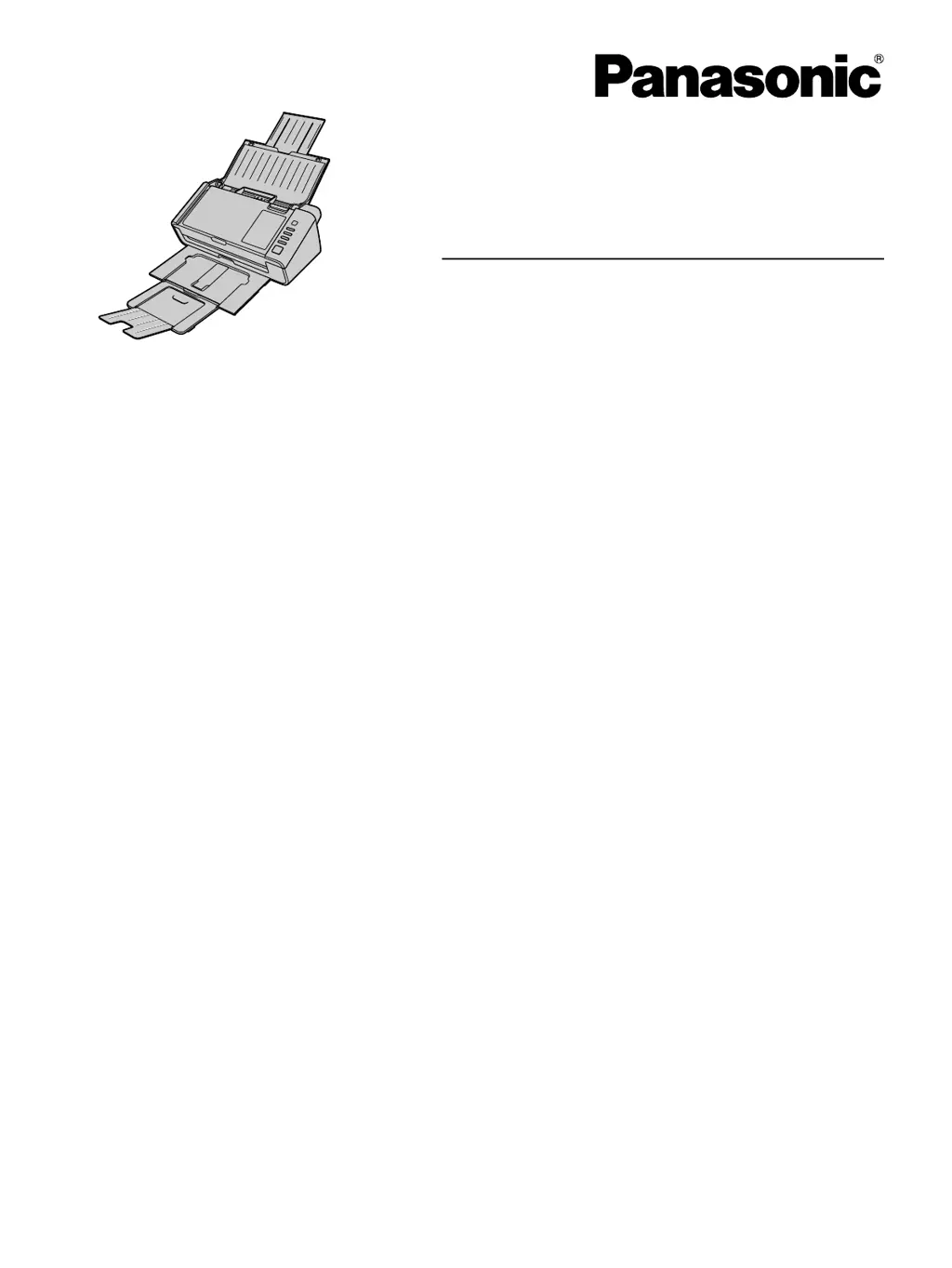
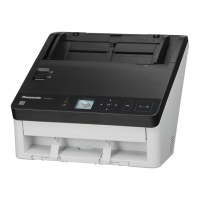
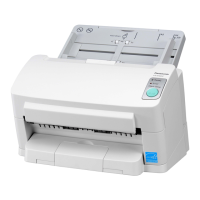
Panasonic KV-S1026C - User Manual

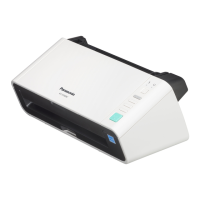
Panasonic KV-S1026C
67 pages
Print Icon
To Next Page IconTo Next Page
Loading...
These instructions contain information on operating the scanner. Before reading these instructions, please read
the Safety Guide and the Quick Reference Guide enclosed with this unit.
Please carefully read these instructions and the enclosed Safety Guide and Quick Reference Guide.
Keep all documentation in a safe place for future reference.
Model No. KV-S1026C
KV-S1015C
Operating Manual
Document Scanner

Other manuals for Panasonic KV-S1026C

Questions and Answers

  • H
    Holly SweeneyAug 20, 2025
    How to install Panasonic KV-S1026C Scanner drivers if they won't install?
    • L
      Linda TaylorAug 20, 2025
      If you can't install the drivers or software for your Panasonic Scanner, log in to Windows with an account that has administrator privileges and try installing the software again.
  • M
    Michael Norton DVMAug 21, 2025
    What to do if my computer does not recognize the Panasonic Scanner?
    • E
      Ethan WilliamsAug 22, 2025
      If the computer does not recognize the Panasonic Scanner, ensure the USB cable is correctly connected directly to the computer, not through a USB hub. If that doesn't work, try using the included USB cable or a certified Hi-speed USB 2.0 cable. Also, verify that the software is correctly installed; if not, uninstall and reinstall it. Finally, check if the scanner has turned off automatically due to inactivity; if so, press the power button to turn it back on.
  • T
    Tina HamptonAug 25, 2025
    Why does my Panasonic KV-S1026C have frequent paper jams?
    • V
      Vincent MurrayAug 25, 2025
      If paper jams occur frequently in your Panasonic Scanner, first smooth out any wrinkles on the document. Also, ensure the document is correctly aligned using the document guides and that you haven't exceeded the page limit. Dirty rollers can also cause paper jams, so clean them.
  • C
    Courtney EspinozaAug 26, 2025
    What to do if my Panasonic KV-S1026C Scanner has double feeding issues?
    • J
      John Hooper Jr.Aug 26, 2025
      If double feeding occurs frequently or the Panasonic Scanner stops loading while scanning, several factors could be the cause. The rollers might be dirty or worn down, requiring cleaning or replacement. The document could be the wrong type, too thick, too short, or misaligned; try using acceptable paper and realigning the document. Also, ensure the document doesn't have too many pages and is not curled or folded.
  • D
    Danielle BryantAug 27, 2025
    Why is the scanned image from my Panasonic KV-S1026C skewed?
    • J
      Jennifer JensenAug 27, 2025
      If the scanned image from your Panasonic Scanner is skewed, adjust the document guides to properly fit the document size and ensure the document is not placed at a slant on the feed tray. Also, flatten the document if its right and left sides are uneven due to curling or folding.
  • E
    Eddie WilliamsAug 29, 2025
    How to fix vertical lines on scanned documents with a Panasonic KV-S1026C Scanner?
    • W
      wharveyAug 30, 2025
      If vertical lines appear on scanned documents from your Panasonic Scanner, clean the scanning glass.
  • C
    Carl SinghAug 31, 2025
    Why do dark spots appear on scanned documents from my Panasonic Scanner?
    • J
      Jessica JohnsonAug 31, 2025
      If dark spots or noise appear on the scanned documents from your Panasonic Scanner, clean the scanning glass.
  • J
    Jamie LowerySep 2, 2025
    Why is the scanning density uneven on my Panasonic KV-S1026C Scanner?
    • B
      Beth WilliamsSep 2, 2025
      If the scanning density is uneven on your Panasonic Scanner, clean the scanning glass.
  • M
    Michael KingSep 5, 2025
    What to do if the green LED doesn't light on my Panasonic KV-S1026C Scanner?
    • J
      Jessica SmithSep 5, 2025
      If the LED (Green) does not light when you turn on the Panasonic Scanner, make sure the power cord is firmly plugged in. If it is, there may be a problem with the AC adapter; unplug the power cord from the AC outlet, and call for service.
  • K
    Kent CalhounSep 6, 2025
    Why is my Panasonic KV-S1026C Scanner scan speed so slow?
    • T
      Teresa LaneSep 7, 2025
      If the Panasonic Scanner is slow, connect it over USB 2.0 instead of USB 1.1.

Summary

System Information

System Requirements

Lists hardware and software necessities for the scanner.

Safety and Precautions

Essential Safety Instructions

Covers general safety, operating safeguards, and power precautions.

Installation and Setup

Control Panel

Describes the scanner's control panel and its functions.

Control Panel and LED Indicators

Explains the function of the scanner's control panel buttons and status LEDs.

Installing the Unit

Guides on choosing a suitable placement for the scanner.

Installing Software

Procedure for installing the scanner's software from the DVD-ROM.

Operation and Maintenance

Preparing Documents

Guidelines for preparing documents before scanning.

Acceptable Documents

Details the size, thickness, and types of documents that can be scanned.

Unacceptable Documents

Lists documents that may cause scanning issues or damage.

Scanning Documents

Provides the step-by-step process for scanning documents.

Clearing Paper Jams

Procedures to resolve paper feeding issues and jams.

Cleaning the Rollers

Detailed steps for cleaning the scanner's various rollers.

Parts, Troubleshooting, and Specifications

Replacing the Rollers

Step-by-step guide for replacing worn rollers.

Troubleshooting

Solutions for common scanner problems and errors.

Panasonic KV-S1026C Specifications

Scanning Specifications IconScanning Specifications
high-speed scanning (binary)30 ppm / 60 ipm
scanning speed (color)20 ppm / 40 ipm
resolution (color and B/W)100 - 600 dpi
optical resolution300/600 dpi
Document Handling IconDocument Handling
document size (ADF) minimum1.9 in. x 2.8 in. (48 mm x 70 mm)
document size (ADF) maximum8.5 in. x 100 in. (216 mm x 2, 540 mm)
weight/thickness (single)5.4 lbs. - 55 lbs. (20 - 209 g/m²)
weight/thickness (continuous)5.4 lbs. - 55 lbs. (20 - 209 g/m²)
card thickness0.03 in. (0.76 mm)
Power IconPower
power requirementAC 100 - 120 V 50/60 Hz, AC 200 - 240 V 50/60 Hz
power consumption (scanning mode)17 W or less
power consumption (idle mode)4.5 W or less
power consumption (sleep mode)1.6 W or less
power consumption (power off mode)0.3 W or less
Operating Environment IconOperating Environment
operating temperature50 °F - 95 °F (10 °C - 35 °C)
operating humidity20 % RH - 80 % RH
storage temperature32 °F - 104 °F (0 °C - 40 °C)
storage humidity10 % RH - 80 % RH
Weight and Dimensions IconWeight and Dimensions
external dimensions (W x D x H)11.9 in. × 7 in. × 5.4 in. (303 mm x 177 mm x 137 mm)
weight5.9 lbs. (2.7 kg)

Related product manuals