EasyManua.ls Logo

Panasonic KV-S1025C SERIES - User Manual

Panasonic KV-S1025C SERIES
117 pages
Print Icon
To Next Page IconTo Next Page
Loading...
© 2006 Panasonic Communications Co., Ltd. All
rights reserved. Unauthorized copying and distribu-
tion is a violation of law.
Order Number KM70603158CE
Category Number H19
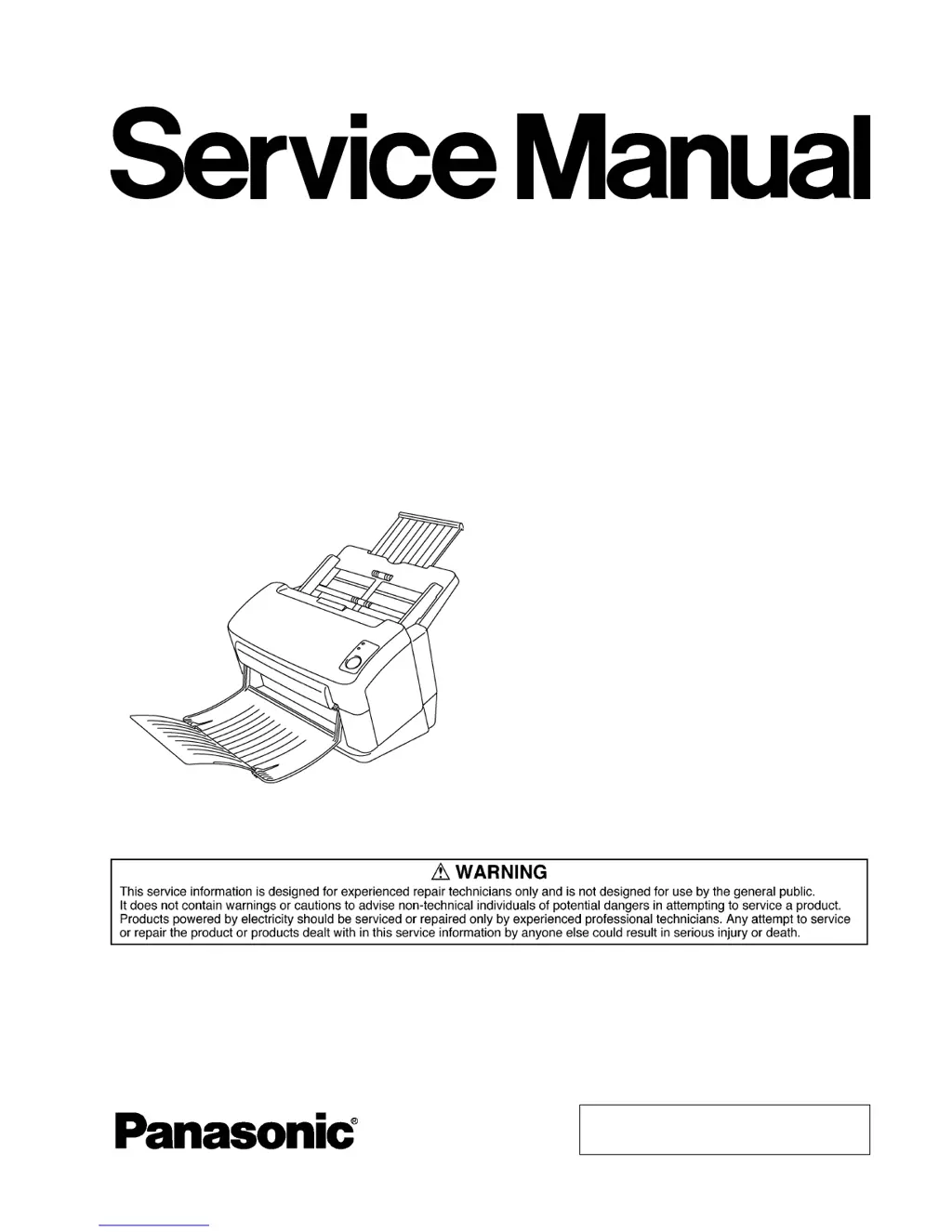
High Speed Color Scanner
KV-S1025CSERIES
KV-S1020CSERIES

Table of Contents

Questions and Answers

  • C
    Charles JohnsonJul 27, 2025
    What to do if my Panasonic Scanner does not recognize the USB connection?
    • J
      Jennifer WallsJul 27, 2025
      If your Panasonic Scanner doesn't recognize the USB connection, first ensure the USB cable is properly connected to both the scanner and your computer. Use Device Manager on your PC to check the device's status. Try re-attaching the USB cable and restarting both the scanner and your PC. If the issue persists, replace the USB cable to rule out a faulty cable. If the problem continues, it may be due to a malfunctioning USB interface circuit. In this case, inspect the soldering condition of JK1001 (USB IF connector) and IC1010 (USB-C) on the CONTROL Board, and repair if necessary.
  • J
    justintranAug 1, 2025
    Why does the document skew when scanned on my Panasonic KV-S1025C?
    • K
      Kristin SanchezAug 1, 2025
      If the document skews when scanned with your Panasonic Scanner, start by adjusting the Document Guides to properly fit the document size on the Feed Tray. Ensure the Mixed Batch Card Guide is correctly set. Also, make sure the ADF Door is fully closed until it clicks. Clean the rollers with the roller cleaning paper, and then use the service utility to clear the cleaning roller counter. Verify the rollers are correctly installed, ensuring equal spacing. If the rollers are old, consider replacing them and clear the roller replacement counter in the service utility.
  • S
    Sara StewartAug 6, 2025
    How to fix a Panasonic KV-S1025C START/STOP button that is not working?
    • J
      Jennifer RiosAug 6, 2025
      If the START/STOP button on your Panasonic Scanner isn't working properly, begin by performing the "Key / Sensor" test to check the button's ON/OFF status. Verify the contact between the button cover and the switch (SW5001 on the PANEL Board). Check the mechanical condition of the switch (SW5001). Re-attach the button cover, ensuring it's not broken. If these steps don't resolve the issue, it could be due to a malfunctioning ON/OFF monitor circuit. Check the soldering condition of SW5001 and CN5001 on the PANEL Board, as well as CN1007, R1175, IC1016, and R1122 on the CONTROL Board. Also, check the signal on the CONTROL Board at CN1007-2nd pin, which should be approximately 0V when pushing the START/STOP Button. Replace any faulty parts or boards as needed.
  • J
    Jeff CareyAug 15, 2025
    What to do if the scanning position is shifted on my Panasonic KV-S1025C Scanner?
    • R
      Richard DillonAug 16, 2025
      If the scanning position is shifted on your Panasonic Scanner, it may be necessary to re-adjust the scanning position, especially if you have replaced or re-assembled the Optical Unit or any mechanical parts related to conveying documents. Perform the All Position and/or Individual Position adjustment. Also, ensure that the Optical Unit is installed properly.
  • M
    Mrs. Katherine CarrilloNov 10, 2025
    Why does the LED not light up on my Panasonic Scanner?
    • V
      Vanessa MendozaNov 10, 2025
      If the LED on your Panasonic Scanner does not light, first check the connection of the AC adapter and its cable, ensuring it's properly plugged into both the "AC" outlet and the "DC IN" on the scanner. Make sure the Power Switch is mechanically turned ON, and verify the connection between the Power Switch and CN1005 on the CONTROL Board. If these steps don't resolve the issue, it might be a problem with the DC ON/OFF circuit. Monitor the signals at CN1005-2nd pin (Typ. +16 V) and Q1008-G (Typ. +5 V) when turning on the Power Switch. Check the soldering condition of R1192, R1194, R1197, R1182, and R1181 on the CONTROL Board. Also, monitor the signals at Q1017(C-E) (Typ. 0 V) and SCR1001(A) (Typ. 10 V). If the problem persists, it could be an issue with the CONTROL Board itself. Perform the ...
  • M
    Melissa FoxNov 20, 2025
    Why does my Panasonic KV-S1025C Scanner produce scanned images with black lines, white lines, or darker images?
    • T
      Tom BennettNov 20, 2025
      If scanned image data from your Panasonic Scanner has a black line, white line, or appears darker than the original, begin by performing the "Shading" to overwrite new data. Check for dust on the Scanning Glass or its surroundings and wipe it off. If the issue persists, there may be a problem with Pixel data from the CCD Board (F) or the image processing circuit. Check the connections and soldering condition between CN2001 and CN1001, and inspect the soldering condition of IC2002, IC2003, IC1007, IC1004 and IC1005. Monitor the CCD Timing signals on CN1001. If the issue persists, there may be a problem with Pixel data from the CCD Board (B) or from image processing circuit. Check the connections and soldering condition between CN2501 and CN1002, and inspect the soldering condition of IC2502...

Summary

General Precautions

Safety Precautions

General safety guidelines for servicing and handling the scanner.

For Service Technicians

Precautions for service technicians, focusing on static electricity.

Scanner Specifications

KV-S1025 C Series Specifications

Detailed technical specifications for the KV-S1025C scanner series.

KV-S1020 C Series Specifications

Detailed technical specifications for the KV-S1020C scanner series.

Installation Procedures

Connecting Scanner to PC

Steps for connecting the scanner to a PC via USB and power.

Scanner System Requirements

Outlines the necessary hardware and OS requirements for scanner operation.

Mechanical Function Details

Paper Feed Mechanism

Explains the operation of the paper feeding system and its rollers.

Maintenance Operations

Replacing Wearable Parts

Instructions for replacing common wear parts like rollers and their associated adjustments.

Disassembly Instructions

Mechanical Block Disassembly

Procedures for disassembling key mechanical parts such as motors and rollers.

Circuit Board Assembly Disassembly

Steps for removing various circuit boards like PANEL, SENSOR, CONTROL, and CCD.

Post-Replacement Adjustments

Lists necessary adjustments and calibrations after replacing components or circuit boards.

Service Utility and Self Test

Service Utility Functions Explained

Detailed explanation of the functions available within the service utility.

Scanner Self-test Procedures

Guides on performing self-tests for mechanical parts, lamps, and shading.

Troubleshooting Guide

Troubleshooting (No PC Error)

Diagnoses and checks for common issues without specific error codes displayed on the PC.

Troubleshooting (PC Error Messages)

Provides solutions for specific error codes reported by the PC.

Panasonic KV-S1025C SERIES Specifications

General IconGeneral
Scanner TypeDocument Scanner
Scanning MethodContact Image Sensor (CIS)
Optical Resolution600 dpi
Maximum Paper SizeA4
Scanning Speed (B/W)25 ppm
Scanning Speed (Color)25 ppm
InterfaceUSB 2.0
Automatic Document FeederYes
Scanning ModesColor, Grayscale, Black & White
Color Depth24-bit
Paper Capacity50 sheets
ADF Capacity50 sheets
Supported OSWindows
Operating Temperature10°C to 35°C
Operating Humidity20% to 80% RH (non-condensing)

Related product manuals