EasyManua.ls Logo

Panasonic KV-S1056 - User Manual

Panasonic KV-S1056
5 pages
Print Icon
To Next Page IconTo Next Page
Loading...
https://bizpartner.panasonic.net/eu/
3 YEAR EXCHANGE WARRANTY IS OUR STANDARD
Panasonic Workgroup Document Scanners: APPLICABLE SCANNER MODELS:
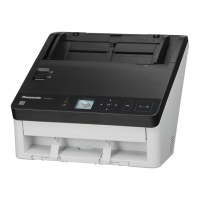
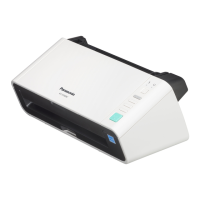
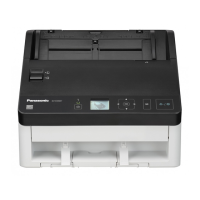
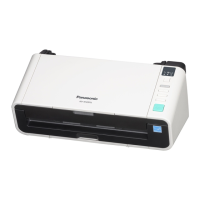
KV-S1027C, KV-S1057C, KV-S1056, KV-S1066
Currently the above scanners are sold with local standard warranty. This will be changed to a 3 Year
exchange warranty. Also devices already sold from April 2016 will get the same conditions.
Panasonic provides now scanners with a standard 3 year exchange warranty. This warranty ensures a
scanner is up and running or replaced at zero cost within a very short timeframe.
The Warranty covers:
Breakdowns due to design or manufacturing faults
The Warranty does not cover:
Damage, however caused, wear or tear, neg
lect, incorrect adjustment or repair, or to any items of limited
natural life (ex extreme use more than 250.000 Pages scanned or Consumables like rollers used)
How to handle the Warranty?
A customer calling in to the service need to verify by when he bought the scanner by the Invoice of
Purchase.
The Service Agent will check the Items in the Attachment A of this Document, to assure the device
does really have a malfunction, so User Errors need to be reduced.
If the Service Agent has verified the malfunction as a warranty case, he will send out a new, or
refurbished Unit of the same Type to the Customer. With the Delivery the service agent will pickup
the malfunction device from the customer. This may happen by a return label, or a pickup –
depending on local service contracts.
As soon as the original unit is back, it will be checked, repaired and arranged for exchange for the
next case. The unit has to be Scratch free and in a condition A-Rated HW can be resold.
Payment of the Warranty
The Payment will be done through the local service payment flows and charged to the local NSCs in
their Service Cost.
To have complete overview of this new 3 year exchange warranty, please check the Terms and
Conditions.
If you need additional information, please contact your Panasonic Sales Representative

Questions and Answers

Overview

This document outlines the features, usage, and maintenance aspects of Panasonic Workgroup Document Scanners, specifically models KV-S1027C, KV-S1057C, KV-S1056, and KV-S1066. These scanners are designed for business environments, offering a robust solution for document digitization.

Function Description

The Panasonic Workgroup Document Scanners are primarily designed for converting physical documents into digital formats. They are equipped to handle various types of documents, from standard paper to cards, and are built to ensure efficient and reliable scanning operations. The core function revolves around high-speed, accurate document capture, facilitating digital archiving, information management, and workflow automation. The scanners are intended to integrate seamlessly into existing business processes, providing a reliable means to manage paper-based information.

Usage Features

The scanners offer several features aimed at enhancing user experience and operational efficiency. They are designed for ease of use, with clear instructions provided for loading documents and operating the device.

Document Handling:

  • Feed Tray: Documents are loaded onto a feed tray, which is designed to hold multiple sheets. Users must ensure that documents are loaded correctly and aligned to prevent issues like skewed images or paper jams.
  • Document Guides: Adjustable document guides are provided to properly size the document to be scanned, ensuring accurate feeding and scanning.
  • Card Scanning: The scanners can handle cards, with specific instructions for setting them in landscape orientation to avoid double feed detection issues.
  • Exit Tray: Scanned documents are directed to an exit tray. Users can fold exit guides if needed to manage the output.

Scanning Process:

  • Automatic Scanning: The devices support automatic scanning, which is the default or recommended method for most documents.
  • Manual Feed Selector: For specific scenarios, a manual feed selector can be used to control the scanning method.
  • Double Feed Detection: The scanners incorporate a double feed detection function to prevent multiple sheets from being scanned simultaneously. This can be disabled if necessary, particularly when scanning cards.
  • Resolution Settings: Users can adjust scanning resolution settings to optimize image quality and file size, depending on the document type and intended use.
  • Chroma Adjustment: For documents with challenging colors (e.g., highlighter pens), the Chroma value can be adjusted in the scanning conditions to improve color accuracy.

Troubleshooting for Common Issues: The manual provides comprehensive troubleshooting steps for various operational problems, guiding users through self-resolution before requiring service.

  • Power Issues: If the LED does not light up, users are advised to check the power cord connection.
  • Connectivity Issues: For problems with the computer not recognizing the scanner, users should verify the USB cable connection, ensure correct software installation, and avoid connecting via a USB hub. Using the included USB cable is recommended.
  • Scanning Speed: Slow scan speeds can be resolved by ensuring the scanner is connected via USB 2.0 or USB 3.0.
  • Document Loading: If scanning does not start, users should ensure the document is loaded properly and that any curled edges are flattened.
  • Double Feeding: This can be caused by worn rollers, dirty detectors, or misaligned/curled documents. Remedies include replacing rollers, cleaning detectors, flattening documents, and reducing the number of sheets.
  • Paper Jams: Similar to double feeding, paper jams often result from wrinkled documents, dirty rollers, or too many sheets on the feed tray. Smoothing documents, cleaning rollers, and reducing sheet count are recommended.
  • Image Quality Issues:
    • Blank Images: Check if the document was loaded upside down.
    • Vertical Streaks/Dark Spots: Clean the scanning glasses.
    • Uneven Scanning Density: Clean scanning glasses and adjust computer monitor settings.
    • Color Discrepancies: Adjust Chroma settings in scanning conditions.
    • Noise/Moire Patterns: Change scanning resolution and rescan.
  • Sound during Ejection: A higher-than-usual sound when ejecting short documents is normal behavior, as feeding speed control is activated for these documents.

Maintenance Features

Maintaining the Panasonic Workgroup Document Scanners is crucial for ensuring their longevity and consistent performance. The document highlights several key maintenance aspects, focusing on both user-level care and warranty support.

User-Level Maintenance:

  • Cleaning: Regular cleaning of critical components is emphasized.
    • Double Feed Detectors: These should be cleaned to prevent double feeding issues.
    • Rollers: The paper feed roller, double feed prevention roller, and other rollers should be kept clean. Worn-down rollers may need replacement.
    • Scanning Glasses: Cleaning the scanning glasses is essential to prevent vertical streaks, dark spots, and uneven scanning density in scanned images.
  • Document Preparation: While not a direct maintenance task for the device, proper document preparation (flattening curled documents, aligning sheets) significantly reduces wear and tear on the scanner's internal mechanisms and prevents common errors.

Warranty and Service:

  • 3-Year Exchange Warranty: The scanners come with a 3-year exchange warranty, ensuring that a malfunctioning unit is replaced quickly. This warranty covers breakdowns due to design or manufacturing faults.
  • Warranty Exclusions: The warranty does not cover damage caused by neglect, incorrect adjustment or repair, wear and tear, or items with limited natural life (e.g., rollers, or after scanning more than 250,000 pages). Consumables like ink cartridges and feed tires are also excluded.
  • Warranty Claim Process:
    1. Proof of Purchase: Customers must retain their invoice as proof of purchase.
    2. Initial Troubleshooting: Before contacting service, customers should refer to the "Help" section of their instruction manual and contact the customer helpline if the problem persists.
    3. Service Agent Verification: A service agent will verify the malfunction against a predefined list of issues to ensure it's a warranty case and not a user error.
    4. Exchange Unit: If verified, a new or refurbished unit of the same type will be dispatched.
    5. Return of Malfunctioning Unit: The service agent or courier will pick up the malfunctioning device. The returned unit must be scratch-free and in A-rated condition for potential resale.
  • Non-Warranty Repairs: If the original scanner is found to be faulty due to unauthorized repairs, modifications, accidental damage, misuse, or improper installation, Panasonic reserves the right to charge the customer for repair costs.
  • Parts and Authorization: Using non-approved or non-objective quality parts, or repairs by unauthorized personnel, can terminate the warranty.
  • Transferability: The warranty applies only to the original purchaser and is not transferable.

The comprehensive nature of these features and maintenance guidelines ensures that users can maximize the performance and lifespan of their Panasonic Workgroup Document Scanners, making them a reliable asset for document management in a business setting.

Panasonic KV-S1056 Specifications

General IconGeneral
TypeDocument Scanner
Optical Resolution600 dpi
Maximum Paper SizeA4
Automatic Document Feeder Capacity50 sheets
Scanning MethodCIS
Maximum Document Size216 x 356 mm
Scanning Speed (Color)30 ppm
Scanning Speed (B/W)30 ppm
Weight3.6 kg
Supported OSWindows

Related product manuals