EasyManua.ls Logo

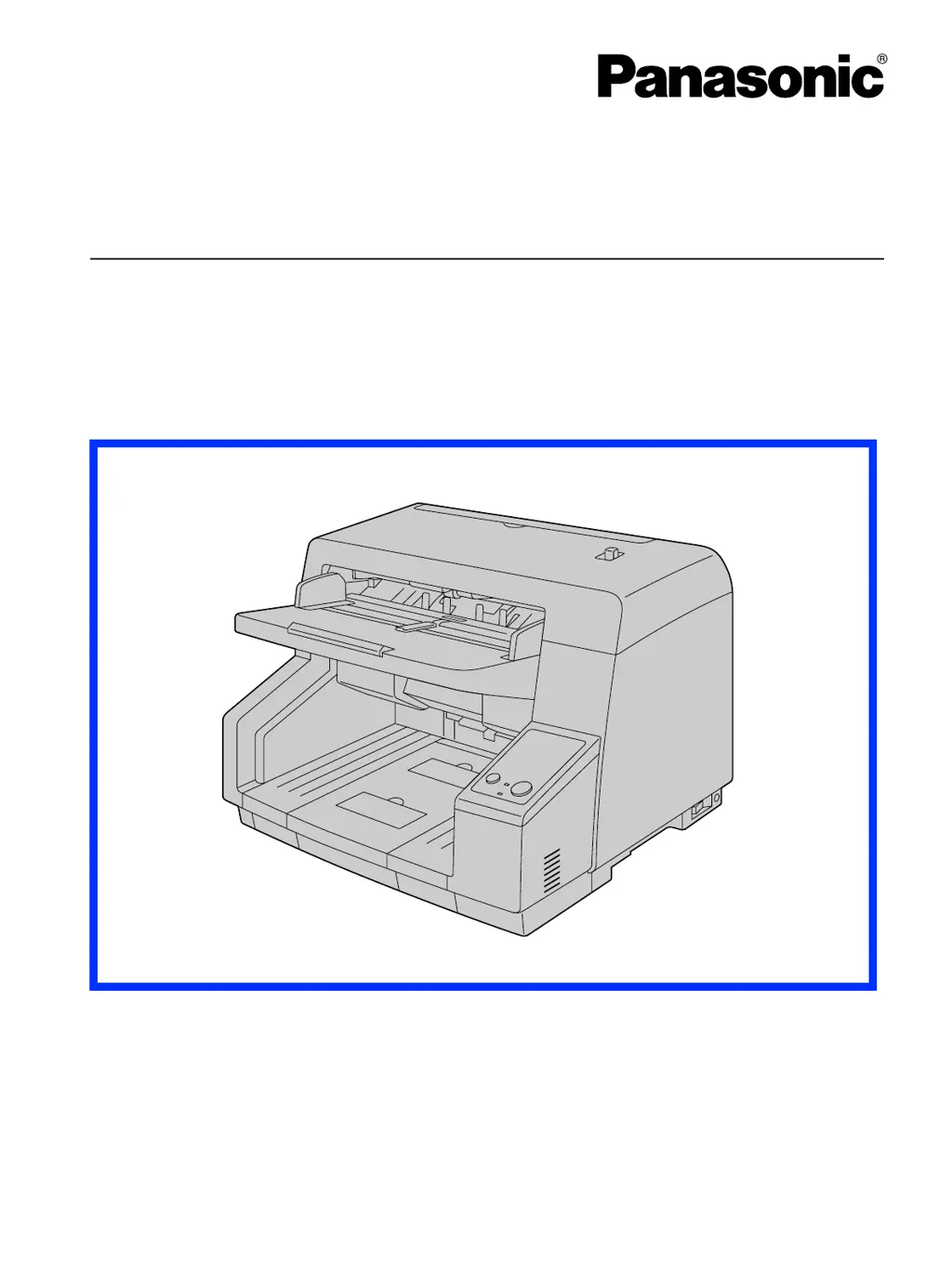
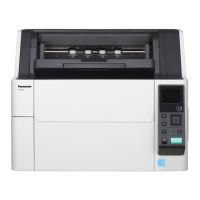
Panasonic KV-S5055C - User Manual

Panasonic KV-S5055C
91 pages
Print Icon
To Next Page IconTo Next Page
Loading...
These instructions contain information on operating the scanner. Before reading these instructions, please read
the installation manual enclosed with this unit.
Please carefully read these instructions and the enclosed installation manual. Keep all documentation in a safe
place for future reference.
Model No.
KV-S5055C
Operating Manual
High Speed Color Scanner

Other manuals for Panasonic KV-S5055C

Questions and Answers

  • A
    allisonreyesAug 20, 2025
    What to do if my Panasonic KV-S5055C is not recognized by computer?
    • E
      earmstrongAug 20, 2025
      If your Panasonic Scanner isn't being recognized by your computer, there are several potential causes: * Ensure the USB cable is correctly connected directly to your computer, avoiding USB hubs. * If that doesn't work, try using the USB cable included with the scanner or a certified Hi-speed USB 2.0 cable. * Also, verify that the USB interface of your computer is properly installed using the device manager's properties. * If the software was not installed correctly, uninstall it and then reinstall it. * The scanner may have entered Standby mode; try restarting it by pressing any button for more than one second.
  • R
    Robert MurrayAug 21, 2025
    How to fix Panasonic KV-S5055C Scanner when computer does not recognize it?
    • S
      Sheri McgrathAug 22, 2025
      If your computer isn't recognizing the Panasonic Scanner, it might be because: * The USB cable isn't connected correctly; ensure it's properly connected. * The software wasn't installed correctly. In this case, uninstall the software and then reinstall it. * The USB interface of the computer isn't installed correctly; check it using the device manager’s property. * The scanner is connected via a USB hub; avoid connecting it this way. * There's a problem with the USB cable; use the included USB cable or a certified Hi-speed USB 2.0 cable. * The scanner has entered Standby mode; restart it by pressing any one of the buttons for more than 1 second.
  • C
    christyallenAug 25, 2025
    Why doesn't the ready indicator light up on my Panasonic KV-S5055C Scanner?
    • L
      Laura SnyderAug 25, 2025
      If the ready indicator on your Panasonic Scanner doesn't light up when you turn it on, it could be due to the following reasons: * The power cord may not be properly plugged in. Ensure that the power plug is firmly inserted. * There may be a problem with the power supply. In this case, disconnect the scanner from the electric outlet and call for service.
  • P
    Patricia GilmoreAug 26, 2025
    What to do if my computer does not recognize the Panasonic KV-S5055C Scanner?
    • A
      Anthony BartonAug 26, 2025
      If your computer isn't recognizing the Panasonic Scanner, ensure the USB cable is correctly connected. If the issue persists, uninstall and then reinstall the software. Verify that your computer's USB interface is correctly installed using the device manager's properties. Avoid connecting the scanner via a USB hub. If you are using a USB cable, try the included USB cable or a certified Hi-speed USB 2.0 cable.
  • S
    Steven AdamsAug 29, 2025
    Why does my Panasonic KV-S5055C Scanner have frequent paper jams?
    • J
      Justin FisherAug 29, 2025
      Frequent paper jams in your Panasonic Scanner can be caused by several issues. First, smooth out any wrinkles on the document. Next, ensure that the rollers and sensors/reflector plate are clean. Also, check that the document is correctly aligned and that the hopper isn't overloaded; remove pages until it's below the limit mark on the document guides.
  • A
    Alexis Reyes MDAug 31, 2025
    How to improve the scan speed of my Panasonic KV-S5055C?
    • M
      Megan HannaAug 31, 2025
      If your Panasonic Scanner's scan speed is slow, it might be connected over a USB 1.1 connection. Try connecting over USB 2.0 instead.
  • D
    Deborah LarsonSep 2, 2025
    How to remove vertical lines on scanned documents with my Panasonic Scanner?
    • C
      Cheryl SmithSep 3, 2025
      If vertical lines appear on your scanned documents from the Panasonic Scanner, the scanning glass is likely dirty. Clean the conveyor, self-cleaning brushes, and the ion outlets, and then clean the scanning glass (F and B).
  • S
    Scott MyersSep 4, 2025
    Why are my scanned images skewed on my Panasonic KV-S5055C?
    • H
      hawkinsjosephSep 5, 2025
      A skewed image from your Panasonic Scanner can occur if the document guides are not adjusted to the document size or if the document is placed slanted on the hopper. Adjust the document guides properly to the size of the document. Also, if the document has curling or folding, flatten it before scanning.
  • S
    Samuel MedinaSep 6, 2025
    What to do if Panasonic Scanner does not start scanning?
    • R
      Ryan MurraySep 6, 2025
      If your Panasonic Scanner doesn't start scanning even when the document is loaded, ensure the document is loaded correctly. If the edge of the document is curled, flatten it before loading it again.
  • K
    Kendra BradshawSep 8, 2025
    Why is the scanning density uneven on my Panasonic Scanner?
    • M
      Mrs. Elizabeth RobersonSep 9, 2025
      Uneven scanning density on your Panasonic Scanner could be due to a dirty scanning glass. Clean the scanning glass (F and B). Another cause might be variations in light distribution, so try adjusting the shading.

Summary

Panasonic High Speed Color Scanner Operating Manual

Before You Start

Safety and Precautions

Essential safety warnings, electrical precautions, operating safeguards, and general handling advice.

Scanner Care and Maintenance

Clearing Paper Jams

Procedure for safely removing jammed paper from the scanner unit.

Cleaning Scanner Interior

Guidelines for cleaning internal parts like rollers, sensors, and scanning glass.

Replacement Parts and Optional Units

Parts Replacement Guide

Guidance on replacing worn parts like roller modules and prevention rollers.

Scanner Appendix

Troubleshooting Common Issues

Guide to diagnosing and resolving common scanner problems and error conditions.

Scanner Specifications

Scanning Performance Details

Details on scanning speed, resolution, and tonal gradation for different modes.

Panasonic KV-S5055C Specifications

General IconGeneral
TypeDocument Scanner
Scanner TypeSheet-fed
Optical Resolution600 dpi
ConnectivityUSB 3.0
Weight12.1 lbs
Light SourceLED
InterfaceUSB 3.0
Supported Paper SizesA4, A5, B5, Legal, Letter
Image SensorCIS
Scanning ModesColor, Grayscale
Scan Speed (Color, A4, 200 dpi)55 ppm
Scan Speed (Monochrome, A4, 200 dpi)55 ppm

Related product manuals