EasyManua.ls Logo

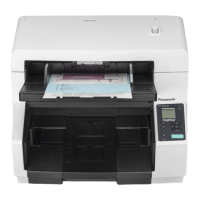
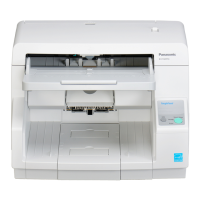
Panasonic KV-S5046H - Service Manual

Panasonic KV-S5046H
325 pages
Print Icon
To Next Page IconTo Next Page
Loading...
© Panasonic System Networks Co., Ltd. 2013
Unauthorized copying and distribution is a violation
of law.
Order Number KM71312855CE
Category Number G14
High Speed Color Scanner
Model No. KV-S5076H
KV-S5046H

Table of Contents

Other manuals for Panasonic KV-S5046H

Questions and Answers

  • M
    Mary RodriguezAug 20, 2025
    Why does my Panasonic KV-S5046H Scanner keep jamming?
    • K
      kimberlynicholsAug 20, 2025
      Frequent paper jams in your Panasonic Scanner can occur due to: * The document being wrinkled, so you should smooth out the document. * Dirty paper feed roller, separation roller, double feed prevention roller, drive rollers, or free rollers. Clean these rollers. * Dirty sensors or reflectors. Clean all sensors and reflectors. * The document not being aligned correctly. Realign the document. * Too many pages in the document set on the feed tray. Remove pages until it is under the limit mark on the document guides.
  • A
    Aaron KimAug 23, 2025
    What to do if computer does not recognize Panasonic Scanner?
    • J
      Jennifer McclainAug 23, 2025
      If your computer isn't recognizing the Panasonic Scanner, and it's not functioning correctly, consider these potential causes: * The scanner might not be connected to the computer correctly. Ensure the USB cable is properly connected. * The software might not be installed correctly. Uninstall the software from the computer, and then install the software again. * The scanner is connected via USB hub. Do not connect via USB hub. * There might be a problem with the USB cable. Use the included USB cable. * The unit’s power was turned OFF because no operation was performed for a certain period of time. Press the power button to turn ON the unit’s power.
  • P
    princerobertAug 26, 2025
    How to improve slow scan speed on Panasonic KV-S5046H?
    • E
      Erika LinAug 26, 2025
      If your Panasonic Scanner's scan speed is slow, it might be connected over a USB 1.1 connection. Connect over USB 2.0 / USB 3.0 to improve the speed.
  • D
    Derek BestAug 28, 2025
    How to fix a skewed scanned image on Panasonic Scanner?
    • L
      Lauren CarsonAug 28, 2025
      A skewed scanned image on your Panasonic Scanner can be caused by: * The document guides not being adjusted to the size of the document, or the document being set slanted on the feed tray. Adjust the document guides properly to the size of the document. * Right and left sides of the document not being the same in height due to curling or folding. Flatten the document and load it again after reducing the pages.
  • W
    William WoodsAug 30, 2025
    Why are there vertical lines on my scanned Panasonic document?
    • A
      Ashlee MyersAug 30, 2025
      If you are seeing vertical lines on your scanned Panasonic document, this could be due to the scanning glass being dirty. Clean the conveyor and self-cleaning brushes, the ion outlets, and then clean the scanning glasses (F and B).
  • L
    Laura HancockSep 1, 2025
    What to do if Panasonic KV-S5046H doesn't start scanning?
    • B
      Brian AllenSep 1, 2025
      If the document is loaded on the feed tray but the Panasonic Scanner doesn't start, it might be because: * The document is not loaded properly. * The sensor cannot detect the document as the edge of the document is curled. Flatten the document and load it again.
  • D
    Dennis BowersSep 4, 2025
    Why do dark spots appear on scanned documents from Panasonic Scanner?
    • C
      Christina KennedySep 4, 2025
      Dark spots or noise on scanned documents from your Panasonic Scanner often indicate that the scanning glass is dirty. Clean the conveyor and self-cleaning brushes, the ion outlets, and then clean the scanning glasses (F and B).
  • J
    Jennifer HerreraSep 6, 2025
    How to fix uneven scanning density on Panasonic KV-S5046H?
    • R
      Ryan BrownSep 6, 2025
      Uneven scanning density on your Panasonic Scanner can be caused by: * The scanning glass being dirty. Clean the scanning glasses (F and B). * The quantity distribution of light varies. Adjust shading.
  • K
    Katie HendersonSep 8, 2025
    How to remove noise from scanned image with Panasonic KV-S5046H Scanner?
    • T
      Timothy HunterSep 8, 2025
      Noise or wave patterns (moire pattern) on a scanned image from your Panasonic Scanner may be due to the scanning resolution settings combined with patterns within the scanned image. Change the scanning resolution and perform scanning again.
  • D
    dlindseySep 12, 2025
    Why is my Panasonic Scanner producing blank scans?
    • K
      Kyle PowellSep 12, 2025
      If your Panasonic Scanner is producing blank scans, it's likely that the wrong face (blank face) of the document is being scanned. Load the document with the side to be scanned facing up.

Summary

General Precautions

Safety Precautions

General safety measures to prevent hazards during servicing and operation.

Specifications

Scanner Specifications

Details on scanning performance, paper handling, and interface.

Unit Specifications

Physical dimensions and weight of the scanner unit.

Power Consumption

Details on power usage in various modes (Maximum, Sleep, Off).

Included Accessories

List of items included with the scanner package.

Component Identification

Main Part Names and Locations

Identification of major external parts of the scanner.

Control Panel and LED Indicators

Description of control panel keys, LCD, and LED status indicators.

Installation Procedures

Connecting the Scanner to a Personal Computer

Instructions for connecting the scanner to a PC using power and USB cables.

System Requirements

Minimum system requirements for the computer to operate the scanner.

Installing the Driver and Software

Instructions for installing the scanner driver and associated software.

Mechanical Functions

Paper Feed Mechanism (Auto)

Description of the automatic paper feeding process and its components.

Paper Feed Mechanism (Manual)

Description of the manual paper feeding mechanism.

Mechanical Deskew Mechanism

Description of the mechanical deskew correction for KV-S5076H.

Maintenance Procedures

Maintenance Chart

Schedule for cleaning and replacing parts based on scan volume.

Cleaning Preparation

Supplies and preparation steps required for cleaning the scanner.

Main Cleaning Procedures

Detailed steps for cleaning the main internal components of the scanner.

Replacing Paper Feed Roller Module

Step-by-step guide for replacing the paper feed roller module.

Replacing Double-feed Prevention Roller

Step-by-step guide for replacing the double-feed prevention roller.

Service Utility and Self-Test

Main Menu of Service Utility

Overview and description of the service utility software's main menu.

Service Utility Functions List

List and purpose of functions available in the service utility.

Scanner Status Indications

Explanation of status messages and their meanings.

Error Code Descriptions

List and explanation of error codes and their classification.

Scanner Information

Provides various types of scanner information.

Scanner Condition Settings

Settings for sleep mode, imprinter cleaning, buzzer, shading, and roller maintenance.

Test Procedures - Test 1

Describes tests for LEDs, keys, sensors, and motors.

Test Procedures - Test 2

Describes tests for deskew assist motor, exit motor, and platen motor.

Adjustment Procedures

Procedures for adjusting scanner settings like shading and paper position.

Scanner Self-test

Scanner self-tests that can be performed without a PC connection.

Troubleshooting

Troubleshooting without PC Error Message

Guidance for diagnosing and resolving issues without PC error messages.

Troubleshooting with PC Error Message

Guidance for diagnosing and resolving issues based on PC error messages.

Requirements After Parts Replacement

Control Board Replacement

Required adjustments after replacing the control board or its memory.

Sensor Board Replacement

Required adjustments after replacing sensors or relay boards.

Circuit Description

Block Diagram - Image Processing

Block diagram illustrating the image processing circuit.

Schematic Diagrams

DRIVE Board Schematics

Schematic diagrams for the DRIVE board (Front and Back sides).

CONTROL Board Schematics

Schematic diagrams for the CONTROL board (Front and Back sides).

Parts Location and Mechanical Parts List

Replacement Parts List

DRIVE Board Replacement Parts

List of replacement parts for the DRIVE board (for KV-S5076H and KV-S5046H).

CONTROL Board Replacement Parts

List of replacement parts for the CONTROL board (for KV-S5076H).

Panasonic KV-S5046H Specifications

General IconGeneral
Film scanning-
Duplex scanningYes
Grayscale levels8
Maximum scan size297 x 432 mm
ADF scan speed (color, A4)80 ppm
Optical scanning resolution600 x 600 DPI
Duplex ADF scan speed (color, A4)160 ipm
Scanner typeADF scanner
Product colorWhite
Built-in displayNo
Sensor typeCIS
Scan driversISIS, TWAIN
Internal memory256 MB
Scan file formatsJPG
Daily duty cycle (max)25000 pages
Media thickness (min)0.04 mm
Maximum ISO A-series paper sizeA3
Auto Document Feeder (ADF) media weight20 - 157 g/m²
Server operating systems supportedWindows Server 2003, Windows Server 2003 R2, Windows Server 2003 x64, Windows Server 2008, Windows Server 2008 R2, Windows Server 2008 R2 x64, Windows Server 2008 x64, Windows Server 2012, Windows Server 2012 R2, Windows Server 2012 R2 x64, Windows Server 2012 x64
Windows operating systems supportedWindows 7 Enterprise, Windows 7 Enterprise x64, Windows 7 Home Basic, Windows 7 Home Basic x64, Windows 7 Home Premium, Windows 7 Home Premium x64, Windows 7 Professional, Windows 7 Professional x64, Windows 7 Starter, Windows 7 Starter x64, Windows 7 Ultimate, Windows 7 Ultimate x64, Windows 8, Windows 8 Enterprise, Windows 8 Enterprise x64, Windows 8 Pro, Windows 8 Pro x64, Windows 8 x64, Windows XP Home, Windows XP Professional
USB version3.2 Gen 1 (3.1 Gen 1)
Standard interfacesUSB 3.2 Gen 1 (3.1 Gen 1)
Current1.5 A
Input voltage100-240 V
Power supply typeAC
AC input frequency50 - 60 Hz
Power consumption (off)0.3 W
Power consumption (standby)1.2 W
Power consumption (typical)90 W
Storage temperature (T-T)0 - 40 °C
Operating temperature (T-T)10 - 35 °C
Storage relative humidity (H-H)10 - 80 %
Operating relative humidity (H-H)20 - 80 %
Cables includedAC, USB
Weight and Dimensions IconWeight and Dimensions
Depth444 mm
Width468 mm
Height344 mm
Weight17000 g

Related product manuals