EasyManua.ls Logo

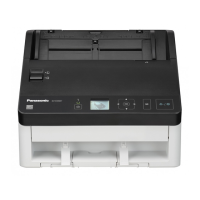
Panasonic KV-SL1066 - User Manual

Panasonic KV-SL1066
75 pages
Print Icon
To Next Page IconTo Next Page
Loading...
Model No. KV-S1057C
KV-S1027C
KV-SL1066
KV-SL1056
KV-SL1055
KV-SL1036
KV-SL1035
Operating Manual
Document Scanner
These instructions contain information on operating the scanner. Before reading these instructions, please read
the Quick Installation Guide enclosed with this unit.
Keep all documentation in a safe place for future reference.
Current model availability depends on your country/area. Please contact your dealer.

Table of Contents

Other manuals for Panasonic KV-SL1066

Questions and Answers

  • J
    Jessica ClarkSep 23, 2025
    Why is the sound made by paper being ejected higher than usual when I scan short documents on my Panasonic Scanner?
    • J
      Jason ConwaySep 23, 2025
      If the length of documents are less than about 148 mm (5.8 in.), feeding speed control will be activated for exiting documents; this is normal behavior.
  • D
    David HowellAug 25, 2025
    How to fix a Panasonic KV-SL1066 that won't start scanning?
    • C
      Casey BarberAug 25, 2025
      If your Panasonic Scanner doesn't start scanning even with a document loaded, it could be due to these reasons: - The document may not be loaded correctly. Make sure to load it properly. - The scanner's sensor might not be detecting the document because the edge is curled. Flatten the document before loading it again.
  • C
    Christopher VasquezAug 25, 2025
    Why is my Panasonic KV-SL1066 not recognized by the computer?
    • K
      Kelsey GarciaAug 26, 2025
      There are several reasons why your Panasonic Scanner might not be recognized: - The USB cable may not be correctly connected. Ensure it is properly connected. - The software may not be installed correctly. Try uninstalling and reinstalling the software. - The scanner may be connected via a USB hub. Avoid connecting it through a USB hub. - There might be a problem with the USB cable. Use the USB cable that came with the scanner. - The scanner might have turned off due to inactivity. Press the power button to turn it back on.
  • L
    Larry WhiteAug 27, 2025
    What to do if the LED (Green) does not light when the Panasonic KV-SL1066’s power is turned ON?
    • A
      Adam BentonAug 27, 2025
      If the green LED doesn't light up when you turn on your Panasonic Scanner, the power cord might not be plugged in properly. Ensure the power plug is firmly inserted.
  • W
    William MosesSep 14, 2025
    What to do if my Panasonic Scanner doesn't start scanning?
    • N
      Nicholas LongSep 14, 2025
      If your Panasonic Scanner doesn't start scanning even though the document is loaded, ensure the document is loaded correctly. If the edge of the document is curled, flatten it before loading again.
  • S
    Stacy LoweSep 12, 2025
    What to do if the image for a scanned document is blank with my Panasonic Scanner?
    • R
      Robert AdamsSep 12, 2025
      If the image for a scanned document from your Panasonic Scanner is blank, it's possible the document was loaded upside down. Load the document correctly.
  • R
    rosefreemanSep 13, 2025
    Why is the color of the scanned document different from the original on my Panasonic KV-SL1066 Scanner?
    • J
      Jordan BerrySep 13, 2025
      If the color of the scanned document from your Panasonic Scanner is extremely different from the original, try adjusting the computer monitor settings. Also, depending on the documents scanned, the color of documents may not be scanned properly, in this case, setting the value for Chroma higher in the scanning conditions may solve this problem.
  • J
    John ThomasSep 5, 2025
    Why does my Panasonic Scanner have paper jams frequently?
    • M
      Maria HamiltonSep 5, 2025
      Frequent paper jams in your Panasonic Scanner can be caused by several factors. Ensure that the document isn't wrinkled; smooth it out if it is. Dirty rollers can also cause jams, so clean them. Make sure the document is correctly aligned and that you haven't loaded too many sheets into the feed tray.
  • D
    Donald JimenezSep 3, 2025
    What to do if my computer does not recognize my Panasonic Scanner?
    • L
      lirobertSep 3, 2025
      If the computer doesn't recognize the Panasonic Scanner, ensure the USB cable is correctly connected directly to the computer, not through a USB hub. If the issue persists, verify you are using the included USB cable. The problem may also be caused by the software not being installed correctly. In this case, uninstall and then reinstall the software. Also, pressing the power button will turn ON the unit’s power if it was turned OFF because no operation was performed for a certain period of time.
  • C
    Corey DaySep 4, 2025
    Why does my Panasonic KV-SL1066 Scanner double feed frequently?
    • B
      Brian BellSep 4, 2025
      Double feeding in your Panasonic Scanner can occur for several reasons. The paper feed roller or double feed prevention roller may be worn down, requiring replacement. The double feed detectors could be dirty and need cleaning. Ensure the document is properly aligned and not curled or folded, which can cause uneven height on the right and left sides. Also, make sure you aren't using unsupported or overly thick paper. If so, copy the document onto compatible paper. Finally, avoid overloading the feed tray.

Summary

Before You Start

Location of Controls

Installation

Installing the Software

Step-by-step instructions for installing the scanner's software and drivers.

Installing the Unit

Procedures for physically setting up the scanner unit, including trays and connections.

Operation

Preparing Documents

Guidelines for preparing documents, including paper types, card types, bound documents, incompatible types, and double feed detection notes.

Scanning Documents

Step-by-step guide for loading and aligning documents for scanning.

Clearing Paper Jams

Clearing Paper Jams

Procedures for safely removing jammed paper from the scanner.

Care and Maintenance

Cleaning the Inside of the Scanner

Procedures for cleaning internal components like conveyor, glasses, detectors, sensors, and rollers.

Appendix

Troubleshooting

Common problems and their solutions for scanner operation.

Panasonic KV-SL1066 Specifications

General IconGeneral
TypeDocument Scanner
Optical Resolution600 dpi
Maximum Paper SizeA4
Scanning Speed (Color)30 ppm
Scanning Speed (Grayscale)30 ppm
Automatic Document Feeder Capacity100 sheets
Scanning Speed30 ppm
Supported Operating SystemsWindows, Mac
Duplex ScanningYes
Scanning TechnologyCIS (Contact Image Sensor)
ConnectivityUSB
InterfaceUSB
Duty Cycle3000 pages/day

Related product manuals