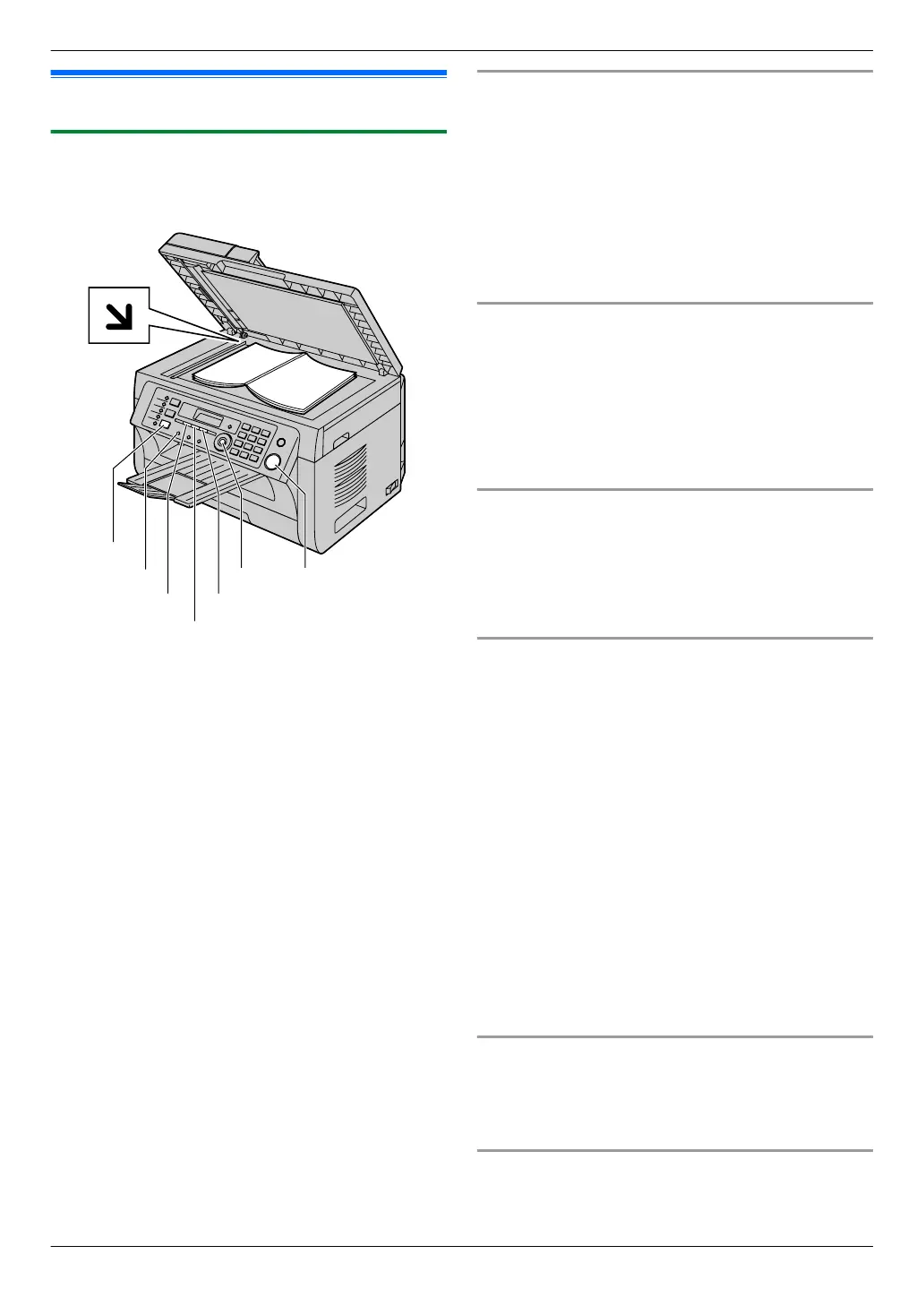
6.1 Sending a fax manually
6.1.1 Using the scanner glass
By using the scanner glass, you can send a page from
booklets or small size paper.
MResolutionN
MContrastN
MRedialN
MFaxN
MStartNMSetN
MQuick ScanN
1 If the MFaxN light is OFF, turn it ON by pressing
MFaxN.
2 Set the original (page 19).
3 If necessary, change the resolution and contrast
according to the type of document.
R To select the resolution, see page 41.
R To select the contrast, see page 41.
4 Dial the fax number.
R To send a single page, go to step 7.
R To send multiple pages, go to the next step.
5 Press MQuick ScanN to scan the document into
memory.
R Wait until “SCAN:PRESS SET” “SEND:PRESS
START” is displayed.
6 Place the next page on the scanner glass. A MSetN
R To send more pages, repeat this step.
7 MStartN
Note:
R To stop sending, see page 72.
R You can change the default operation mode (feature
#463 on page 58) and the timer before returning to
the default operation mode (feature #464 on
page 58).
To select the resolution
1. Press MResolutionN repeatedly.
– “STANDARD”: For normal-sized characters.
– “FINE”: For small-sized characters.
– “SUPER FINE”: For very small-sized characters.
– “PHOTO”: For photographs, shaded drawings,
etc.
2. MSetN
R Using the “FINE”, “SUPER FINE” and “PHOTO”
settings will increase transmission time.
To select the contrast
Adjust this setting depending on the darkness or
lightness of the document. 5 levels (low to high) are
available.
Press MContrastN repeatedly. A MSetN
Note:
R You can save the previous contrast setting (feature
#462 on page 58).
To redial the last number
MRedialN
R If the line is busy, the unit will automatically redial the
number 1 time.
Note:
R To stop sending, see page 72.
Reserving the fax transmission (Dual Access)
You can reserve a fax transmission even when the unit
is just receiving a fax or sending a fax from memory.
– Up to 3 reservations when sending
– Up to 4 reservations when receiving
1. Set the original during fax reception or fax memory
transmission.
2. Enter the fax number using the dial keypad,
one-touch dial or phonebook.
3. When using the scanner glass, press MQuick
ScanN. The unit will scan 1 page. Place the next
document on the scanner glass and press MSetN.
Repeat this until all the documents are scanned, then
press MStartN.
When using the automatic document feeder,
press MStartN.
R If the document exceeds the memory capacity, the
reservation for that document will be canceled. You
must send the entire document manually.
Printing a confirmation report
A confirmation report provides you with a printed record
of transmission results. To print the confirmation reports,
make sure that feature #401 is activated (page 59). For
an explanation of the messages, see page 73.
Printing a journal report
A journal report provides you with a printed record of the
30 most recent faxes. To print it manually, see
page 96. To print it automatically after every 30 new
41
6. . Fax (KX-MB2030 only)
6. Fax (KX-MB2030 only)



 To Next Page