2
3
4
R E C
SAVE
1
OPEN/EJECT
1
2
3
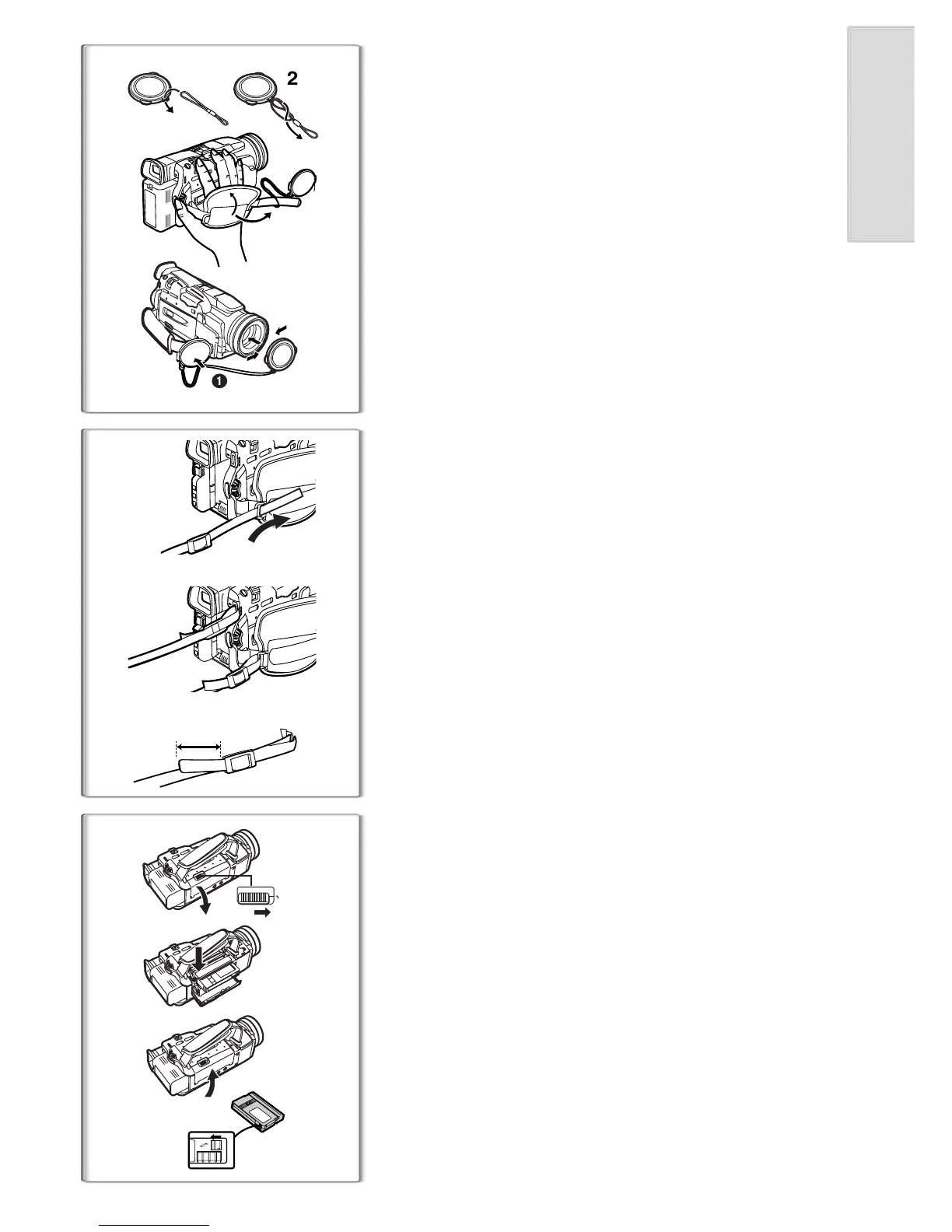
Lens Cap and Grip Belt
To protect the Lens surface, attach the Lens Cap. Adjust the length of the
Grip Belt to the size of your hand.
1
Pass the longer loop of the Lens Cap Cord through the
attached eye on the Lens Cap.
2
Then pass the shorter loop of the Lens Cap Cord through
the centre of the longer loop and pull tight.
3
Attach the Lens Cap to the Grip Belt.
4
Put your hand through the Grip Belt
≥The removed Lens Cap can be hooked onto the Grip Belt
1
. (When you
are not recording, be sure to keep the Lens Cap attached to the Lens for
protection.)
~~~~~~~~~~~~~~~~~~~~~~~~~
Attaching the Shoulder Strap
We recommend that you attach the Shoulder Strap before going out of doors
to record so as to avoid dropping the Movie Camera.
1
Pull the end of the Shoulder Strap through the Shoulder
Strap Holder on the Movie Camera.
2
Fold the tip of the Shoulder Strap, run it through the
Shoulder Strap Length Adjuster, and pull it.
≥Pull it out more than 2 cm
1
from the Shoulder Strap Length Adjuster
so that it cannot slip off.
~~~~~~~~~~~~~~~~~~~~~~~~~
Inserting a Cassette
When power is supplied to the Movie Camera, the Cassette can be taken out
without turning the Movie Camera [ON].
1
Slide the [OPEN/EJECT] Lever to open the Cover.
2
Insert a Cassette.
3
Close the Cover and press the [PUSH LOCK] Button to lock
the Cover.
Accidental Erasure Prevention
Opening the accidental erasure prevention slider
1
on the cassette (by
sliding it in the [SAVE] arrow direction) prevents recording. To enable
recording, close the accidental erasure prevention slider (by sliding it in the
[REC] arrow direction).
≥For other notes concerning this item, see page 46.



 To Next Page