18
RQT9445
Basic operation
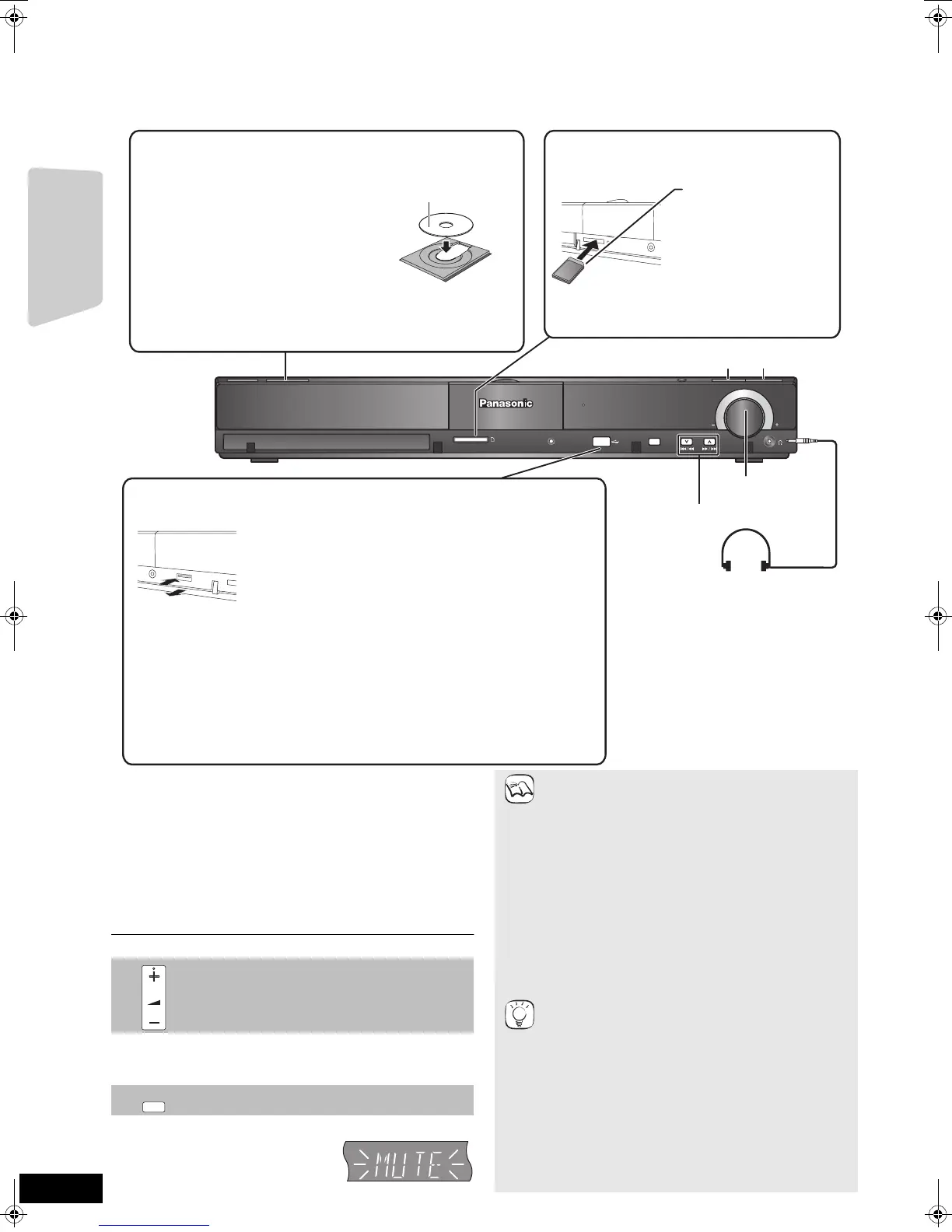
∫ To adjust the volume.
It is also possible to adjust the volume with the volume knob on
the main unit.
∫ To mute the sound.
Instructions for operations are generally described using the remote control in these operating instructions.
Preparation
Turn on the television and select the appropriate video input on the television.
VOLUME
SURROUND OUTPUT
TUNE
SELECTORSETUP MIC
SD CARD
Stop Play
,VOLUME
Skip/Search/Slow-motion
SD CARD
Headphones (not included)
Headphone plug type: ‰3.5 mm
stereo mini plug
≥Reduce the volume before
connecting.
≥Audio is automatically switched to
2ch stereo.
≥To prevent hearing damage, avoid
listening for prolonged periods of
time.
Excessive sound pressure from
earphones and headphones can
cause hearing loss.
Label facing up
1
Press [
<
OPEN/CLOSE] to open the disc tray.
2 Insert or remove the disc.
Inserting or removing an SD card
1 Pull to flip down the front panel.
2 Insert the SD card into the SD card slot.
≥To remove the card, press on the centre of the
card and pull it straight out.
≥Press [< OPEN/CLOSE] again to close the disc tray.
≥DVD-RAM: Remove discs from their cartridges before use.
≥Insert double-sided discs so the label for the side you want to
play is facing up.
Insert the card label
up with the cut-off
corner on the right.
≥Press on the
centre of the
card until it clicks
into place.
Inserting or removing a disc
Inserting or removing a USB device
1 Pull to flip down the front panel.
2 Insert the USB device into the USB port.
≥Before inserting any USB device to this unit, ensure that the data stored therein
has been backed up.
≥Check the orientation of the USB connector and insert it straight in.
≥Some USB devices inserted into this unit may cause this unit to stop operating.
Such USB devices cannot be used on this unit.
To remove the USB device, complete all USB device-related
operations and pull the USB device straight out.
About the use of USB device
Since the physical size of USB device can vary, please consider its width when
connecting any USB device to this unit. It is possible that some devices may accidentally
activate the playback button and cause this unit to not operate properly.
≥
In such cases we recommend using a USB extension cable (not included).
1 Press [Í] to turn on the unit.
2 Insert the media (D above).
Play start.
≥If play does not start, press [1PLAY].
≥If the media with data in different file formats is inserted, the
file selection menu is displayed. Press [3, 4] to select the
desired file format and press [OK].
≥If the menu is displayed, press [3, 4, 2, 1] to select the
item and press [OK].
≥
If the screen prompting you to use the colour buttons appears,
continue to operate with the colour buttons on the remote control.
Press to adjust the volume
Press to mute the sound
“MUTE” flashes on the unit’s display.
≥To cancel, press [MUTE] again
or adjust the volume.
≥Muting is cancelled if the unit is
turned off.
e.g., Display
VOL
MUTE
≥Signal from PAL discs is output as PAL. Signal
from NTSC discs is output as “NTSC” or “PAL60”.
You can select “NTSC” or “PAL60” in “NTSC
Contents Output” for NTSC discs. (> 37)
≥DISCS CONTINUE TO ROTATE WHILE MENUS
ARE DISPLAYED. Press [∫STOP] when you finish
to preserve the unit’s motor and your television
screen.
≥
If a media is inserted while the unit is stopped, the drive
switches automatically depending on the inserted media.
≥The producers of the disc can control how discs
are played. So you may not always be able to
control play as described in these operating
instructions. Read the disc’s instructions carefully.
≥When playing a set of two or more BD-Video discs,
the menu screen may continue to display even if
the disc has been ejected.
To display menus
[BD-V] [AVCHD] [DVD-VR] [DVD-V] [DivX]
Press [TOP MENU/DIRECT NAVIGATOR].
To show Pop-up menu [BD-V]
The Pop-up menu is a special feature available with some
BD-Video discs. This menu may vary with discs. For the
operating method, refer to the instructions for the disc.
1) Press [POP-UP MENU].
2) Press [
3
,
4
,
2
,
1
] to select the item and press [OK].
≥Pop-up menu also appears by pressing [OPTION]
and selecting “Pop-up Menu”.
≥Press [POP-UP MENU] to exit the screen.
≥It may take time to read BD-Video discs that
include BD-J (> 55).
NOTE
TIPS
Playback
SCBT200&205EB_RQT9445-B.book 18 ページ 2009年4月15日 水曜日 午後2時15分




 To Next Page