EasyManua.ls Logo

Panasonic TH-42PH11MK - User Manual

Panasonic TH-42PH11MK
48 pages
Print Icon
To Next Page IconTo Next Page
Loading...
Please read these instructions before operating your set
and retain them for future reference.
English
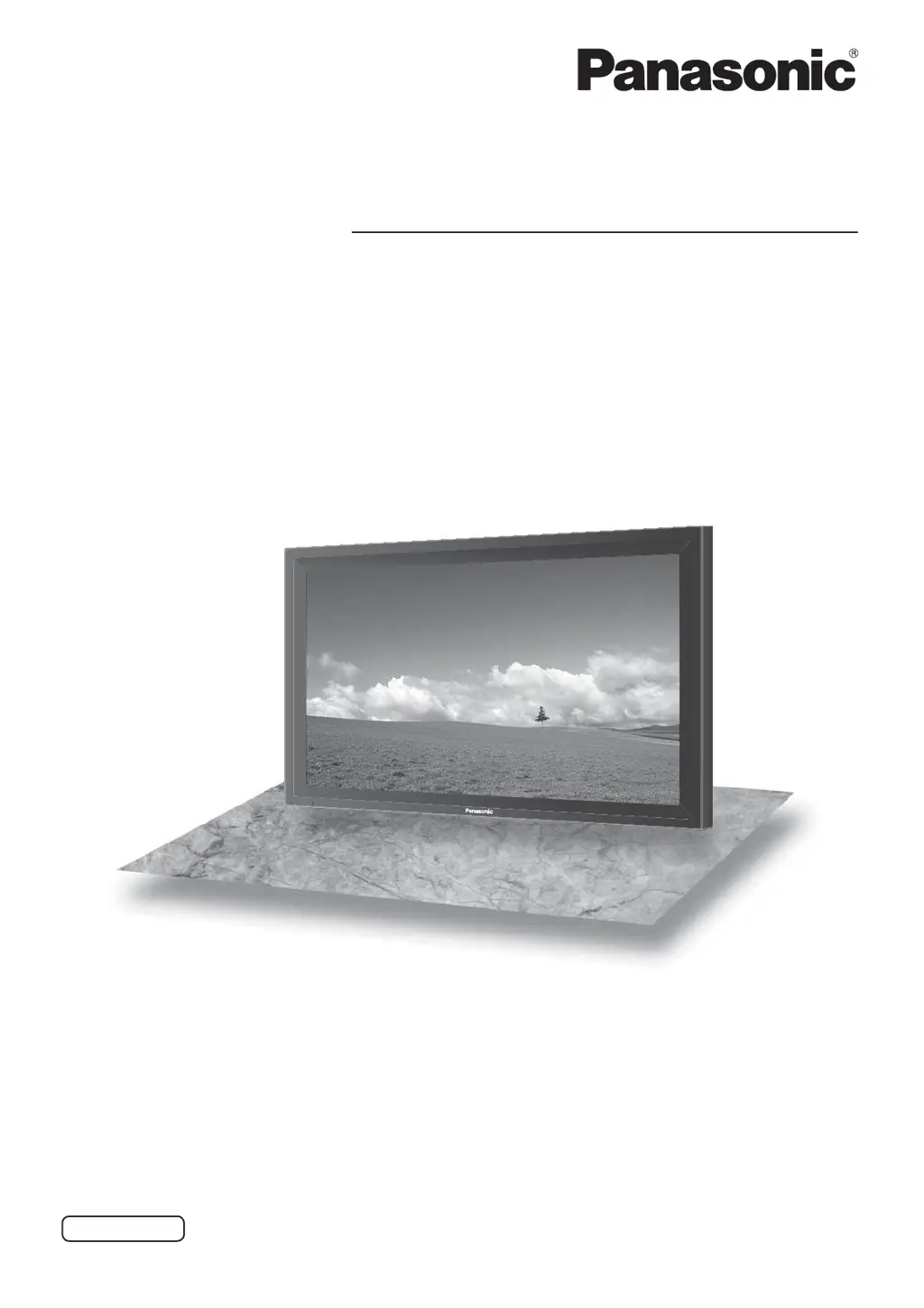
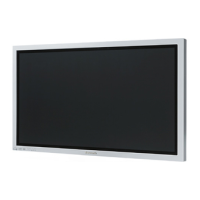
The illustration shown is an image.
Model No.
Operating Instructions
High De nition Plasma Display
TH-42PH11MK
TH-42PH11MS
TH-50PH11MK
TH-50PH11MS
TQBC2332-2

Other manuals for Panasonic TH-42PH11MK

Questions and Answers

  • G
    Glen HesterAug 14, 2025
    Why are there missing images at the top and bottom when I use the zoom function on my Panasonic TH-42PH11MK Monitor?
    • P
      palmerdeniseAug 14, 2025
      When using a video software program (such as a cinema size program) with a screen wider than one in the 16:9 mode on your Panasonic Monitor, blank areas separate from the images are formed at the top and bottom of the screen. This is normal when using such programs.
  • M
    Matthew SnyderAug 17, 2025
    How to fix no sound on Panasonic TH-42PH11MK?
    • C
      Carl SmithAug 17, 2025
      If your Panasonic Monitor isn't producing any sound, first, ensure that the mute function hasn't been activated using the remote control. Also, verify that the monitor is switched on by pressing the power switch or the stand-by button on the remote. Finally, check the Picture and Brightness/Volume settings.
  • M
    Monica WilliamsAug 21, 2025
    What to do if remote control doesn't work on Panasonic TH-42PH11MK?
    • M
      Michael AlvarezAug 21, 2025
      If your Panasonic Monitor remote control isn't working, begin by checking the batteries. Ensure they haven't discharged completely and are inserted correctly. Also, make sure the remote control sensor isn't exposed to direct outdoor light or strong fluorescent light. Finally, confirm that you're using the remote control specifically designed for your unit.
  • M
    mariabonillaAug 25, 2025
    Why is my Panasonic TH-42PH11MK making a cracking sound?
    • K
      Kim VillegasAug 25, 2025
      If you sometimes hear a cracking sound from your Panasonic Monitor, but there is nothing wrong with the picture or sound, this is the sound of the cabinet undergoing very slight contractions in response to changes in the room temperature.
  • J
    Jesse MorseAug 27, 2025
    Why can I hear sounds coming from inside the Panasonic TH-42PH11MK?
    • K
      kimberly25Aug 27, 2025
      If you can hear sounds coming from inside the Panasonic Monitor, when the power is turned on, a sound of the display panel being driven may be heard. This is normal and not indicative of malfunctioning.
  • J
    Jeremy TaylorAug 30, 2025
    Why is my Panasonic TH-42PH11MK Monitor making whirring sounds?
    • F
      fthompsonAug 30, 2025
      The whirring sound you hear from your Panasonic Monitor is caused by rotation of the cooling fan and is not a malfunction. The display unit is fitted with a cooling fan to dissipate heat generated during normal use.
  • C
    Cynthia PattonSep 3, 2025
    Why does the screen darken slightly when bright pictures with minimal movements are shown on my Panasonic TH-42PH11MK?
    • A
      Anna StevensSep 3, 2025
      This is done to reduce image retention on the screen and the shortening of the screen’s service life: It is normal and not indicative of malfunctioning.
  • A
    Andrew NormanSep 6, 2025
    Why does it take a while for the picture to appear on my Panasonic TH-42PH11MK?
    • A
      Aaron HughesSep 6, 2025
      The unit digitally processes the various signals in order to reproduce esthetically pleasing images.
  • P
    Patrick DavisSep 9, 2025
    Why is there a time lag between image and audio on my Panasonic Monitor?
    • H
      hstevensonSep 9, 2025
      This Plasma Display uses special image processing. Hence a slight time lag may occur between image and audio, depending on the type of input signal. However, this is not a malfunction.

Summary

Important Safety Notice

Safety Precautions

Setup and Accessories

Lists optional accessories and setup warnings for safe operation.

Transport and Placement Warnings

Warnings about handling, placement, and transport to prevent injury or damage.

Plasma Display Usage and Handling

When using the Plasma Display

Covers safe ventilation, power connection, and immediate actions for problems.

If problems occur during use

Instructions for immediate actions and contacting service when issues arise.

Cleaning and Maintenance

Accessories

Accessories Supply

Lists and shows the standard accessories included with the unit.

Remote Control Batteries

Instructions for inserting and precautions for using remote control batteries.

Connections

AC Cord and Cable Management

Details on connecting the power cord and managing cables with the fixing band.

Terminal Overview

Overview of available input terminals like AV, PC, SERIAL, etc.

PC Input Terminals Connection

SERIAL Terminals Connection

AV Connection

Power On; Off

Connecting Power

Instructions for connecting the AC power cord to the unit and the wall outlet.

Operating the Power Switch

How to turn the Plasma Display on and off using the remote control and main unit.

Initial Selections

OSD Language Selection

How to select the display language for the on-screen menu.

Present Time Setup

How to set the current date and time for timer functions.

Display Orientation

How to set the display orientation, especially for vertical installation.

Selecting the Input Signal

Selecting the On-Screen Menu Language

Basic Controls

Main Unit Controls

Explains the buttons and indicators on the plasma display's main unit.

Remote Control Overview

Overview of remote control functions like volume, menu navigation, and input selection.

Remote Control Transmitter Functions

ASPECT Controls

Aspect Mode Selection

How to select and change picture aspect ratios for optimal viewing.

Panasonic Auto and All Aspect Modes

Details on Panasonic Auto and All Aspect modes for automatic picture adjustment.

MULTI PIP

Picture Display Modes

Explains different multi-picture display modes like PiP, PoP, and PaP.

Input and Picture Swapping

How to swap main/sub pictures, select input modes, and move the sub picture.

Advanced PIP

Enabling Advanced PIP

Steps to enable the Advanced PIP feature from the Options menu.

Advanced PIP Modes

Demonstrates the various one-screen and advanced PIP display configurations.

Digital Zoom

Using Digital Zoom

How to access and use the digital zoom feature for image enlargement.

Zoom Controls and Limitations

Explains how to select zoom area, magnification factors, and exit the zoom mode.

On-Screen Menu Displays

Navigating Menu Screens

Guide to navigating the on-screen menus using the remote control and unit buttons.

Menu Overview and Adjustments

Overview of available menu categories and their potential adjustments.

Adjusting Pos.;Size

Pos.;Size Menu Navigation

Steps to access and navigate the Position and Size adjustment menu.

Adjustment Options and Notes

Details on adjusting picture position, size, dot clock, and phase for different signals.

Picture Adjustments

Picture Menu Basics

Basic picture settings for Normal, Dynamic, and Cinema modes.

Advanced Picture Settings

Advanced settings for fine-tuning picture quality, including white balance.

Sound Adjustment

Sound Menu Settings

Adjusts sound modes, equalizer settings, and surround sound options.

SDI Sound Output

Configuration for audio output channels and level meter for SDI input.

PRESENT TIME Setup; Set up TIMER

Present Time Setup Procedure

How to set the current date and time for timer functions.

Set up Timer Programming

How to program the unit to turn on or off at specific times.

Screensaver (For preventing image retention)

Screensaver Function Selection

Selects the type of screensaver to prevent image retention.

Screensaver Mode and Start Settings

Configures screensaver modes and start conditions.

Setup of Screensaver Time

Sets the start and finish times or periodic intervals for the screensaver.

Reduces power consumption

Power Save Features

Explains power saving functions like luminous level suppression and auto power off.

Customizing the Input labels

Input Label Customization

How to change the displayed labels for input signals.

Display Orientation Setting

Sets fan control and on-screen menu orientation for vertical installation.

Setup for MULTI DISPLAY

Enabling MULTI DISPLAY

How to enable the MULTI DISPLAY feature for grouping multiple screens.

MULTI DISPLAY Configuration

Configures display scaling, seam hiding, location, and synchronization for multi-display setups.

ID Remote Control Function

Setting Remote Control ID

How to set a unique ID for the remote control to manage multiple displays.

ID Cancellation

How to disable the ID remote control function and return to normal operation.

Setup for Input Signals

Component; RGB-in Select

Selects signal type for Component and RGB input terminals.

YUV; RGB-in Select

Selects signal type for DVI input terminals.

Signal Menu Options

Color System and Cinema Reality

XGA Mode Settings

Sets the display mode for XGA signals based on resolution.

Refresh Rate and Noise Reduction

Sync and Input Signal Display

Options Adjustments

Basic Option Settings

Basic options for timers, input display, and volume control.

Advanced Option Settings

Advanced settings for input lock, button control, remote ID, and power modes.

Weekly Command Timer

Setting the Timer Function

How to enable and set up the weekly timer function.

Program Edit and Command Selection

How to edit programs and select commands for the timer.

Shipping condition

Factory Reset Procedure

How to reset the unit to its factory default settings.

Troubleshooting

Basic Symptom Checks

Simple checks for common picture and sound issues.

Plasma Display Panel Specifics

Explains normal phenomena and potential issues related to the plasma panel.

List of Aspect Modes

Aspect Mode Definitions

Detailed descriptions of various picture aspect ratio modes.

VIDEO;PC Input Signals

Video Input Signal Chart

Lists signal names and frequencies for standard video inputs.

PC Input Signal Compatibility

Details applicable input signals for Mini D-sub 15P (Component/RGB).

Specifications

Power and Display Specifications

Technical details on power usage, display panel size, and resolution.

Connection Terminals and Accessories

Lists connection terminals, speaker impedance, and supplied accessories.

Panasonic TH-42PH11MK Specifications

General IconGeneral
Screen Size42 inches
Display TypePlasma
Resolution1024 x 768 pixels
Brightness1000 cd/m²
Viewing Angle160 degrees
Aspect Ratio4:3
Input TerminalsDVI-D, Component, Composite, S-Video

Related product manuals