EasyManua.ls Logo

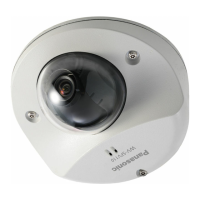
Panasonic WV-SF138 - User Manual

Panasonic WV-SF138
200 pages
Print Icon
To Next Page IconTo Next Page
Loading...
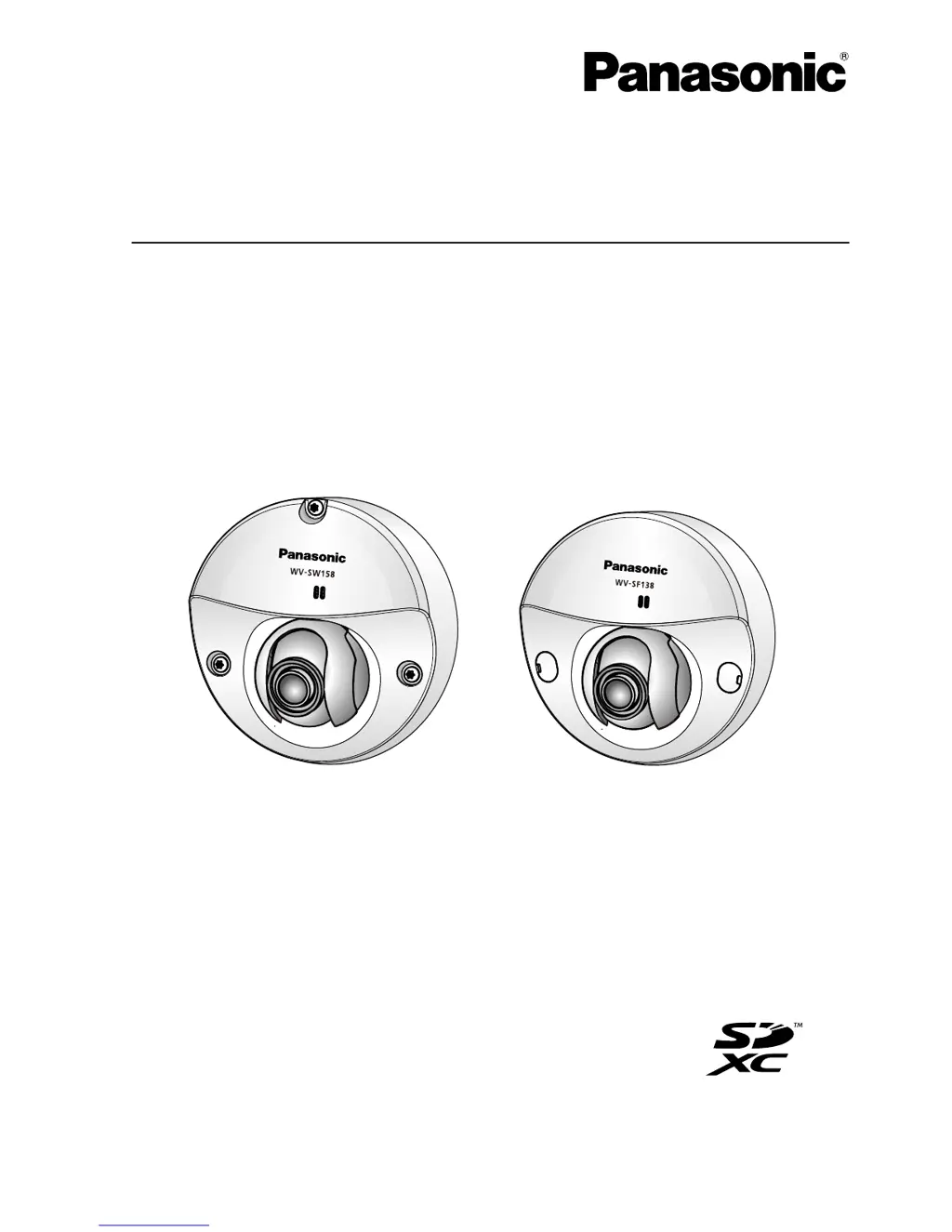
Operating Instructions
Network Camera
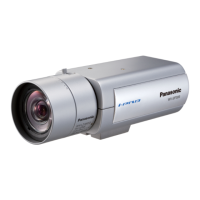
Model No. WV-SW158
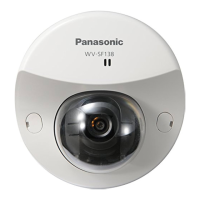
WV-SF138
WV-SW158 WV-SF138
Before attempting to connect or operate this product, please read these instructions
carefully and save this manual for future use.
The model number is abbreviated in some descriptions in this manual.

Table of Contents

Other manuals for Panasonic WV-SF138

Questions and Answers

  • B
    Brenda YangAug 12, 2025
    What to do if my Panasonic WV-SF138 Security Camera power is not turned on?
    • K
      Kevin GriffinAug 12, 2025
      If the Panasonic Security Camera isn't powering on, verify the connection between the PoE device and the network connector on the camera's rear panel using a LAN cable to ensure it's properly established. Also, the power supply may stop if the demanded power exceeds its total power limit for all PoE ports, depending on the PoE device.
  • A
    Annette FinleyAug 15, 2025
    Why can't I access my Panasonic WV-SF138 Security Camera via the Internet?
    • H
      hmurphyAug 16, 2025
      To access your Panasonic Security Camera via the Internet, ensure the camera's network settings, including the default gateway and DNS server address, are correctly configured. If using DDNS, verify those settings as well. Also, check if port forwarding is properly set up on your router (if it doesn't support UPnP) and that the UPnP function of the router is enabled. Ensure that packet filtering isn't blocking internet access. Finally, use the global address (or DDNS URL) and the camera's port number, not the local address.
  • M
    Matthew PayneAug 23, 2025
    What to do if Panasonic WV-SF138 authentication window is displayed repeatedly?
    • N
      Natalie HernandezAug 23, 2025
      If you are repeatedly seeing the authentication window when trying to access your Panasonic Security Camera, it might be because the username or password was changed while you were accessing the camera. Also, if you have changed the [Authentication] setting, close the web browser, and then access the camera again.
  • J
    Joseph RichmondAug 27, 2025
    Why are the images from my Panasonic WV-SF138 displayed blurry?
    • J
      Jonathan BenjaminAug 27, 2025
      If your Panasonic Security Camera images appear blurry, ensure that the focus is correctly adjusted.
  • N
    Neil AdamsAug 31, 2025
    Why no image is displayed from my Panasonic WV-SF138?
    • T
      Travis ReillyAug 31, 2025
      If no image is displayed from your Panasonic Security Camera, ensure that the viewer software is installed on your PC. Also, verify that your version of DirectX® is 9.0c or later. To check, select “Run...” from the start menu, enter “dxdiag”, and click [OK]. If the version is older, upgrade it.
  • D
    David SchultzSep 3, 2025
    What to do if I cannot obtain images on the SD memory card from Panasonic WV-SF138 Security Camera?
    • D
      Diana HawkinsSep 3, 2025
      To obtain images from the SD memory card of your Panasonic Security Camera, first ensure that “Allow” is selected for “FTP access to camera” on the [Network] tab of the “Network” page. Also, verify that the entered password is correct by restarting the web browser and entering it again. If access fails, try restarting the web browser and retrying.
  • M
    Michelle ClarkSep 7, 2025
    Why can't I access the Panasonic Security Camera via the URL of the “Viewnetcam.com” service?
    • C
      Charlene ShortSep 7, 2025
      To ensure your Panasonic Security Camera can be accessed via the URL of the “Viewnetcam.com” service, verify that the global address of the camera (or router) is registered with the service. Log into the “My Account” page of “Viewnetcam.com” website (http://www.viewnetcam.com/) to check the registered camera information. If the global address isn't displayed for the IP address, access the camera and register the user information for the service on the [DDNS] tab on the “Network” page of the setup menu. Also, check the “Status” of “Viewnetcam.com” (on the [Status] tab) and the system log (on the [System log] tab) of the “Maintenance” page of the setup menu.
  • P
    Pamela MooreNov 18, 2025
    How to fix Panasonic Security Camera when I cannot access it from the web browser?
    • S
      shane96Nov 18, 2025
      If you cannot access your Panasonic Security Camera from a web browser, make sure the LAN cable is securely connected to the camera's network connector and that the link indicator is lit. Verify that the camera is powered on and that the set IP addresses are valid. If you're using the wrong IP address, use the Windows command prompt to ping the camera's IP address to test the connection. If there is no reply, use the Panasonic “IP Setting Software” to confirm the camera's IP address. If the network settings are incorrect, reboot the camera and change the network settings using the software within 20 minutes. In networks without a DHCP server, the camera's IP address will be configured to “192.168.0.10” after a reboot by holding the INITIAL SET button. After initialization, access the camer...

Panasonic WV-SF138 Specifications

General IconGeneral
LensFixed
Focal Length3.6 mm
Lens MountFixed
Field of View Horizontal90°
Angle of View Horizontal90°
Day/Night FunctionYes
Wide Dynamic RangeYes
Video CompressionH.264, JPEG
Frame Rate30 fps
Ethernet10BASE-T / 100BASE-TX
Power SourcePoE
Camera TypeNetwork Camera
Image Sensor1/3" MOS
Audio CompressionG.711
Network ProtocolsIPv4, IPv6, TCP/IP, HTTP, HTTPS, FTP, SMTP, DHCP, DNS, RTP, RTSP
Power SupplyPoE (IEEE 802.3af compliant)
Operating Temperature-10°C to +50°C
Power Supply (Alternative)12 V DC

Related product manuals