EasyManua.ls Logo

Panasonic WV-SFV130 - User Manual

Panasonic WV-SFV130
208 pages
Print Icon
To Next Page IconTo Next Page
Loading...
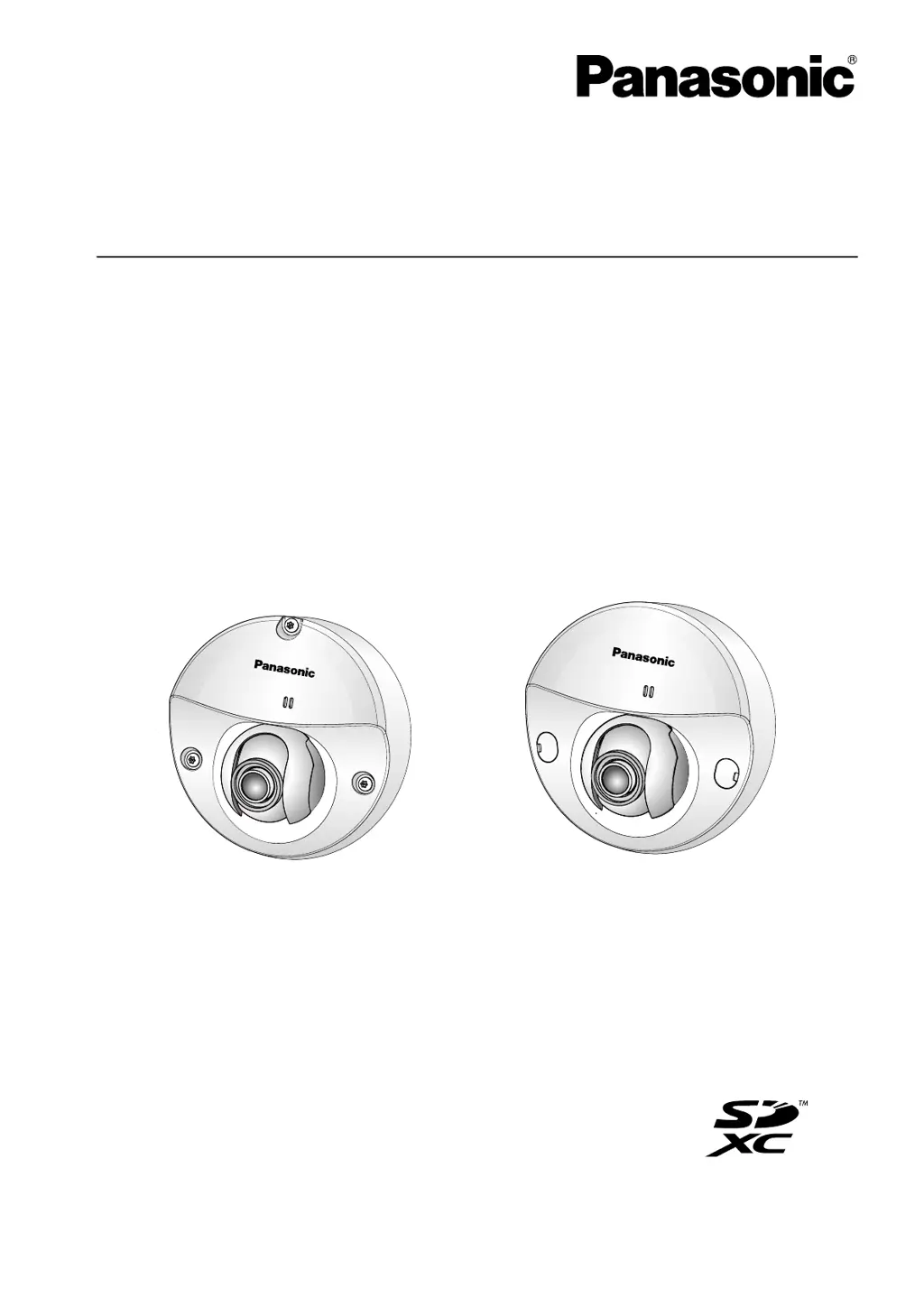
Operating Instructions
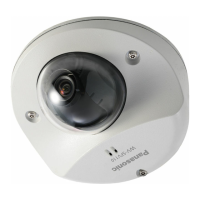
Network Camera
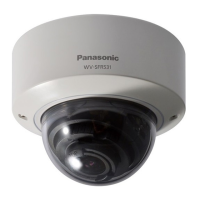
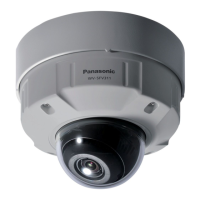
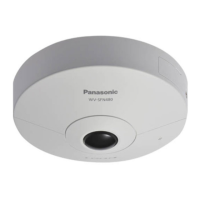
Model No. WV-SFV130
WV-SFV110
WV-SFV130M
WV-SFV110M
WV-SFN130
WV-SFN110
WV
SFN130-
WV
SFV 1 30-
WV-SFN130WV-SFV130
Before attempting to connect or operate this product, please read these instructions
carefully and save this manual for future use.
The model number is abbreviated in some descriptions in this manual.

Table of Contents

Other manuals for Panasonic WV-SFV130

Questions and Answers

Summary

Administrator Registration

Administrator Registration Process

Details the process of registering administrator username and password for initial camera access.

Viewer Software Installation

Installing the Viewer Software

Explains how to install the viewer software "Network Camera View 4S" for PC image display.

Monitor Images on a PC

Monitor Images from a Single Camera

Describes how to view live images from one camera via a web browser.

Monitor Images on a PC

Record Images on the SD Memory Card Manually

Action at an Alarm Occurrence

Transmit Images onto an FTP Server

Playback of Images on the SD Memory Card

About the Network Security

Equipped Security Functions

Outlines the security features like access restrictions and encryption.

Display the Setup Menu from a PC

Configure the Basic Settings of the Camera [Basic]

Configure the Basic Settings [Basic]

Covers fundamental camera settings like language, date, and camera title.

Configure the Internet Settings [Internet]

Details network configurations for internet connectivity, UPnP, and DDNS.

Configure Settings Relating to the SD Memory Card [SD Memory Card]

Manages SD card usage, recording formats, and security settings.

Configure the Settings Relating to Images and Audio [Image;Audio]

Configure the Multi-Screen Settings [Multi-screen]

Configure the Alarm Settings [Alarm]

Configure the Settings Relating to the Alarm Action [Alarm]

Sets up how the camera reacts to alarms (image, email, FTP, SD card, protocol).

Configure the Settings Relating to the Camera Action on Alarm Occurrence [Alarm]

Defines specific actions like image compression, email, FTP, and recording upon alarm.

Configure Settings Relating to Alarm E-mail Notifications

Sets up email alerts for alarm occurrences, including attachments.

Configure the VMD Settings [VMD Area]

Defines video motion detection areas and sensitivity for triggering alarms.

Configure the Settings Relating to the Audio Detection [Audio Detection]

Sets up audio detection levels to trigger alarms based on sound.

Configure the Settings Related to Advanced View [Advanced View]

Configure the Settings Relating to the Authentication [User mng.]

Configure the Settings Relating to the User Authentication [User auth.]

Manages user accounts, passwords, and access levels for camera access.

Configure the Network Settings [Network]

Configure the Network Settings [Network]

Sets up IP address, subnet mask, gateway, DNS, and HTTP port.

Configure Advanced Network Settings [Advanced]

Configures advanced network features like SMTP, FTP, UPnP, HTTPS, DDNS, SNMP, Diffserv.

Configure the HTTPS Settings

Enhances security by encrypting access via HTTPS protocol.

Configure the Settings Relating to DDNS

Sets up Dynamic DNS for remote access via a domain name.

Configure the Settings Relating to the Schedules [Schedule]

Maintenance of the Camera [Maintenance]

Upgrade the Firmware [Upgrade]

Guides on how to update the camera's firmware to the latest version.

Reset the Settings;Reboot the Camera [Default reset]

Allows resetting settings to default or rebooting the camera.

Troubleshooting

Cannot Access from the Web Browser

Provides solutions for issues accessing the camera via a web browser.

Cannot Access the Camera via the Internet

Troubleshoots problems with remote access to the camera over the internet.

Cannot Access the Camera via the URL of the Viewnetcam.com Service

Addresses issues accessing the camera using the Viewnetcam.com URL.

Cannot Access the Camera from a Cellular Phone

Troubleshoots connectivity issues when accessing from a cellular phone.

Cannot Access the Camera from a Mobile Terminal

Troubleshoots connectivity issues when accessing from a mobile terminal.

No Image is Displayed

Solves problems where no image is displayed on the screen.

Summary

Administrator Registration

Administrator Registration Process

Details the process of registering administrator username and password for initial camera access.

Viewer Software Installation

Installing the Viewer Software

Explains how to install the viewer software "Network Camera View 4S" for PC image display.

Monitor Images on a PC

Monitor Images from a Single Camera

Describes how to view live images from one camera via a web browser.

Monitor Images on a PC

Record Images on the SD Memory Card Manually

Action at an Alarm Occurrence

Transmit Images onto an FTP Server

Playback of Images on the SD Memory Card

About the Network Security

Equipped Security Functions

Outlines the security features like access restrictions and encryption.

Display the Setup Menu from a PC

Configure the Basic Settings of the Camera [Basic]

Configure the Basic Settings [Basic]

Covers fundamental camera settings like language, date, and camera title.

Configure the Internet Settings [Internet]

Details network configurations for internet connectivity, UPnP, and DDNS.

Configure Settings Relating to the SD Memory Card [SD Memory Card]

Manages SD card usage, recording formats, and security settings.

Configure the Settings Relating to Images and Audio [Image;Audio]

Configure the Multi-Screen Settings [Multi-screen]

Configure the Alarm Settings [Alarm]

Configure the Settings Relating to the Alarm Action [Alarm]

Sets up how the camera reacts to alarms (image, email, FTP, SD card, protocol).

Configure the Settings Relating to the Camera Action on Alarm Occurrence [Alarm]

Defines specific actions like image compression, email, FTP, and recording upon alarm.

Configure Settings Relating to Alarm E-mail Notifications

Sets up email alerts for alarm occurrences, including attachments.

Configure the VMD Settings [VMD Area]

Defines video motion detection areas and sensitivity for triggering alarms.

Configure the Settings Relating to the Audio Detection [Audio Detection]

Sets up audio detection levels to trigger alarms based on sound.

Configure the Settings Related to Advanced View [Advanced View]

Configure the Settings Relating to the Authentication [User mng.]

Configure the Settings Relating to the User Authentication [User auth.]

Manages user accounts, passwords, and access levels for camera access.

Configure the Network Settings [Network]

Configure the Network Settings [Network]

Sets up IP address, subnet mask, gateway, DNS, and HTTP port.

Configure Advanced Network Settings [Advanced]

Configures advanced network features like SMTP, FTP, UPnP, HTTPS, DDNS, SNMP, Diffserv.

Configure the HTTPS Settings

Enhances security by encrypting access via HTTPS protocol.

Configure the Settings Relating to DDNS

Sets up Dynamic DNS for remote access via a domain name.

Configure the Settings Relating to the Schedules [Schedule]

Maintenance of the Camera [Maintenance]

Upgrade the Firmware [Upgrade]

Guides on how to update the camera's firmware to the latest version.

Reset the Settings;Reboot the Camera [Default reset]

Allows resetting settings to default or rebooting the camera.

Troubleshooting

Cannot Access from the Web Browser

Provides solutions for issues accessing the camera via a web browser.

Cannot Access the Camera via the Internet

Troubleshoots problems with remote access to the camera over the internet.

Cannot Access the Camera via the URL of the Viewnetcam.com Service

Addresses issues accessing the camera using the Viewnetcam.com URL.

Cannot Access the Camera from a Cellular Phone

Troubleshoots connectivity issues when accessing from a cellular phone.

Cannot Access the Camera from a Mobile Terminal

Troubleshoots connectivity issues when accessing from a mobile terminal.

No Image is Displayed

Solves problems where no image is displayed on the screen.

Panasonic WV-SFV130 Specifications

General IconGeneral
Lens TypeFixed
Focal Length2.8 mm
Horizontal Field of View90°
Pan/Tilt/ZoomNo
Day/Night FunctionYes
Wide Dynamic RangeYes
Back Light CompensationYes
Digital Noise ReductionYes
Frame Rate30 fps
Ethernet10BASE-T/100BASE-TX
Power SupplyDC 12V
Ingress ProtectionIP66
Weather ResistanceYes
Vandal ResistanceIK10
Angle of ViewVertical: 68°
Video CompressionH.264
Audio CompressionG.726
Network InterfaceRJ-45
Power SourcePoE (IEEE 802.3af)
Operating Temperature-10 °C to +50 °C
Operating Humidity20% to 80% (non-condensing)
Image Sensor1/3" MOS Sensor

Related product manuals