EasyManua.ls Logo

Panasonic WV-SFV311 - User Manual

Panasonic WV-SFV311
210 pages
Print Icon
To Next Page IconTo Next Page
Loading...
Operating Instructions
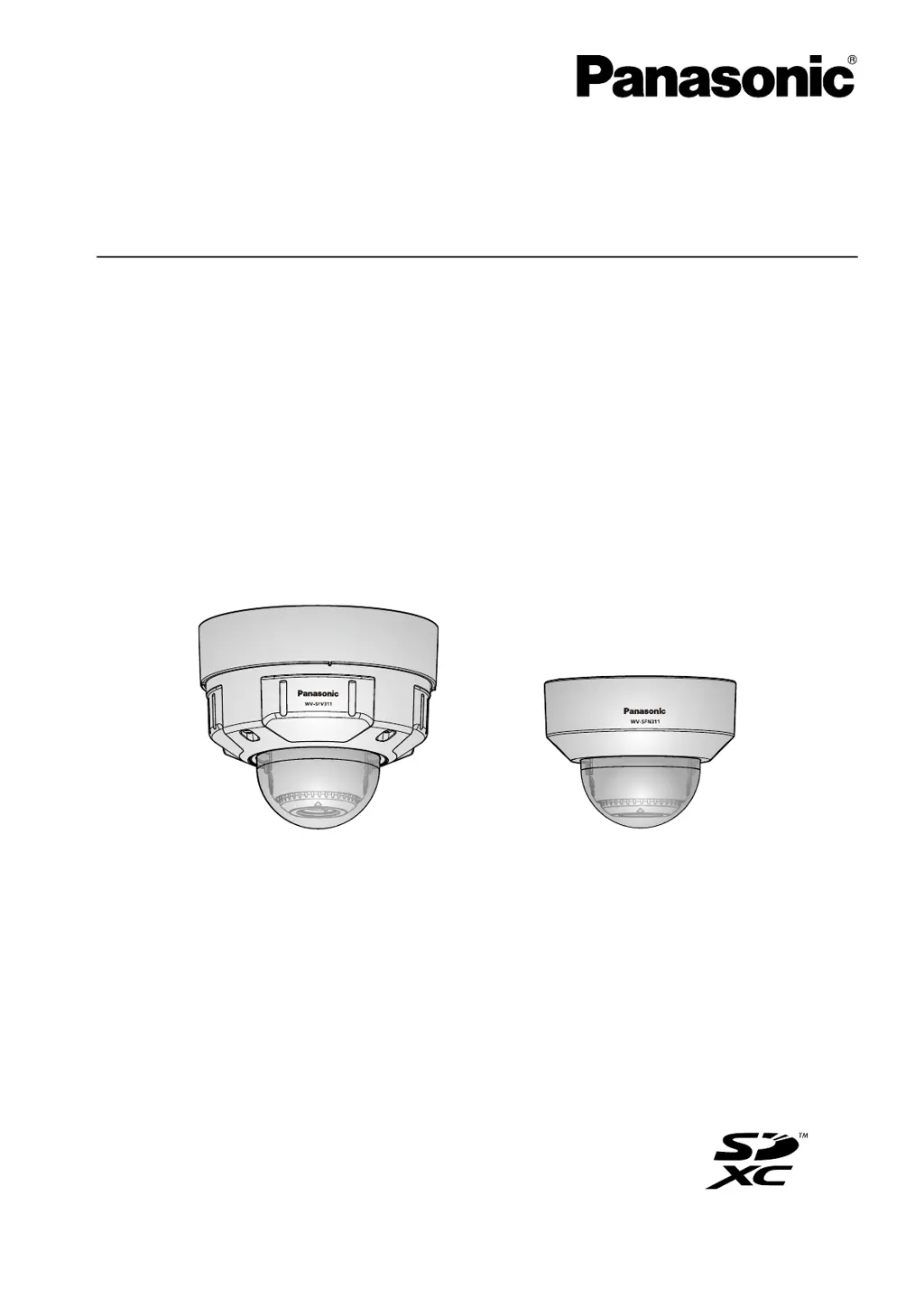
Network Camera
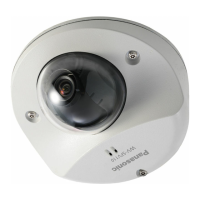
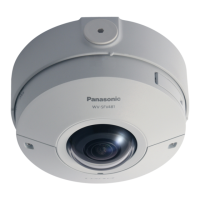
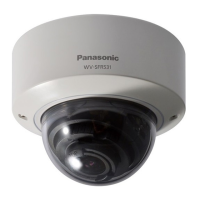
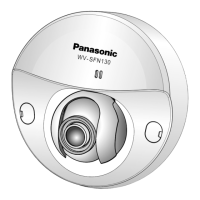
Model No. WV-SFV311/WV-SFV310
WV-SFR311/WV-SFR310
WV-SFN311/WV-SFN310
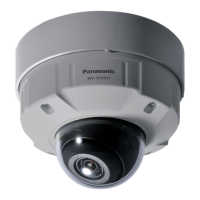
WV-SFV311
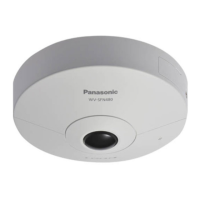
WV-SFN311
Before attempting to connect or operate this product, please read these instructions
carefully and save this manual for future use.
The model number is abbreviated in some descriptions in this manual.

Table of Contents

Other manuals for Panasonic WV-SFV311

Questions and Answers

  • C
    Connie BennettAug 13, 2025
    What to do if Panasonic Security Camera power is not turned on?
    • J
      Jamie AyalaAug 13, 2025
      If your Panasonic Security Camera isn't powering on, there are a couple of things to check. If you're using a PoE (Power over Ethernet) device, make sure the connection is properly established. If you're using a DC power supply, double-check that the power plug is firmly connected.
  • V
    vickiallenAug 16, 2025
    Why is the LINK indicator not lighting on my Panasonic WV-SFV311?
    • L
      loripattonAug 16, 2025
      If the LINK indicator on your Panasonic Security Camera isn't lighting up orange even when the network cable is connected, try these steps: * Ensure the LAN cable is correctly connected. * Verify that your hub or router is working correctly. * Try replacing the network cable with a different one.
  • M
    moralesmaryAug 20, 2025
    What to do if AF/SD ERROR indicator lights red on Panasonic WV-SFV311?
    • J
      Joy PenaAug 20, 2025
      If the AF/SD ERROR indicator on your Panasonic Security Camera is lit or blinking red, here's what you can do: * Unlock the write protect switch on your SD memory card. * Use an SD memory card that has been formatted on the camera itself. * Try replacing the SD card with a known good one.
  • R
    ramseyaprilAug 28, 2025
    How to fix audio input noise on Panasonic WV-SFV311 Security Camera?
    • N
      nhopkinsAug 28, 2025
      If you're experiencing noise in the audio input of your Panasonic Security Camera, try using a powered microphone or connecting an audio output device with low output impedance.
  • W
    walkerkarenSep 8, 2025
    Why Panasonic WV-SFV311 Security Camera cannot access from the web browser?
    • L
      Laura CohenSep 8, 2025
      If you cannot access the Panasonic Security Camera from the web browser, it may be due to the LAN cable not being properly connected, the link indicator not being lit, the camera not being powered on, invalid IP addresses, or accessing the wrong IP address.
  • A
    Alison HardyNov 23, 2025
    How to fix Panasonic WV-SFV311 Security Camera when cannot access from the web browser?
    • C
      chenkatieNov 23, 2025
      If you cannot access the Panasonic Security Camera from the web browser, here are several things to check: * Ensure the LAN cable is firmly connected. * Verify the link indicator is lit, and check for cable or wiring issues. * Confirm the camera's power is on. * Validate the IP addresses and check for conflicts with other devices. * Ensure you're using the correct IP address by using the Windows command prompt to ping the camera's IP address. * If using HTTPS, access with “https://” and the correct port number. * Make sure the default gateway or DNS server address is correctly set in the network settings. * If the router doesn't support UPnP, enable port forwarding. * Log into “Viewnetcam.com” to check registered camera information. * Check the URL for correctness. * ...
  • F
    Francisco HamiltonDec 1, 2025
    How to fix Panasonic WV-SFV311 Security Camera cannot access from the web browser?
    • L
      Lindsey JonesDec 1, 2025
      If you cannot access the Panasonic Security Camera from a web browser, ensure the LAN cable (category 5 or better, STP for E models) is firmly connected to the camera's network connector and that the link indicator is lit. If the link indicator isn't lit, there may be a connection issue with the LAN or the network might not be working correctly. Check the cables for contact failure and verify the wiring. Also, confirm that the camera is powered on and that the set IP addresses are valid. You should also check that you are accessing the correct IP address. To do this, use the Windows command prompt to ping the camera's IP address. If there's no reply, use the Panasonic “IP Setting Software” to confirm the camera's IP address and access it. If network settings are incorrect, reboot the camer...

Panasonic WV-SFV311 Specifications

General IconGeneral
BrandPanasonic
ModelWV-SFV311
CategorySecurity Camera
LanguageEnglish

Related product manuals