EasyManua.ls Logo

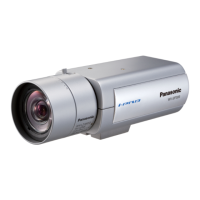
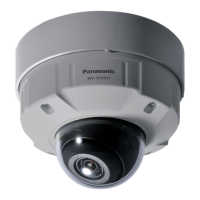
Panasonic WV-SF346 - User Manual

Panasonic WV-SF346
8 pages
Print Icon
To Next Page IconTo Next Page
Loading...
ELAN Home Systems 1690 Corporate Circle Petaluma, CA 94954 USA
tech support: 800.622.3526 • main: 760.710.0990 • sales: 877.289.3526 • email: elan@elanhomesystems.com
©2013 ELAN Home Systems. All rights reserved. ELAN and g! are trademarks of ELAN Home Systems. All other trademarks are the property of their respective owners.
Camera Integration Note
Manufacturer: Panasonic
Model Number(s):
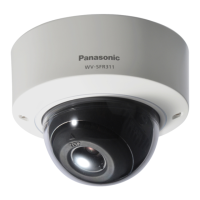
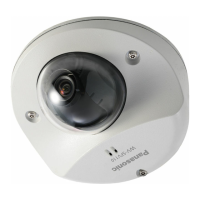
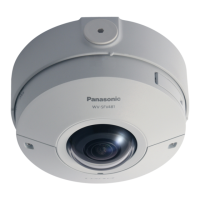
IP Video Cameras (See models list below)
NOTE: This Integration Note details use of the Panasonic i-
Pro models. See the Integration Note for Panasonic
Standard Series driver for consumer model lines
Minimum Core Module Version: g! 6.1
Comments:
Panasonic IP Setting SW 4.24
CGI Command Protocol 1.33
Document Revision Date: 2/13/2013
IMPORTANT: This Integration note only applies to the new “Panasonic Pro Series” driver
available in version 6.1 of g! software. If you are integrating consumer level products (not i-pro)
please see the appropriate Integration Notes.
Panasonic i-pro models are only supported in 6.1 or newer release.
OVERVIEW AND SUPPORTED FEATURES
THE PANASONIC CAMERA DRIVER SUPPORTS THE FOLLOWING FEATURES:
Pan / Tilt / Zoom: Some Panasonic cameras can be turned to see various locations and zoom in and
out. This feature is supported in the driver, and is configurable using a dropdown menu. Note: cameras
that only have digital zoom may not support zoom through the g! viewer.
Presets: Some Panasonic cameras support presets, allowing the user to store predefined locations such
as a driveway or pool. This feature is supported in the driver, and is configurable using a dropdown
menu.
Motion Detection: Some Panasonic cameras support motion detection to trigger events in the g! system.
This feature is supported in the driver, and is configurable using a dropdown menu.
Video Out: Some Panasonic cameras include an analog video output, which can be connected to an
analog DVR to provide separate recording, or to a TV modulator to enable camera viewing on a
television.
Image Flip: The camera can be mounted with its base up or down, and the image will appear normal.
Simply set the “flip 180” option in the g! Configurator.
One-Way Audio: Some cameras support Listen function for audio. This is supported on applicable
models.
T
HESE CAMERAS DO NOT SUPPORT THE FOLLOWING FEATURES:
Any feature not specifically noted as “supported” is not supported.
Input/Output: These cameras include an I/O connector for sensor inputs and alarm outputs. These are
not supported by the g! system at this time.
Two-Way Audio: Two way audio (speaking from a touch screen and outputting from Camera) is not
supported by the g! system at this time.
All Resolutions: Some models support Megapixel or Widescreen resolutions. This is not supported by g!
at this time, and only the cameras lower resolutions will be usable in the Viewer. In addition, not all
cameras support all resolutions (some cameras may only show “Med” and “High” options, for example).


Other manuals for Panasonic WV-SF346

Questions and Answers

Overview

This document provides an integration note for Panasonic IP Video Cameras, specifically detailing the use of Panasonic i-Pro models with the g! software version 6.1 or newer. It outlines the installation and configuration process, as well as the supported and unsupported features of these cameras when integrated into an ELAN Home Systems environment.

Function Description

The Panasonic IP Video Cameras, when integrated with the g! system, offer a range of surveillance and monitoring capabilities. These cameras are designed for professional use within the ELAN Home Systems ecosystem, providing robust video monitoring solutions. The integration allows for centralized control and management of camera functions through the g! viewer.

Usage Features

  • Pan/Tilt/Zoom (PTZ): Many Panasonic cameras support PTZ functionality, allowing users to remotely adjust the camera's viewing angle and zoom in or out. This feature is configurable via a dropdown menu in the driver. It's important to note that cameras with only digital zoom may not support zoom through the g! viewer.
  • Presets: The cameras support presets, enabling users to store and recall predefined viewing locations (e.g., driveway, pool). This feature is also configurable through a dropdown menu in the driver.
  • Motion Detection: Panasonic cameras can be configured to detect motion, which can then trigger events within the g! system. This allows for automated responses or alerts based on detected activity.
  • Video Out: Some models include an analog video output, which can be connected to an analog DVR for separate recording or to a TV modulator for viewing on a television.
  • Image Flip: For flexible installation, cameras can be mounted with their base up or down. The "flip 180" option in the g! Configurator ensures the image appears normal regardless of mounting orientation.
  • One-Way Audio: Applicable camera models support a "Listen" function for audio, allowing users to hear audio from the camera's location.

Unsupported Features

The current integration with the g! system (as of the document's revision date) does not support the following:

  • Input/Output (I/O) Connectors: The I/O connectors for sensor inputs and alarm outputs on these cameras are not supported by the g! system.
  • Two-Way Audio: The ability to speak from a touch screen and have the audio output from the camera is not supported.
  • All Resolutions: While some models support Megapixel or Widescreen resolutions, these are not fully supported by the g! system. Only lower resolutions will be usable in the Viewer. Additionally, not all cameras support all resolutions, with some only offering "Med" and "High" options.

Installation and Configuration Overview

The installation process involves three main steps:

  1. Physical Installation: Install cameras at desired locations, ensuring power and Cat5 cabling are in place. Refer to Panasonic documentation for specific mounting details.
  2. Camera Configuration: Connect cameras to the home network and configure them using Panasonic's "Pro IP Setting Software." This software must be run from a Windows computer on the same network as the cameras.
  3. g! System Integration: Integrate the configured cameras into the g! system and test their operation. This step is detailed in the g! Configuration Details.

Important Notes for Camera Configuration:

  • One-at-a-Time Configuration: If installing multiple cameras, configure each one completely before powering up subsequent cameras.
  • 20-Minute Setup Window: Initial camera settings must be made within 20 minutes of powering up the camera. If this window is missed, cycle power to the camera before proceeding.
  • Password Management: A user name and password must be created during setup. Losing these credentials will necessitate a factory reset of the camera.
  • Default Credentials: For Panasonic Pro cameras, the default user name is admin and the default password is 12345.

Starting the Panasonic Camera Software:

  1. Insert the camera's CD into your PC. The "Network Camera Setup" software should autostart. If not, launch CDLauncher.exe from the CD.
  2. From the CD Launcher screen, select "Run" for the "IP Setting Software."

Network Settings:

  1. Allow the software to find the camera(s) on the network.
  2. Select the desired camera and click "Network Settings."
  3. Assign a static IP address. ELAN recommends starting with 192.168.0.80 for the first camera, 192.168.0.81 for the second, and so on. The camera will reboot after saving these settings.

Camera Settings (via Web Browser):

  1. After the camera reboots, select it from the list and click "Access Camera." A new browser window will open, potentially prompting for ActiveX add-ons (Internet Explorer is recommended).
  2. Click the "Setup" button in the upper left. You may be prompted for credentials; use admin and 12345 by default.
  3. In the "Basic" menu, configure the time zone and language, then click "Set."
  4. To enable audio, navigate to the "Image/Audio" section and click the "Audio" tab.
  5. Enable "Audio Transmission/Reception to Mic Input" and ensure "G.726" is checked, then click "Set."
  6. For motion detection, go to the "Alarm" section, select the "VMD Area" tab, set "VMD Information Addition" to "ON," and click "Set." Refer to the DVR Integration Note for further details on setting up the DVR tab in g!.

g! Configuration Details:

When configuring the camera in the g! Configurator, specific settings are required:

  • Communication Device: N/A (no communication device needed; just add Video Cameras).

  • Video Cameras/Sources:

    • Name: User-defined.
    • Device Type: Panasonic Pro Series.
    • IP Address: User-defined (default: 192.168.0.80).
    • Port: Typically 80. Cameras do not need different listening ports for g!.
    • Username: User-defined (default: admin).
    • Password: User-defined (default: 12345).
    • After adding the IP address and saving, Panasonic i-pro cameras should auto-detect most settings. DVR options should be selected as usual.
  • DVR Options (See Note 3):

    • Enable DVR: Set to "YES" to enable the built-in DVR function.
    • Low-Res Panning: Set to "YES" to have the camera set the resolution to LOW prior to any camera panning.
    • Has Pan/Tilt: Set to "YES" if the camera has Pan/Tilt functionality.
    • Has Zoom: Set to "YES" if the camera has Optical Zoom.
    • Has Presets: Set to "YES" if the camera has position/zoom presets.
    • Has Audio: Set to "YES" if the camera has Audio.
    • Has Motion Detect: Set to "YES" if the camera supports Motion Detection.
    • Flip Image 180: Set to "YES" if the camera is inverted.
    • Hide Resolution Control: Set to "YES" to hide resolution control buttons from the Viewer.
    • Hide Full Screen Control: Set to "YES" to hide the Full Screen button from the Viewer.
    • Default Resolution: Set to the desired default resolution for viewing.
    • Goto Preset When Idle: Choose a preset for the camera to return to when not open in any Viewer.
    • Record Resolution: "Don't Change" defaults to the last active resolution, or set a specific resolution for recording.
    • Record Mode: Select the desired sensitivity level for "Auto motion mode" or choose a fixed value.
    • Record Threshold: "Record Mode" must be set to "Fixed Threshold" to enable. Select the desired motion percentage.
    • Event-Map Motion Trigger: Set to enable Motion Detection as an Event Map trigger (not required for typical DVR function).
    • Trigger Value: Set the level for the Event Map motion detection trigger (lower is more sensitive).

Common Mistakes:

  • Incorrect Camera Settings: Ensure that the Username and Password settings in the Panasonic camera match those configured in the g! system. Mismatched credentials will result in no video feed.

Panasonic WV-SF346 Specifications

General IconGeneral
Camera TypeNetwork Camera
Maximum Resolution1920 x 1080
Audio SupportTwo-way audio
DimensionsØ 120 mm x 94 mm
WeightApprox. 500 g
Effective Pixels2.1 MP
Resolution1920 x 1080
Minimum Illumination0.03 lx
Focal Length3.0 mm
Power SourcePoE (IEEE 802.3af)
Ingress ProtectionIP66
Frame Rate30 fps
Video CompressionH.264, JPEG
Power SupplyPoE (IEEE 802.3af)
Operating Temperature-10 °C to +50 °C
Lens TypeMotorized zoom lens
Network Interface10Base-T / 100Base-TX
Image Sensor1/3" MOS Sensor

Related product manuals