Installing the Future Impact v3 Editor Suite
Go to http://pandamidi.com/support and download the latest FI v3 Editor Suite software
package. Once you have downloaded it, locate it on your computer.
● Windows: Unzip the downloaded folder then double-click FIEditorSetup.exe and
follow the on-screen instructions.
● Mac: Open the file FIEditor.dmg either by double-clicking it or by right-clicking it and
choosing Open With>Disk Image Mounter from the pop-up menu. Once the DMG
file has been verified, it will open automatically. Now drag the FIEditor program into
the Applications folder.
Connecting to the Future Impact v3 Editor Suite
First connect your compatible interface to your computer, then launch the Editor Suite. In the
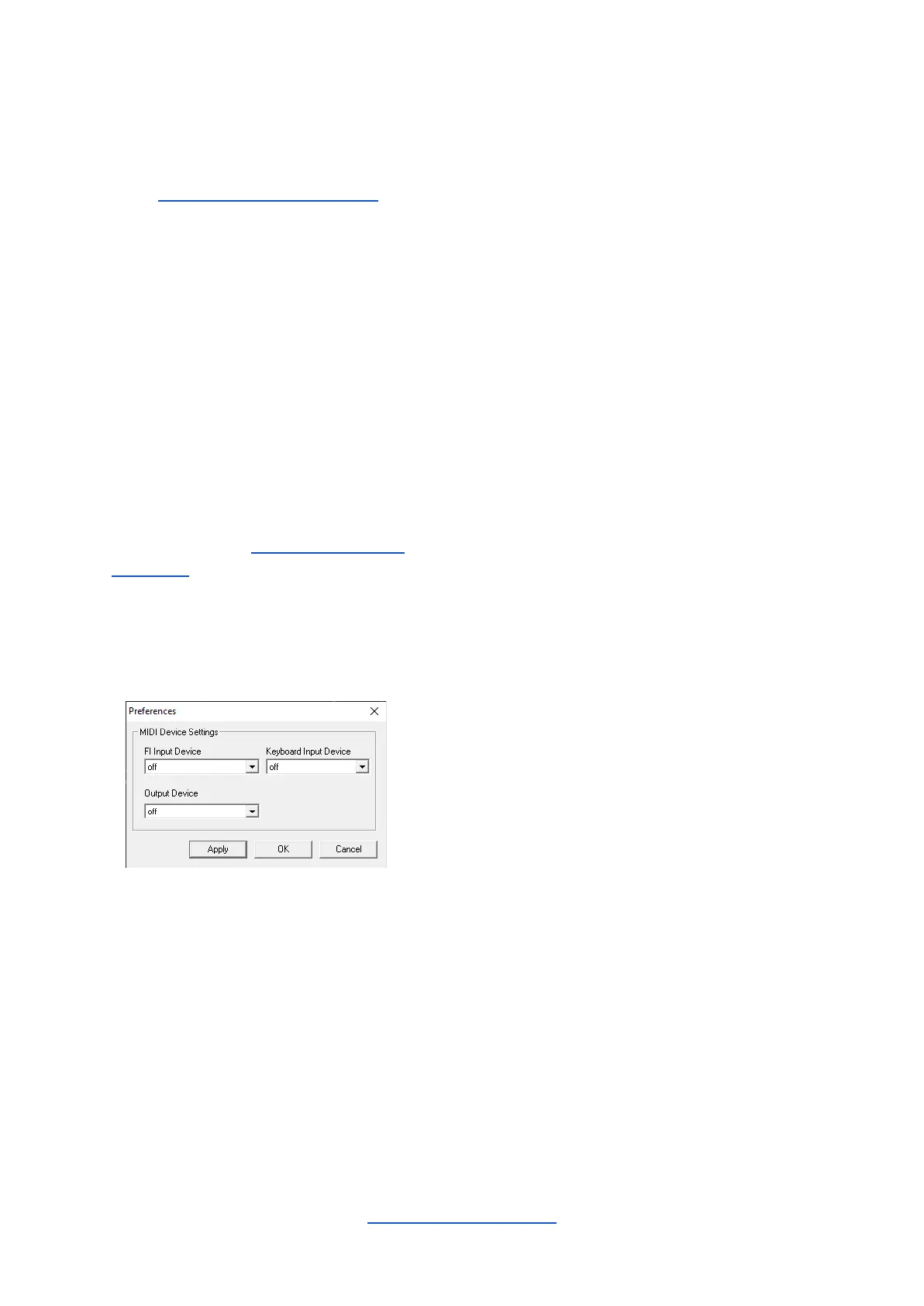
Menu Bar located along the top of the screen, click MIDI>Preferences to open the MIDI
Device Settings box (shown below).
Select your interface from both the FI Input Device and the Output Device drop-down
menus on the left-hand side of the box. (All MIDI Device Settings are explained below.)
Connect your FI your computer as follows:
1. MIDI OUT of the interface → MIDI IN of the FI;
2. MIDI OUT of the FI → MIDI IN of the interface.
● Output Device: The device the Editor Suite uses to send MIDI information to the FI.
(Essential connection. Required for auditioning, editing and creating sounds.)
● FI Input Device: The device the Editor Suite uses to receive MIDI information from
the FI. (Required for writing sounds to the FI and for downloading sounds from it; if
these functions are not needed then this connection is optional.)
● Keyboard Input Device: A second input into the Editor Suite. If you want to design a
sound using a MIDI keyboard or any other MIDI controller, connect the MIDI OUT of
the keyboard or controller to the computer using this option. The Editor Suite will
perform a MIDI Thru function to the FI for the incoming MIDI signals.


 To Next Page