as it will produce different key velocity values depending on where you press the key; higher
velocities are at the bottom, lower velocities at the top.
To the left of the keyboard is an icon for setting its MIDI channel; either left-click and drag up
and down, or right-click and use the pop-up menu. Set this to the same channel as your FI.
Note: The on-screen keyboard only triggers the synthesizer portion of a sound. Therefore
any program whose sound is partially (or entirely) constructed from your instrument’s audio
signal will not play back as expected when using this keyboard.
Block Reset & Randomize Tool
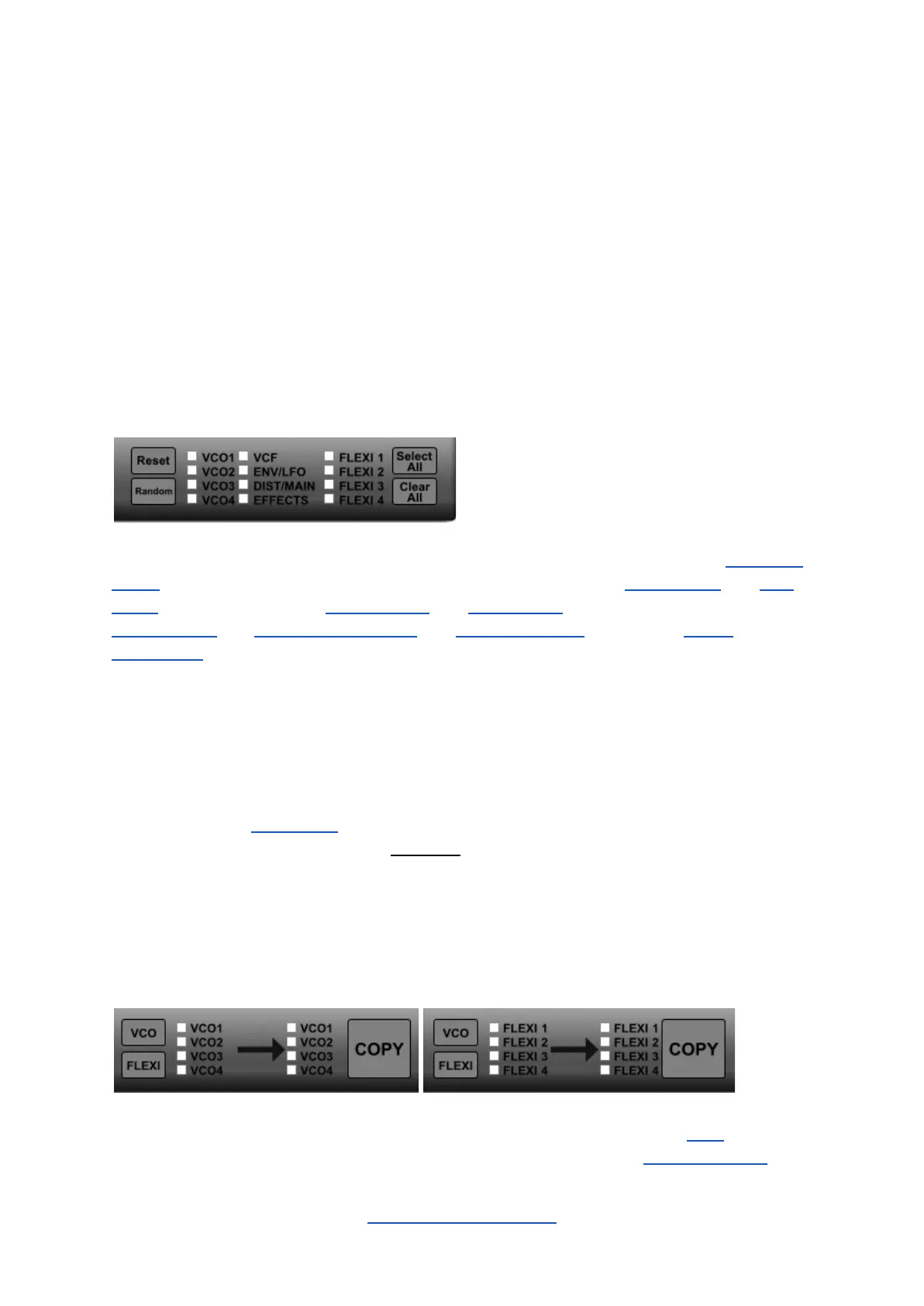
In the lower-right corner of the Editor there is a tool to reset or randomize various parameter
blocks. There are twelve checkboxes. These correspond to the four VCO Blocks, the VCF
Block, a combination of the ENVELOPES and LFO Blocks, a combination of the
DISTORTION and MAIN MIXER Blocks, the EFFECTS Block and the four FLEXI
Controllers. Click on a checkbox to select a block. Any number of blocks can be selected
and there are buttons to Select All or Clear All checkboxes.
You can adjust the selected block(s) by clicking on one of the following two buttons:
● Reset: Sets the parameters in the block(s) to their lowest values.
● Random: Generates random values for all parameters in the block(s).
Note: Though the MIDI Block does not have its own checkbox, its parameters will be reset
whenever a Reset is performed with all twelve checkboxes ticked. It does not respond to the
Random button.
VCO & Flexi Copy Tool
In the lower-left corner of the Editor there is a tool to copy all settings of one VCO (oscillator)
to one or more of the other oscillators or to copy all parameters of one Flexi Controller to
one or more of the other Flexi Controllers.


 To Next Page