02
03
04
05
06
07
08
01
31
Replying to a missed call
1. Tap to display the list of missed calls.
2. Select a number to call by scrolling the screen.
3. Press .
Answering a second call
N
1. Press . The first call is automatically put on hold.
2. Press to end the second call.
The call on hold is automatically reconnected.
Setting call forwarding option
N
1. Tap Menu
;
> Settings > Call.
2. Tap Call Forwarding.
3. Select the desired option.
Setting call waiting option
N
1. Tap Menu
;
> Settings > Call.
2. Tap Call Waiting.
3. Select the desired option.
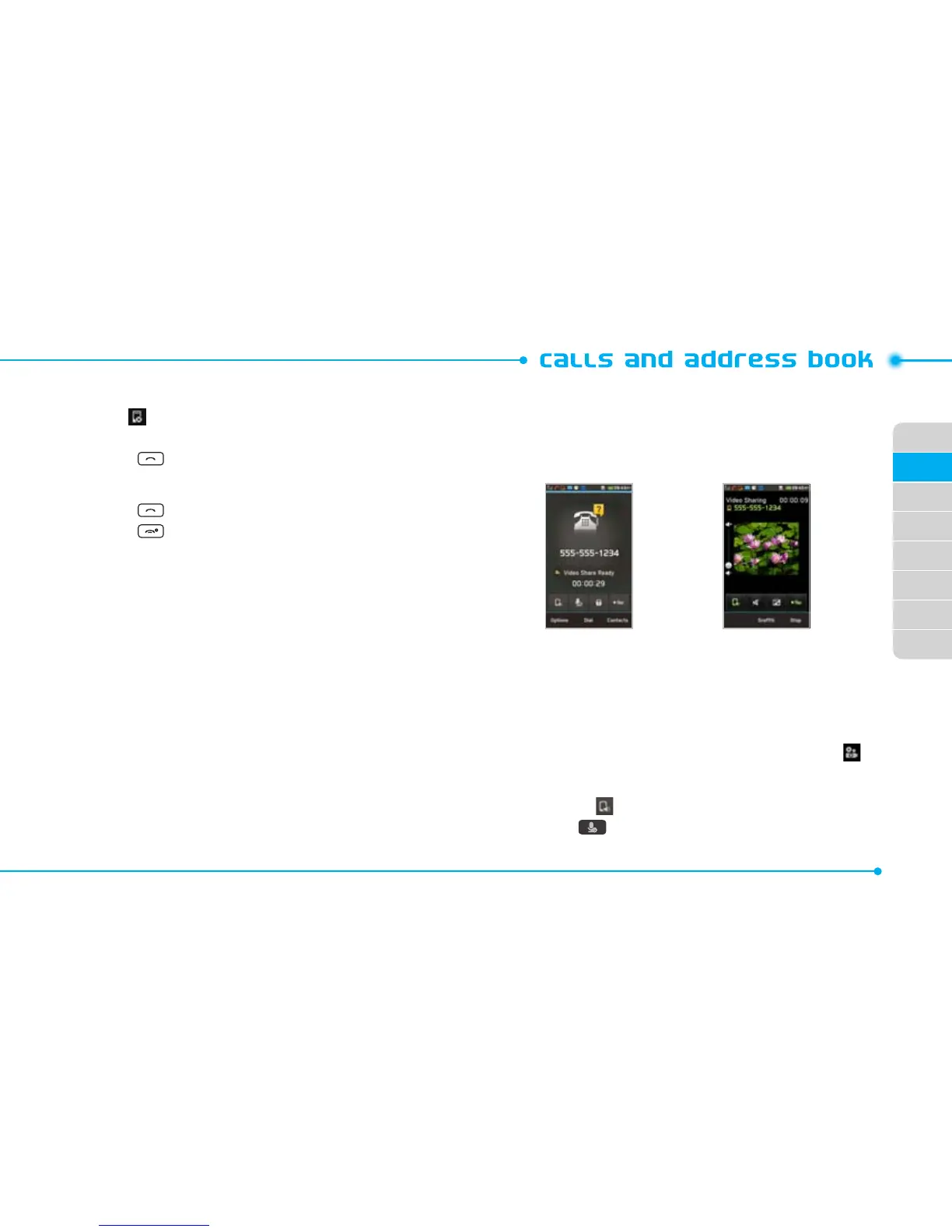
Using video share
You can share live or recorded video while on a call. You can send
or receive video.
note: Video Share is not available in all markets. Both parties must be in
a 3G service area–a 3G icon must appear by the signal bars prior to a call
being placed, and both parties must remain in the 3G coverage area for
the duration of the Video Share.
<Call Mode> <Video Share Mode>
Making a video share call
1. Enter the area code and phone number >
E
.
- Wait for the Video Share ready message to appear.
2. Tap Options > Video Share.
3. Select Live or Recorded.
note: To use video share in the Recent Calls, tap number and .
Turning off the speakerphone
1. Tap Speaker during video share mode.
2. Tap Mute to mute the sound.



 To Next Page