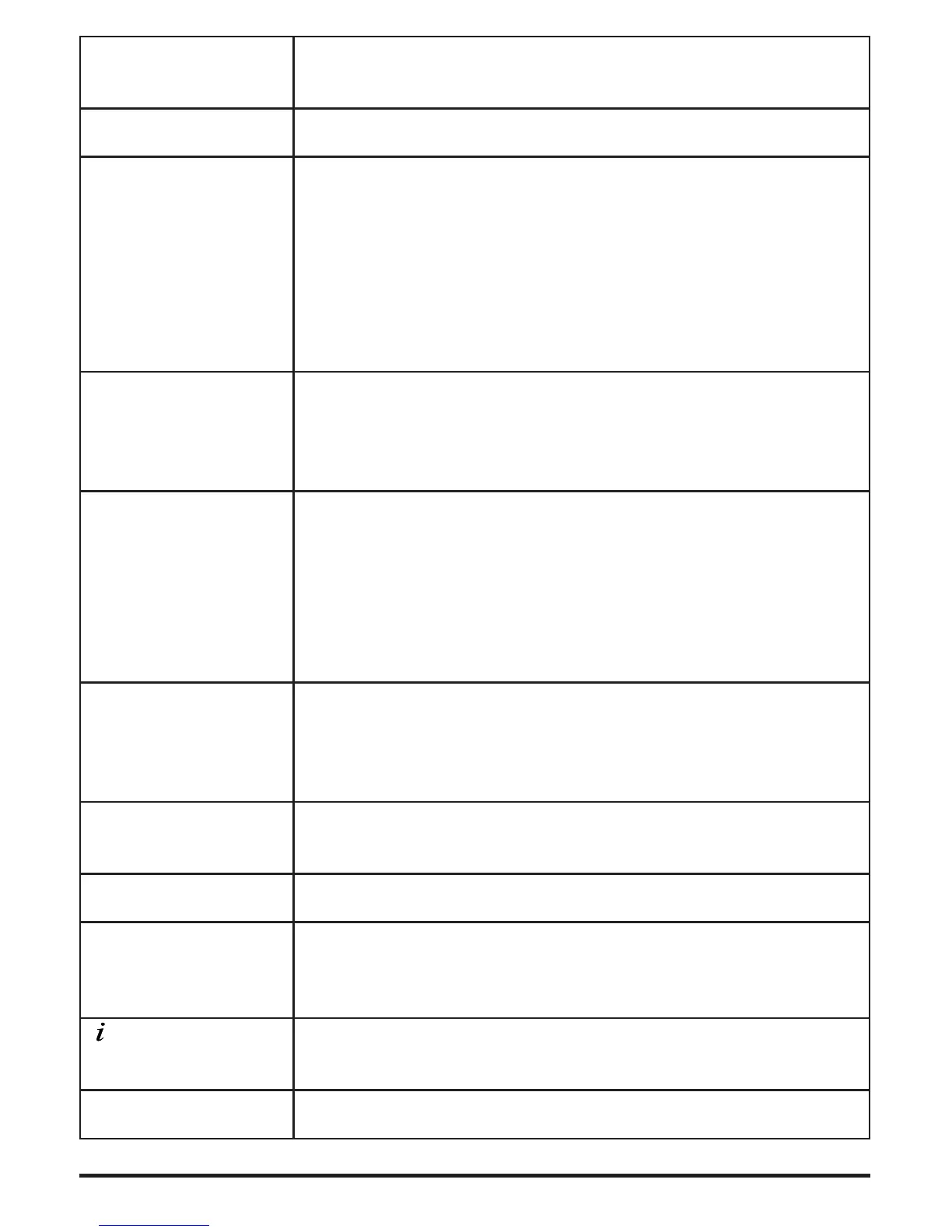
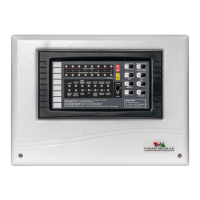
[RST] Button/Indicator
Resets the panel’s state including alarm zones, faults etc. (needs
access level 2 or 3).
[SLNC] Button/Indicator
Silences alarms or faults (needs access level 2 or 3).
<ALRM>
(Aa / 0..9)
Button
Displays the system's ALARMS in two different screens. The
rst press shows a list of zones in Alarm; by pressing the button
again the zones overview screen is shown. Further presses of
the <ALRM> button alternates between these two screens.
Alternative function: During text input eld editing (access
level 2 & 3 programming), changes character entry mode from
numeric to T9 (text entry mode as used on mobile and telephone
devices).
[BYP] Button/Indicator
Displays the system's disablements in two different screens. The
rst press shows a list of bypassed zones; by pressing the button
again the zones overview screen is shown. Further presses of
the [BYP] button alternates between these two screens.
<FAULT> Button
Displays the system’s FAULTS in two different screens. The
rst press shows a list of zones in fault; by pressing the button
again the zones overview screen is shown. Further presses of
the <FAULT> button alternates between these two screens.
Alternative function: During text input eld editing (access
level 2 & 3 programming), deletes the character that the cursor
is over.
<LOG> Button
Shows the log events from the main board. While in the LOG
screen the user can navigate through the log using the arrow
keys (UP=RIGHT=get next log and DOWN=LEFT=get previ-
ous log).
<CLR> Button
Returns to the previous menu or to main menu depending the
current menu.
<ENTER> Button
Selects an option/menu or submits a change during editing.
<NUM PAD>
(keys 0-9)
Button
Keys use for data entry and menu item selection. They can be
operated either in numeric mode or in T9 (text and numbers)
entry mode.
< >
(info key)
Button
Displays help information about a menu or action. In the main
screen it displays the Menu of Access Level 1 (informational).
<ARROW KEYS> Button
Navigate through menus, lists and log.
Table 1. Keyboard description


 To Next Page