25Settings
Product name
Select the Network settings screen.
The network name of your Parrot Bebop Drone appears in your smartphone peripheral
devices list and in the FreeFlight 3 application settings menu.
To change the network name of your Parrot Bebop Drone:
1. Change the Parrot Bebop Drone name in the Product name field.
2. Reboot the Parrot Bebop Drone.
Note: The network name of the Parrot Bebop Drone can only contain letters, numerals
and underscores ("_"). It must not exceed 32 characters in length.
Wi-Fi
Select the Network settings screen.
Note: Before flying the Parrot Bebop Drone, please ensure that you comply with the
Wi-Fi frequencies restrictions of your place of flight. Certain frequencies may be
restricted or forbidden. Selecting the country and activating the outdoor option enable
FreeFlight 3 to adapt the available channels according to the legislation of the selected
country. For example, in certain countries using the 5 GHz Wi-Fi band may be
prohibited in outdoor mode.
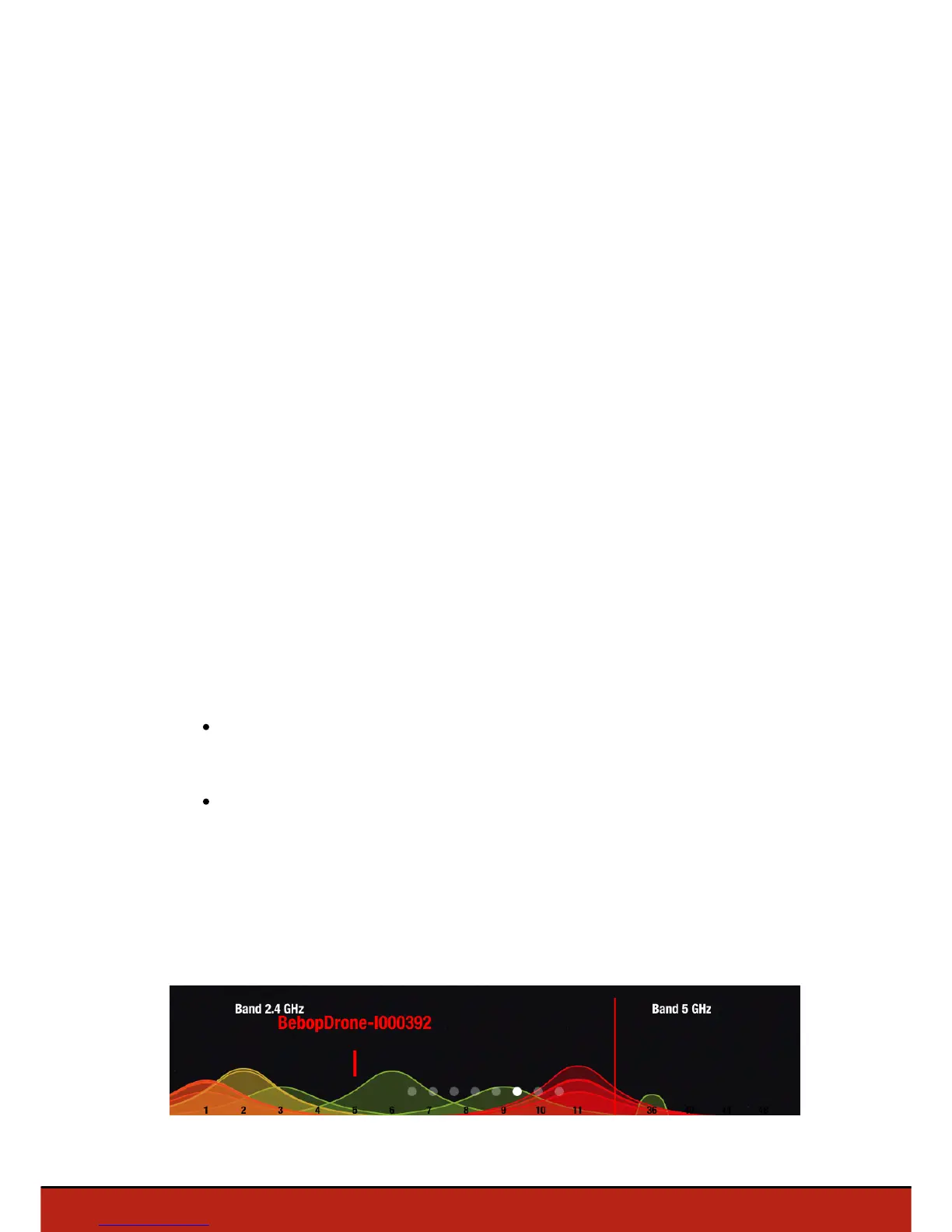
You can connect the Parrot Bebop Drone to the 2.4GHz or 5GHz Wi-Fi bands.
The 2.4 GHz Wi-Fi band enables you to fly the Parrot Bebop Drone from a
greater distance. It is generally more congested than the 5 GHz Wi-Fi band in
urban areas.
The 5 GHz Wi-Fi band enables you to obtain a better connection between the
Parrot Bebop Drone and your smartphone. Check your smartphone user guide
(or the technical specifications) to see whether it supports connection to the 5
GHz Wi-Fi band. If it does not, use the 2.4 GHz Wi-Fi band only.
Consult the diagram at the bottom of the screen to know the state of the Wi-Fi
channels.




 To Next Page