PS-3225 Connect the Sensor Wirelessly via Bluetooth in SPARKvue
9
013-16123A
Connect the Sensor Wirelessly via Bluetooth in SPARKvue
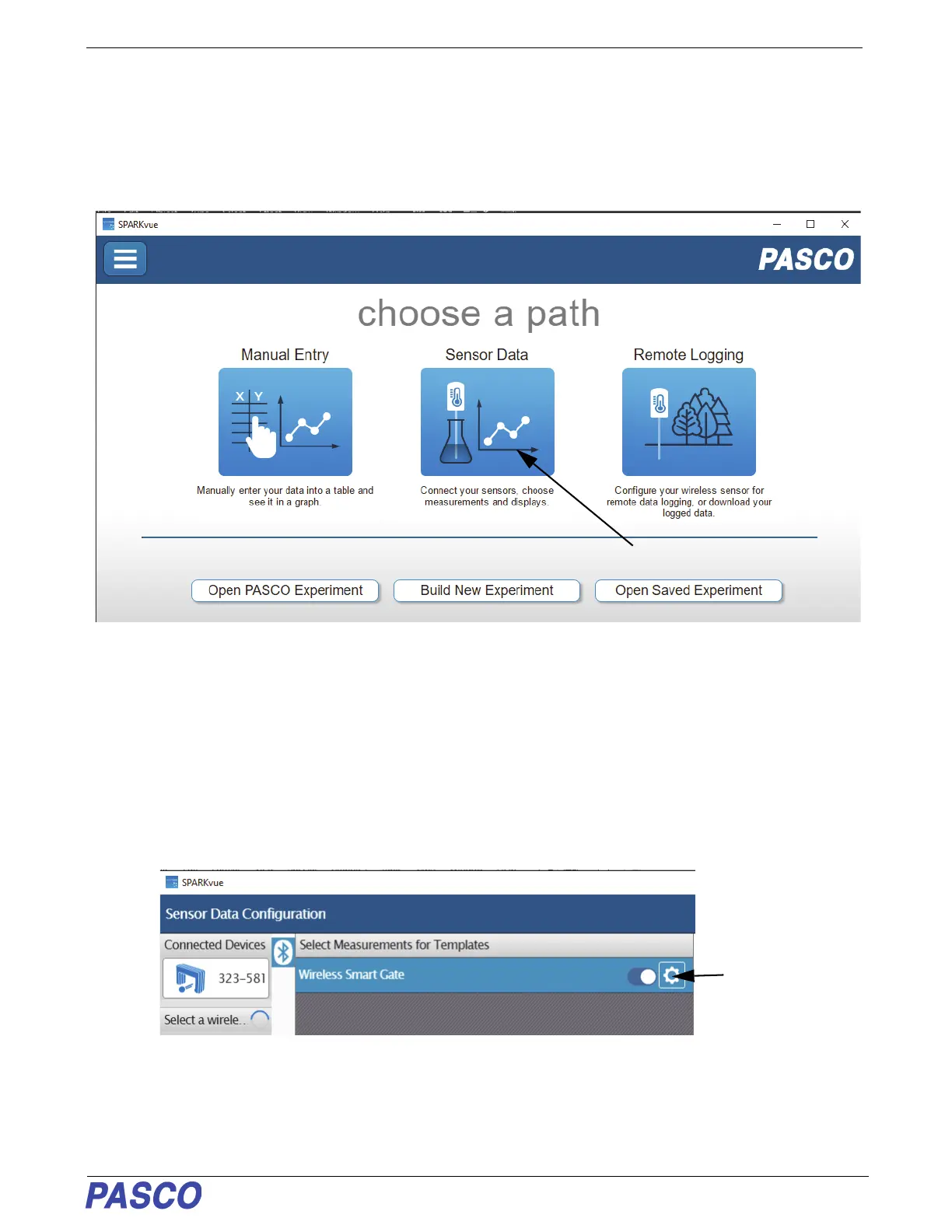
1. Turn on the sensor and start SPARKvue.
• The “choose a path” window opens.
.
2. To “pair” the Wireless Smart Gate wirelessly to the computing device (e.g., computer or tablet), click or touch
“Sensor Data” in the “choose a path” window.
• The “Sensor Data Configuration” screen opens
.
3. In the “Sensor Data Configuration screen”, look in the “Connected Devices” list. Touch or click to select the
correct address that matches the Device ID XXX-XXX number found on the Wireless Smart Gate.
• A message confirms that the sensor is being connected.
• Next, in the “Sensor Data Configuration” screen, “Wireless Smart Gate” appears in the “Select Measurement
for Templates” panel,
4. Click or Touch the “gear-shaped” Configuration Icon
• The “Assign SmartGate” screen is revealed.
Click or Touch
the
Configuration
Icon


 To Next Page