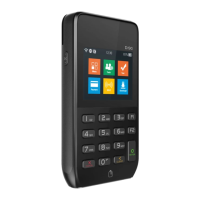
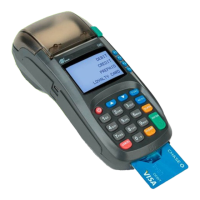
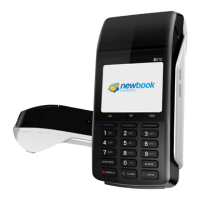
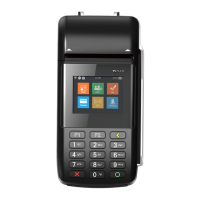
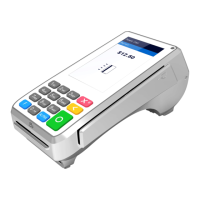
The PAX D180 is a portable mPOS (mobile Point of Sale) terminal designed for various payment processing needs. It supports multiple card reading technologies and offers connectivity options for seamless integration with other devices.
Function Description
The D180 primarily functions as a payment terminal, enabling transactions through smart cards, magnetic stripe cards, and contactless cards. It supports Bluetooth® connectivity for pairing with mobile equipment and can also connect to a PC via a USB cable for processing payments. The device is designed for ease of use in various retail and service environments.
Important Technical Specifications
- CPU: 32-bit ARM CPU
- Memory: CPU FLASH built-in 1MB flash + 128KB SRAM; External 4MB flash
- Display: 128x64 dot matrix LCD display, 1.8 inches, white backlight
- Buttons: 13 buttons (numbers 0-9, ENTER, CLEAR, CANCEL). The power on button and CANCEL button are multiplexed. No backlight for buttons.
- Card Readers:
- Magnetic Strip Card Reader: Supports 2/3 tracks or 1/2/3 tracks, adheres to ISO7816.
- Smart Card Reader: Supports cards up to standard ISO7816 & EMV L1.
- Contactless Card Reader: Reads ISO14443 Type A&B and Mifare cards.
- Wireless Communications: Up to Bluetooth 4.2.
- External Ports: Micro USB.
- Power Source: DC 5V/1A.
- Lithium Battery: 3.7V-250mAh lithium-ion polymer battery.
- Physical Dimensions: 120 mm x 60 mm x 15 mm (L x W x H).
- Operating Environment:
- Temperature: 0-50°C
- Humidity: 10%-93%
- Storage Environment:
- Temperature: -20°C-70°C
- Humidity: 10%-93%
- ESD Contact Discharge: ±4kV
- ESD Air Discharge: ±8kV
- Buzzer: Internal buzzer.
Usage Features
The D180 offers flexible usage scenarios:
-
Connecting to Mobile Equipment via Bluetooth:
- Turn on Bluetooth on the mobile device and scan for the D180. The default device name is "PAX D180_XXXX" (where XXXX are the last 4 letters of the Bluetooth MAC address), though this can be modified.
- Pair the mobile equipment with the D180. The mobile equipment may prompt for a pairing passkey; confirm by clicking OK.
- Initiate a shopping transaction on the mobile equipment, place an order, submit it, and click the PAY button.
- Confirm the amount displayed on the D180 screen.
- The D180 will prompt for card reading.
- Input the PIN using the D180's keypad.
- The transaction will then be completed.
- Effective Bluetooth transmission distance is greater than 50m in an office environment without barriers.
-
Connecting to PC with USB Cable:
- Connect the D180 to a PC using a USB cable.
- Initiate a shopping transaction on the PC and click the PAY button.
- Confirm the amount displayed on the D180 screen.
- The D180 will prompt for card reading.
- Input the PIN using the D180's keypad.
- The transaction will then be completed.
- Note: The D180's USB cable is primarily for charging; for communication, a third-party USB cable may be required. Avoid using a USB hub and connect directly to the device.
-
Power Button Operation:
- Switch On: Press and hold the Cancel key until the display turns on.
- Switch Off: Press and hold the Cancel key until the display turns off.
-
Card Reading:
- Smart Card Reader: Insert the smart card gently with the chip facing up. The smart card icon will appear on the screen if detected successfully. Before inserting, check the slot for suspicious objects.
- Contactless Card Reader: Place the card parallel to the D180 LCD screen, anywhere from 0 to 4 cm above the surface. Place the card as close and as much above the screen as possible. Supported cards include ISO14443 Type A/B and Mifare.
- Magnetic Strip Card Reader: Swipe the card with the backside facing up, as shown in Figure 7. Bi-directional swiping is supported, and the card should be swiped at a constant speed.
-
Environmental Considerations:
- Avoid using the D180 in environments with high heat, dust, or moisture, or near water.
- Do not expose to direct sunlight for prolonged periods.
- Do not place heavy objects on the D180 to prevent damage.
- The D180 can be used on a flat surface or held in hand.
- Avoid placing the D180 near metallic objects or on metallic surfaces, as this may interfere with the contactless antenna.
Maintenance Features
-
Battery Care:
- The rechargeable battery has systems to prevent wear and preserve maximum capacity.
- Operating the terminal while charging can cause the battery temperature to rise, potentially damaging the battery and reducing its capacity. It is recommended to put the device into sleep mode when not in immediate use and avoid using it while charging.
- If the battery shows visible damage or swelling, cease operation immediately and contact your device vendor.
- If the battery's total charge duration is approximately half of its original length, or if it doesn't charge or becomes hot during charging, contact your local vendor for replacement.
- Do not attempt to remove the battery; service should be performed by a professional technician.
- Operate the device within its specified temperature range and avoid prolonged exposure to direct sunlight.
-
Troubleshooting (FAQ):
- Device Not Starting: Check if the battery is charged. If the charging indicator doesn't light up when plugged in, check the power adapter. If the battery is charged but the device still won't turn on, contact your local supplier.
- Screen Blank After Startup: If the screen appears blank, check if installed applications are operating properly. If not, contact your local vendor for repair.
- Smart Card Reader Not Working:
- Ensure the smart card is fully inserted and oriented properly.
- Check the metallic contacts on the card for corrosion or damage.
- Try another card to rule out a defective card.
- Check the card reader slot for foreign matter; clean with standard cleaning cards if necessary.
- If issues persist, contact your local vendor.
- Smart Card Transaction Error:
- If the card is read but a transaction error occurs or the card is not supported, try another card or consult the service provider.
- Ensure the contactless card module is not operating simultaneously and the device is not near strong electromagnetic fields.
- Contactless Card Reader Not Working:
- Confirm the card/device has contactless functionality.
- Ensure the card/device is placed and oriented properly (0-4 cm above the screen, parallel).
- Avoid metallic objects or other contactless card readers within 4 cm.
- Try another contactless card.
- If issues persist, manually enter card information or contact your local vendor.
- Magnetic Strip Card Reader Not Working:
- Ensure the card is oriented and read properly.
- Try another card.
- If issues persist, manually enter card information or contact your local vendor.
- Magnetic Strip Card Transaction Error:
- If the card is read but a transaction error occurs or the card is not supported, try the IC card reader or consult the service provider.
- Ensure the contactless card module is not operating simultaneously and the device is not near strong electromagnetic fields.
- USB Port Not Working:
- Confirm no foreign objects are in the port and the cable is fully plugged in.
- Ensure the USB cable meets specifications; try another cable.
- Check if USB drivers are present and up to date.
- Errors While Using USB Port: The D180's USB cable is for charging only; for communication, use a third-party USB cable and connect directly to the device, avoiding USB hubs.
- Bluetooth Module Errors:
- Confirm Bluetooth is turned on for both the D180 and the linked device.
- Check if the linked device is in range and if there are objects impeding the signal.
- Verify the device is broadcasting properly and that there are no devices with the same name.
- Confirm the password is correct.
- If issues persist, restart the Bluetooth module and attempt to repair.
- Damage to Tamper Proof Label: Immediately return the device to the supplier; it is only safe to use after proper testing.
- "No Program" or "PED Lock" Displayed: Return the device to its supplier; it is only usable after being serviced and reset.

 Need help?
 General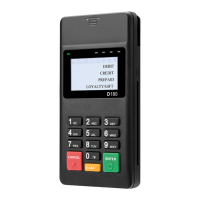

 To Next Page