CREDIT OR DEBIT CARD VOID
NOTE: Void is only for sales in the current batch (not settled)
1. Obtain customer copy of transaction receipt
2. Touch the Action button
on the main screen
3. Touch the Scanner button
4. Enter Merchant password and touch OK
5. Scan the receipt’s barcode with the terminal’s rear camera
6. Touch VOID
7. Confirm the transaction void request
8. The terminal prints merchant copy. To print customer copy,
press OK or CANCEL
TRAINING MODE
NOTE: You can’t start or leave training mode if a
settlement or pre authorization is pending. Do not forget to leave
the training mode to execute real transactions.
1. Touch the Action button on the main screen
2. Touch the Settings button
3. Enter Merchant password and touch OK
4. Touch Training Mode
5. Toggle Training Mode? to On or O
REPRINT RECEIPT
NOTE: Reprint receipt is only for sales in the
current batch (not settled)
1. Touch the Action button on the main screen
2. Touch the Settings button
3. Enter Merchant password and touch OK
4. Touch Reports and then touch Batch Details
5. Scroll to the transaction to reprint or search for the
transaction’s Invoice or Sequence number
6. Touch the transaction line
7. Touch REPRINT
8. The terminal reprints merchant copy. To reprint customer copy,
press OK or CANCEL
SETTLEMENT
1. Touch the Action button on the main screen
2. Touch the Settings button
3. Enter Merchant password and touch OK
4. Touch Settlement and then touch Process settlement
5. Touch PROCESS SETTLEMENT
6. The terminal prints the Totals at Settlement report
REPORTS
1. Touch the Action button
on the main screen
2. Touch the Settings button
3. Enter Merchant password and touch OK
4. Touch Reports
5. To view individual transactions, touch Batch Details
a. Touch the Search icon to search transactions by Invoice
or Sequence number
b. Touch the Print icon to print the Detailed Report
6. To view a transaction summary by payment type,
touch Batch Summary
a. Touch a payment type to view transaction information
including number of sales, refunds, tips, cashbacks, fees, and
the payment type total.
b. Touch PRINT to print the Summary Report
7. Touch the back arrow icon to return to the Reports menu
CHANGING THE LANGUAGE
1. Touch the Action button
on the main screen
2. Touch the Settings button
3. Enter Merchant password and touch OK
4. Touch Terminal Options
5. Touch Set merchant language
6. Select English or French
CHANGING THE TERMINAL APPEARANCE
1. Touch the Action button
on the main screen
2. Touch the Settings button
3. Enter Merchant password and touch OK
4. Touch Terminal Options
5. Scroll to Dark theme
6. Toggle Dark theme to On to use the Dark theme
or to O to use the Light theme
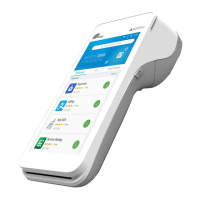
A920
Quick Reference Guide
For assistance contact us
1 888 800 6622
support@payfacto.com


 To Previous Page
 Loading...